Strip the background from a video clip, leaving the subject isolated.
Remove Video Background detects the subject in a video and removes everything else, frame by frame. The result is a video of the isolated subject that you can layer over other content. This is a direct canvas operation, so you do not need to send a prompt to the agent.
Using canvas tools directly gives you more control and uses significantly fewer credits than sending a prompt to the agent. For background removal, always use this tool instead of asking the agent.
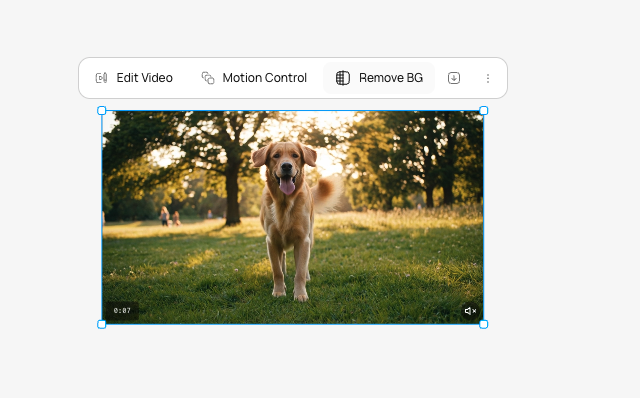
Open the canvas and click the video you want to edit. The video editing toolbar appears.
2
Click Remove Background
In the toolbar, click the background removal option. The AI processes the video frame by frame.
The video toolbar with the background removal option.
3
Wait for processing
Background removal takes longer than image background removal because every frame is processed individually. A placeholder appears on the canvas while it runs.
4
Review the result
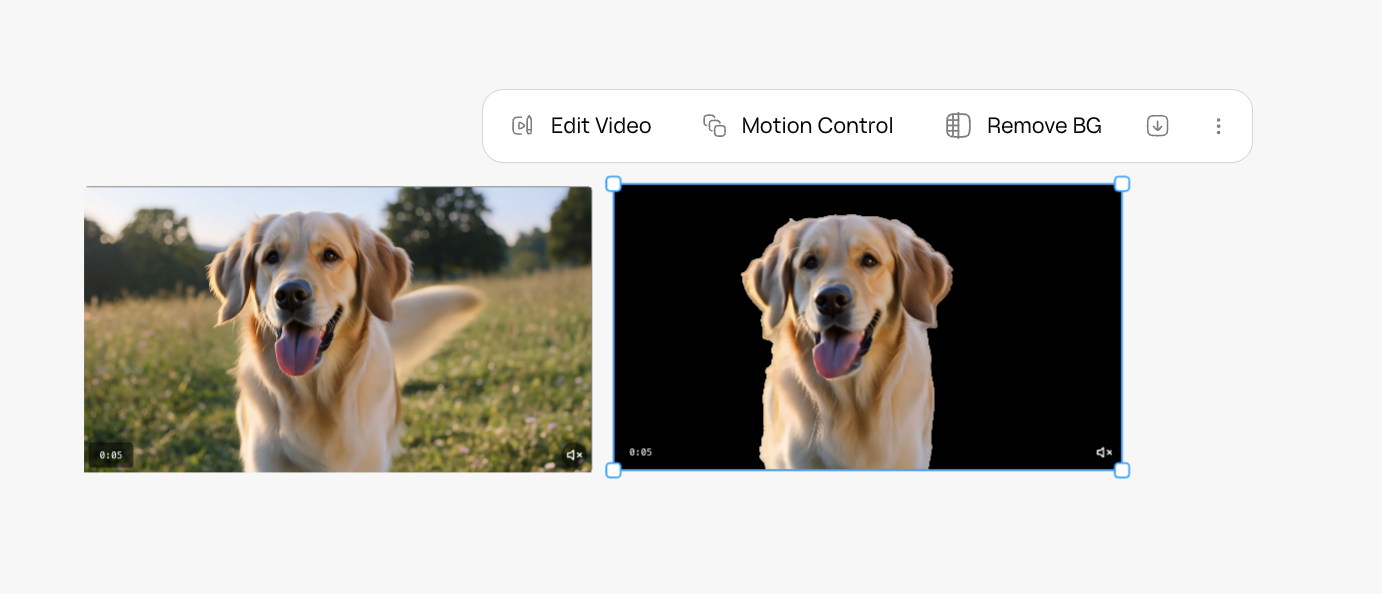
A new video appears on the canvas with the background removed. Your original video is preserved as a separate item.
Before and after: the original video alongside the version with background removed.
Remove Video Background creates a new canvas item. It does not overwrite the original. You always keep both versions.
You cannot select which parts of the background to keep. The AI removes the entire background.
You cannot replace the background with a new scene in a single step (unlike images). Remove the background first, then composite in an external editor.
You cannot adjust the quality of edge detection after processing.