Add Runable to your Slack workspace. Invite the bot to channels so your team can interact with it.
Slack integration adds the Runable agent to your workspace. Invite the bot to any channel and your team can interact with it. Every conversation is threaded to keep your channels clean.
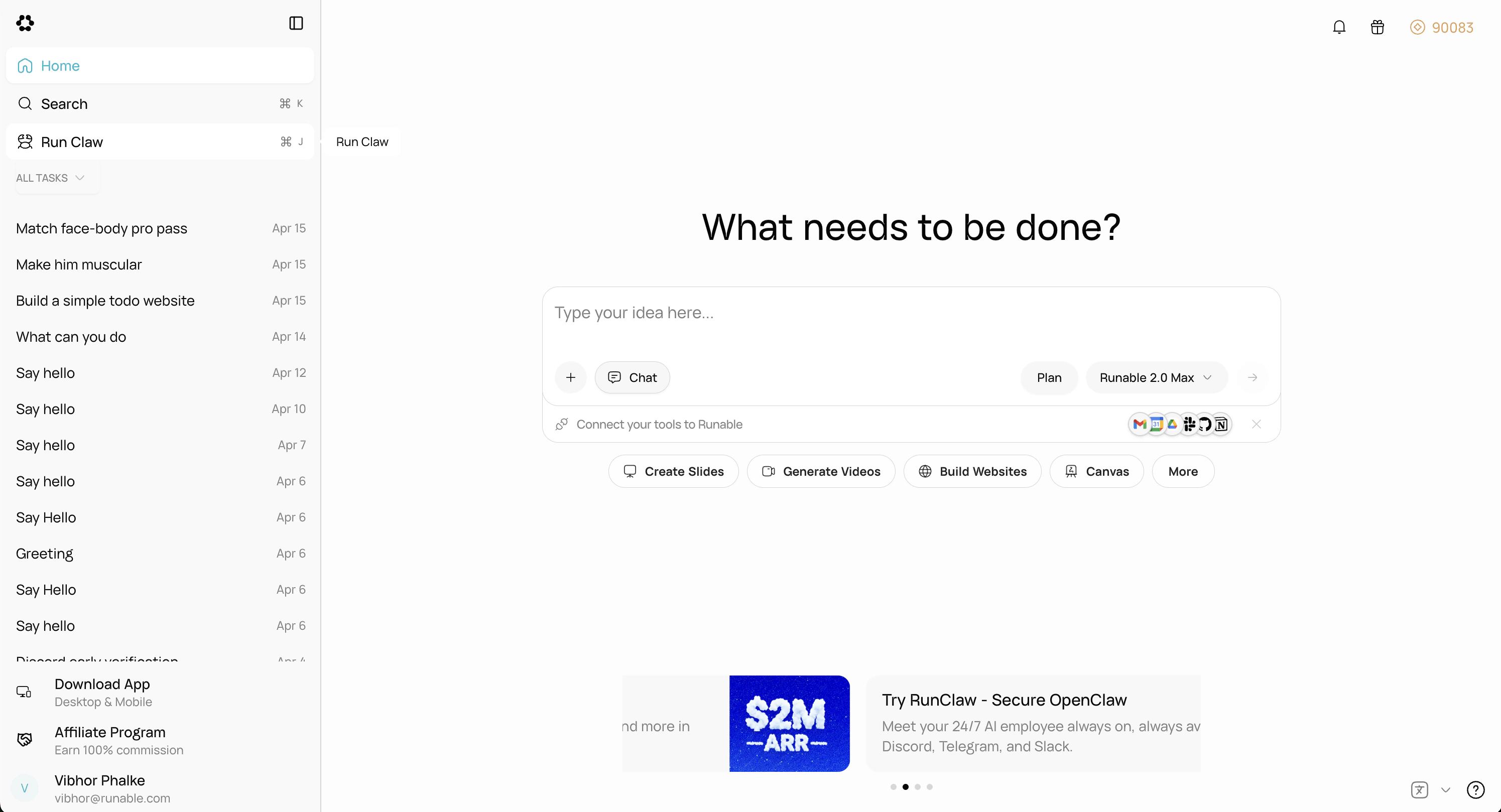
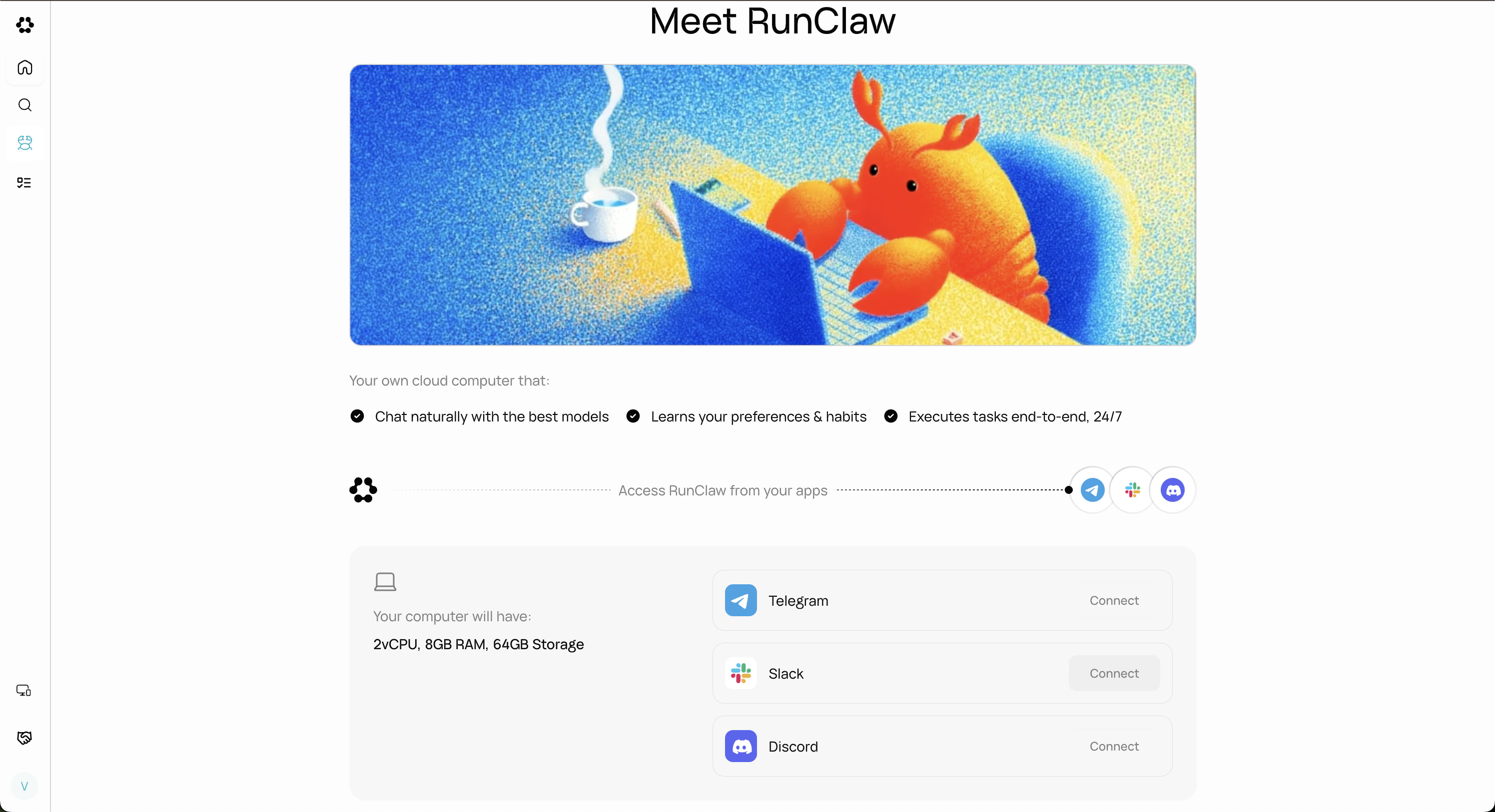
In the Runable web app, go to Sidebar → Run Claw. You can also go to Settings → Runclaw and find same option there.
2
Connect Telegram
Click the Connect button on the Slack card.
The Slack OAuth authorization page asking for workspace permissions.
3
Approve the permissions
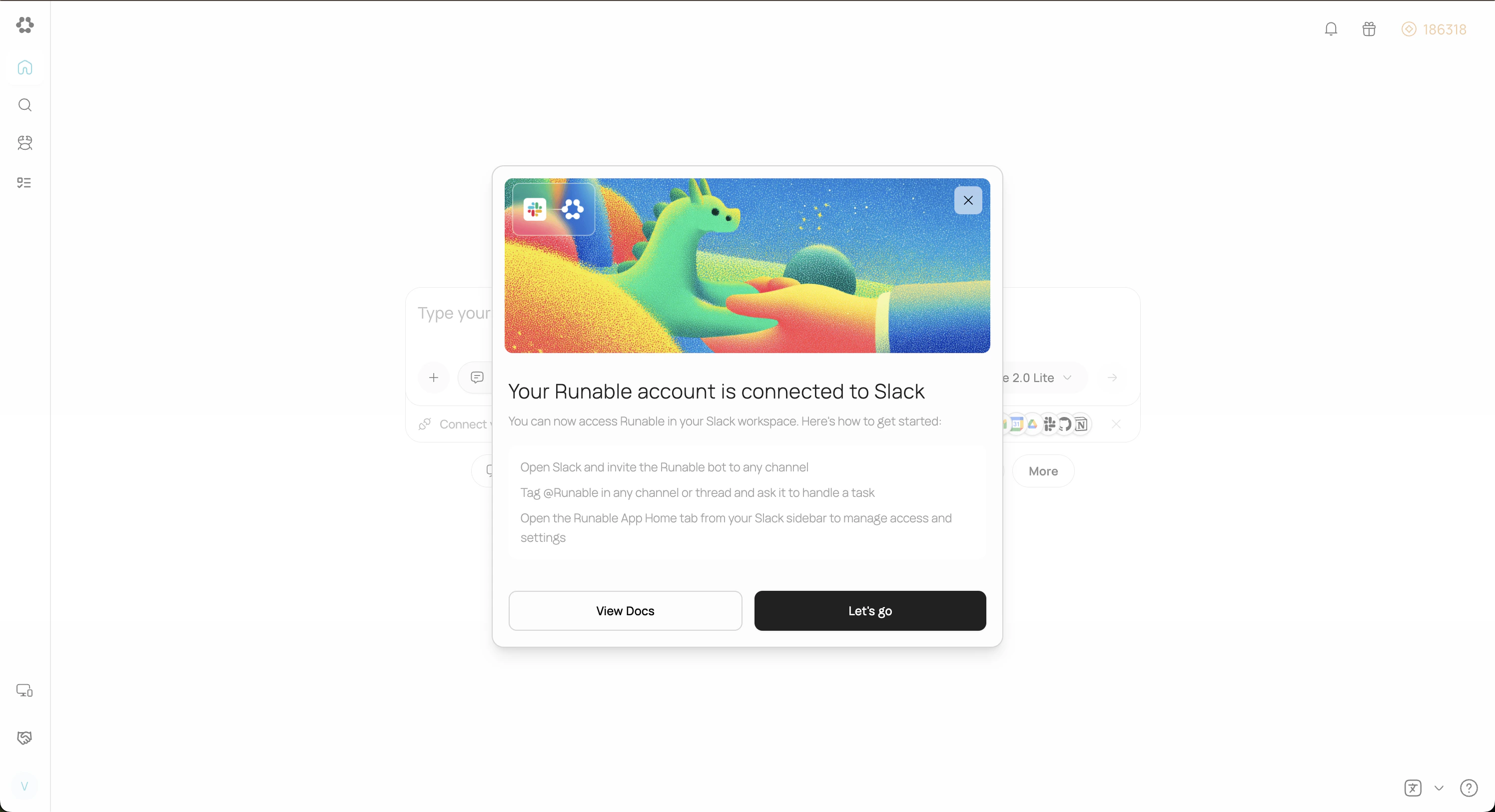
You’ll be redirected to Slack’s OAuth screen. Review and approve the requested permissions. The Runable app is then installed in your workspace automatically, and you’ll be redirected back to Runable where following confirmation popup appears.
4
Invite the bot to a channel
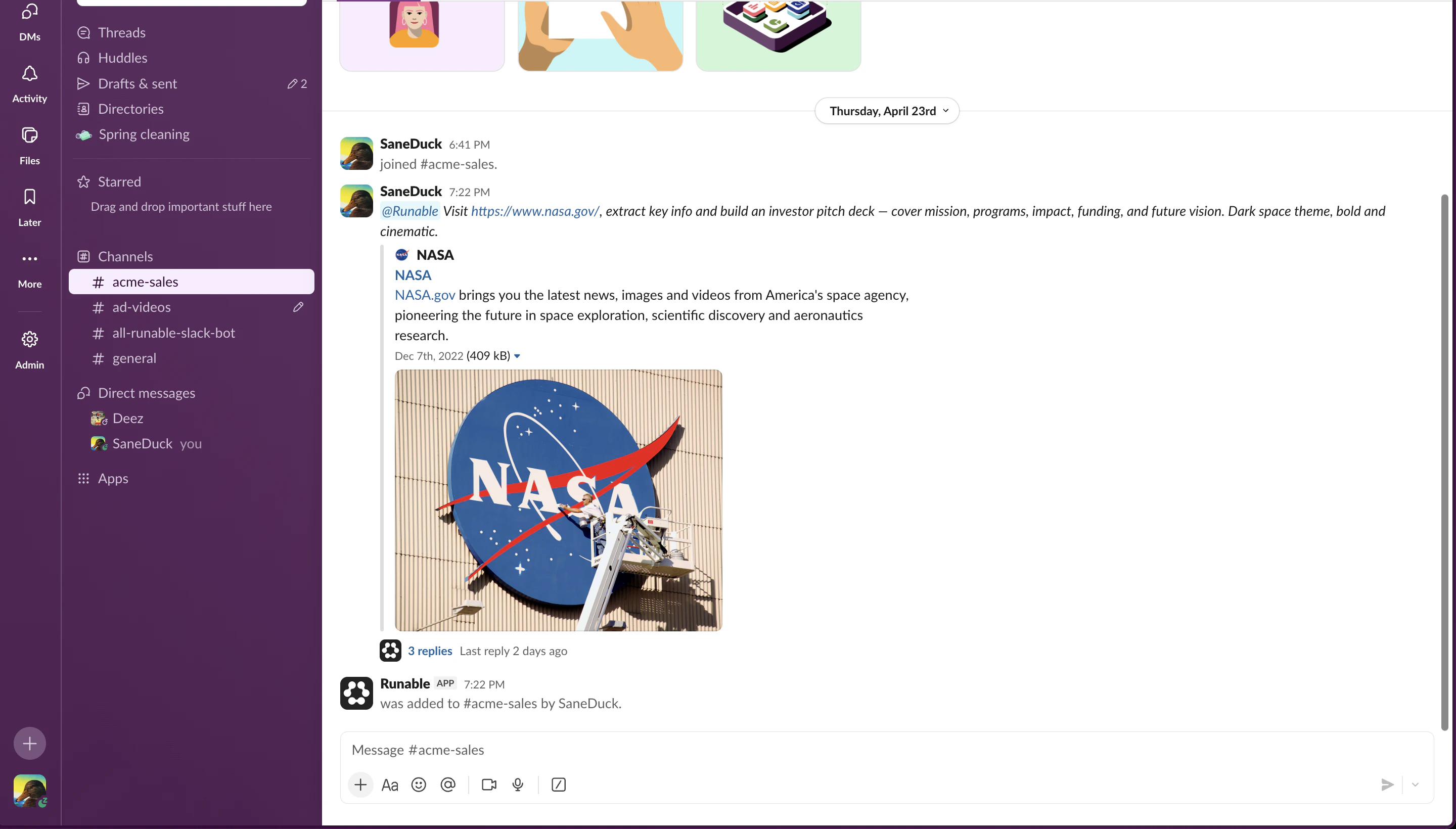
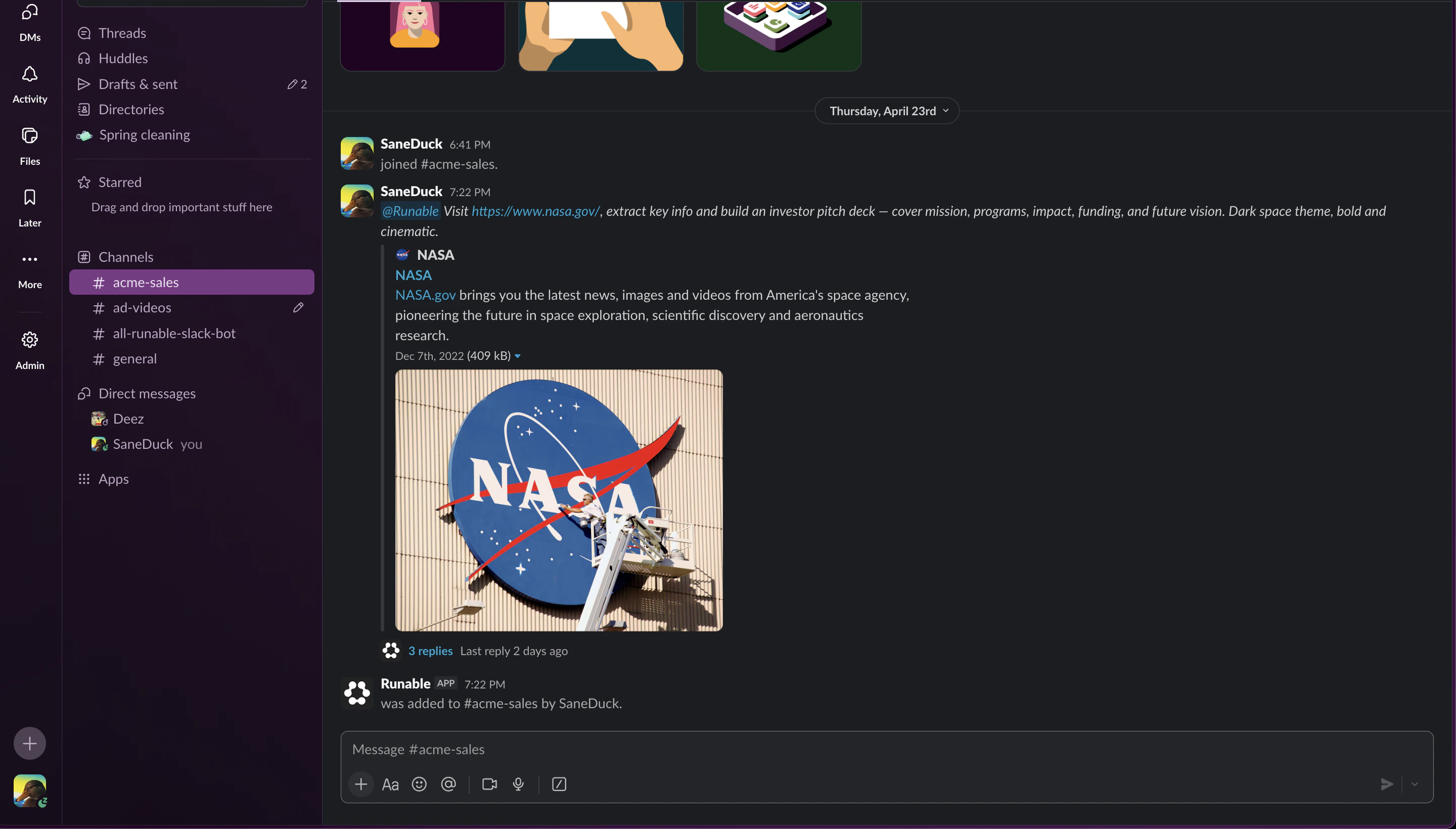
Open the Slack channel where you want to use Runable. Invite the bot by mentioning @Runable or by adding it through the channel’s integration settings. The bot is now active in that channel.
5
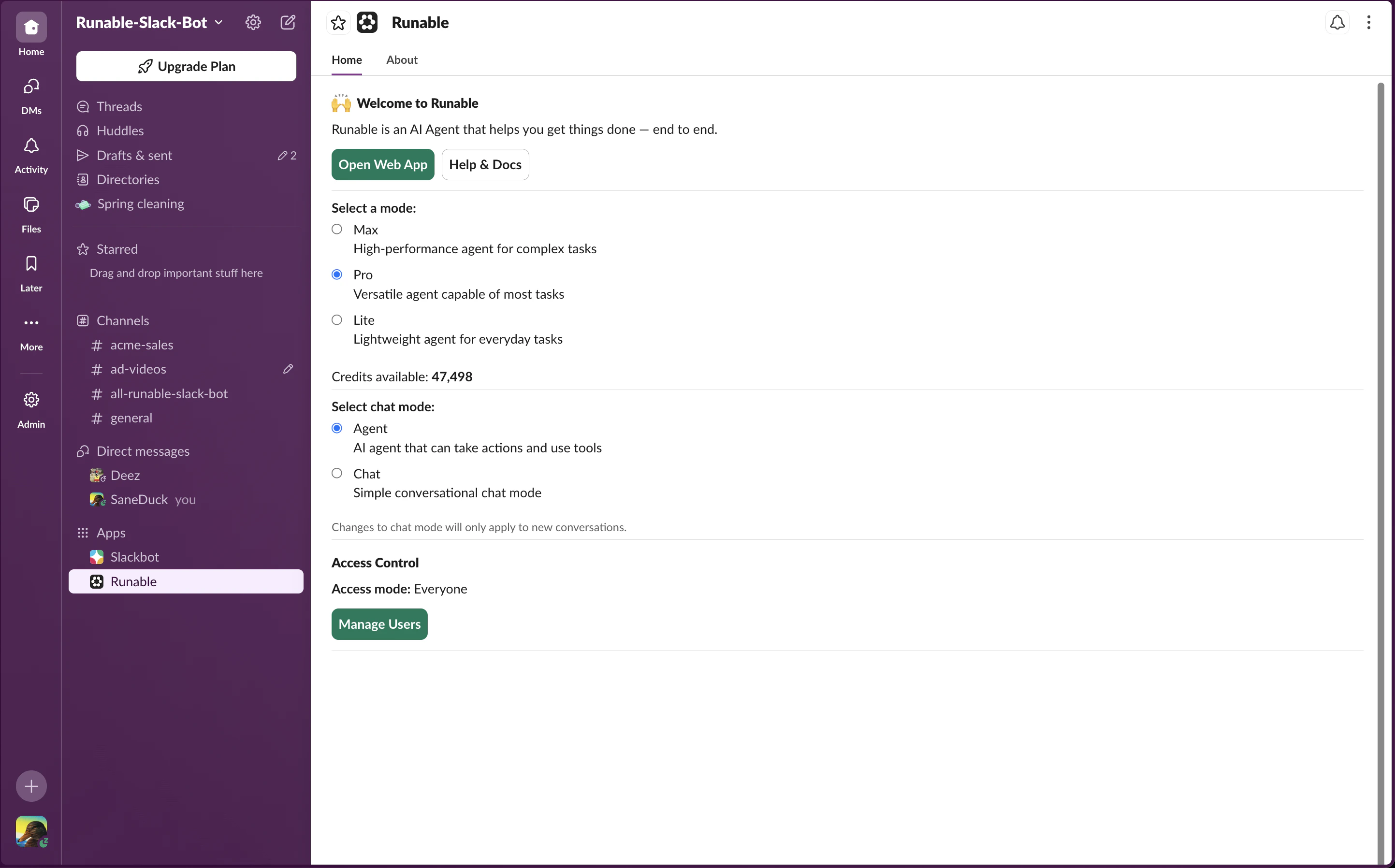
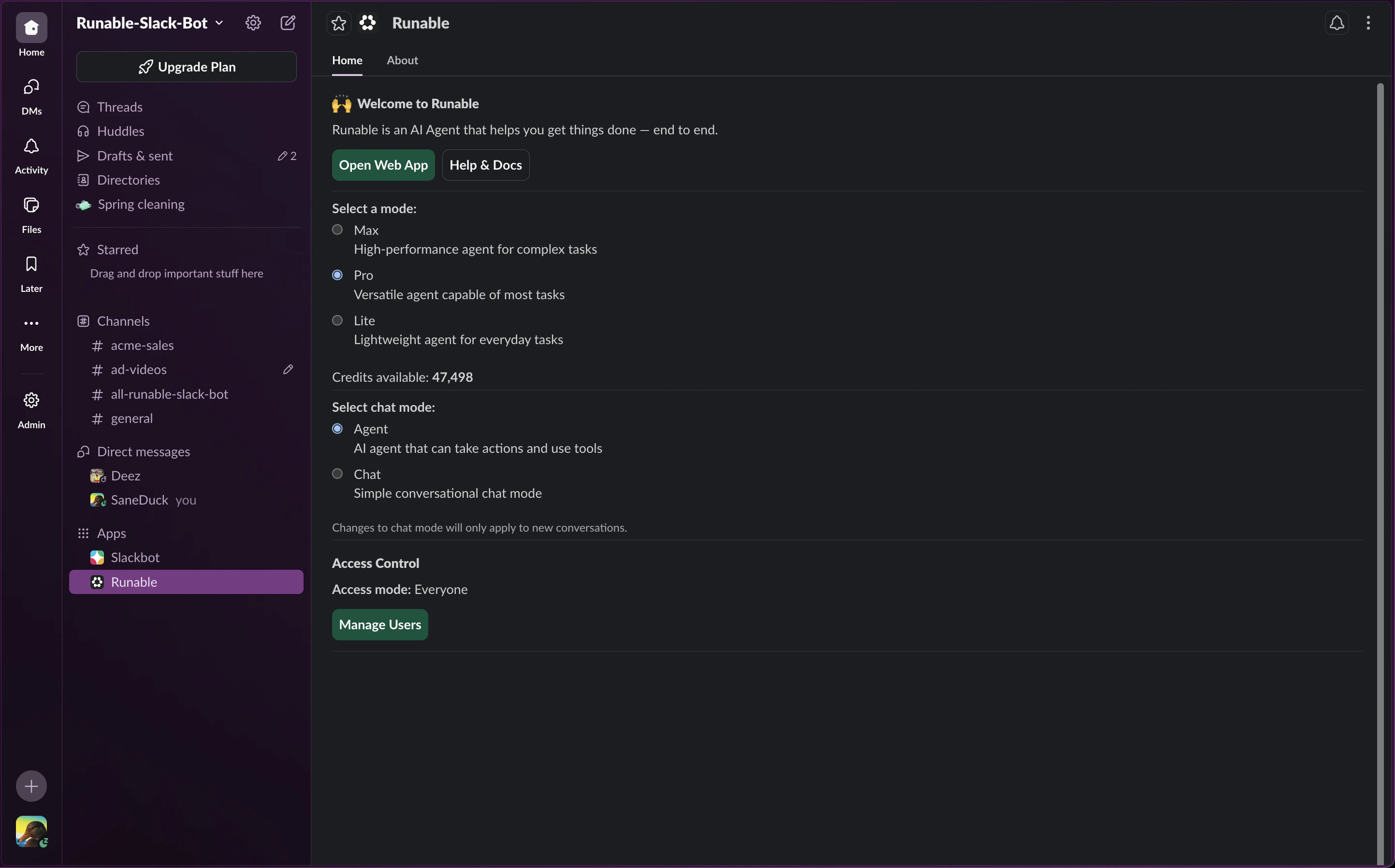
Manage Settings
All Runable settings live in the App Home tab. From there you can switch the chat mode, pick the model tier and chat model, and set access control for who in the workspace can use Runable. Only the user who connected their Runable account to the workspace can see and change these settings.
Attach files to your messages the way you normally attach files in Slack. The agent receives and processes all file types: images, PDFs, spreadsheets, code files, and more.
When one user installs Runable on a Slack workspace, members in the server can use the bot. All usage is billed to the account that installed it.
When another user connects their Runable account to the same Slack workspace, they replace the previous owner. Billing then moves to their account.
Runable only processes messages that mention it directly. It does not see the surrounding thread or conversation history. Thread context is a planned feature.