
Troubleshooting Guide
This guide helps you identify and resolve the most common issues encountered while using Runable. Whether you’re publishing a website, generating code, creating videos, or working with AI agents, start here before contacting support.Before You Begin
Before troubleshooting: ✅ Refresh the page ✅ Check your internet connection ✅ Save your latest work ✅ Review any error messages ✅ Retry the task once If the issue persists, continue below.Let the AI Help You Troubleshoot First
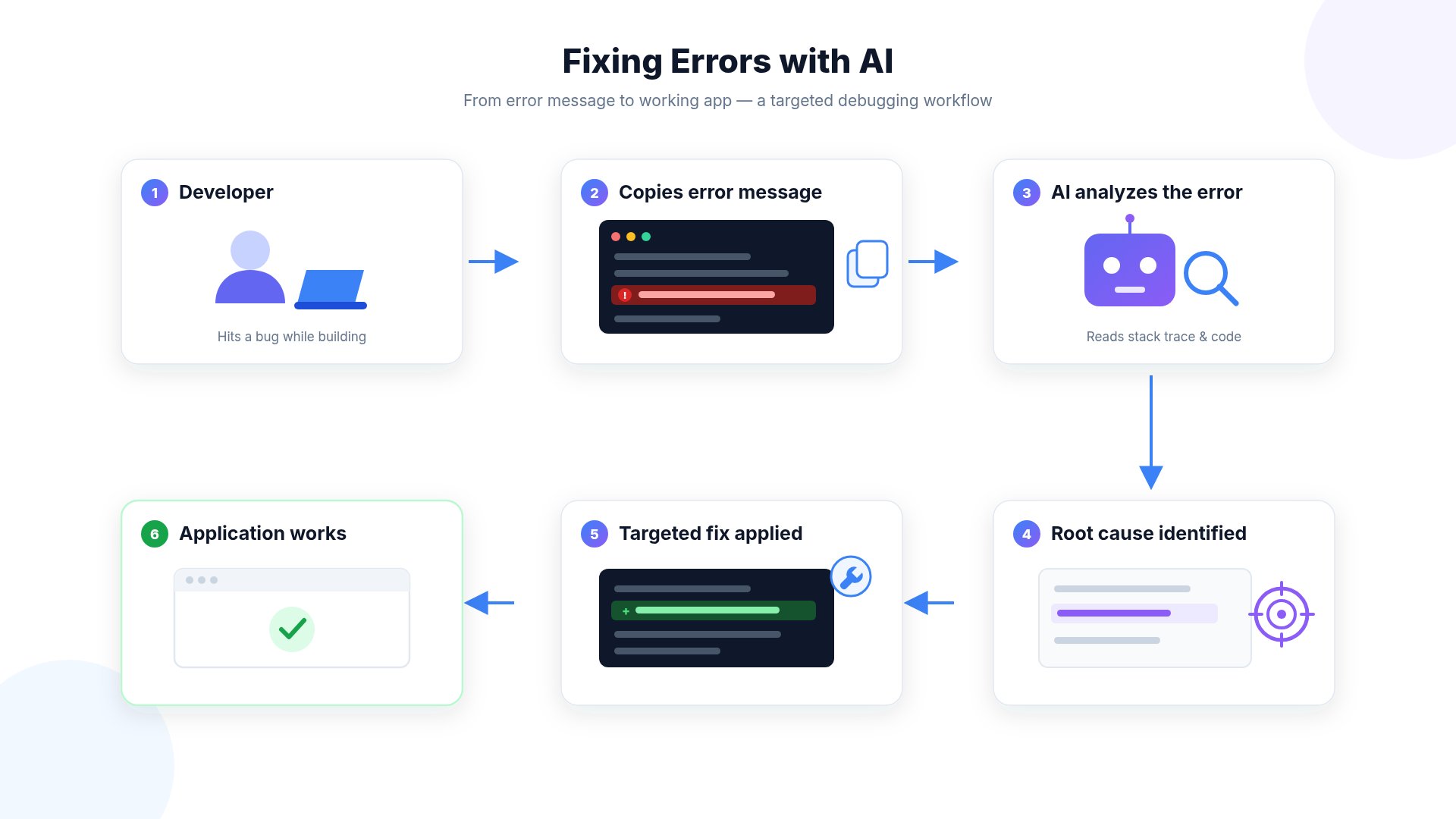
Instead of
Providing the complete error message helps the AI identify the root cause much more accurately than a general description.
Ask the AI to Investigate Before Making Changes
Instead of asking the AI to immediately rewrite or regenerate code, ask it to investigate first. Example:If the Chat Stops Responding
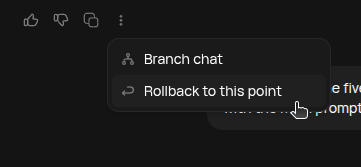
- Roll back to the last point where the chat was working correctly.
- Continue the conversation from that point.
- Reapply your recent changes using smaller, more focused prompts.
Before Contacting Support
If the AI is unable to resolve the issue, our support team will be happy to help. To investigate efficiently, please include:Shared Chat Link
Share your Runable chat in Shared Mode so our team can review the full project context.
Error Message
Include the complete error message or stack trace exactly as shown.
Screenshots
Attach screenshots of the error or unexpected behavior.
Steps to Reproduce
Explain what you were doing when the issue occurred and how we can reproduce it.
Expected Result
Describe what you expected to happen.
Actual Result
Describe what actually happened.
Support Checklist
Before opening a support request, please confirm:- I provided the complete error message to the AI.
- I asked the AI to investigate before making changes.
- I tried the suggested fix.
- I reviewed the latest generated output.
- I rolled back if the conversation became stuck.
- I generated a Shared Mode chat link.
- I have screenshots or error messages ready.
Website Won’t Publish
Possible Causes
- Build failed
- Missing dependency
- Invalid code
- Unsupported package
- Health Check failed
- Build timeout
How to Fix
- Open Preview.
- Review build errors.
- Fix reported issues.
- Publish again.
Large AI-generated code changes may occasionally introduce build issues that require review before publishing.
Health Check Failed
Health Checks verify that your project is ready for deployment. Common causes:- Missing imports
- Broken routing
- Dependency conflicts
- Invalid project structure
- Build errors
Recommended Steps
- Review recent changes.
- Revert large modifications if necessary.
- Fix reported errors.
- Republish.
HTTP 500 Error
A 500 Internal Server Error usually indicates that something inside your application failed during execution. Possible causes include:- Application code errors
- Backend exceptions
- Invalid API configuration
- Environment variables
- Database connection issues
- Third-party integrations
Recommended Steps
- Check browser console.
- Review server logs.
- Verify API configuration.
- Verify environment variables.
- Retry after fixing the underlying issue.
Deployment Failed
Deployment failures may occur because of:- Failed Health Check
- Missing dependencies
- Build timeout
- Unsupported configuration
- Runtime errors
Recommended Steps
- Ensure Preview builds successfully.
- Resolve lint errors.
- Verify dependencies.
- Publish again.
AI Didn’t Complete My Task
Sometimes AI generation may stop before completing the requested work. Possible reasons:- Task complexity
- Insufficient available credits
- Very large project
- Multiple files requiring modification
Recommended Steps
- Break the task into smaller requests.
- Continue from the previous generation.
- Improve prompt specificity.
AI Changed Unrelated Files
Large prompts can sometimes affect unrelated parts of your project. Instead of:AI Generated Incorrect Results
If the output isn’t what you expected:- Add more context.
- Include examples.
- Upload references.
- Specify constraints.
- Refine your prompt instead of starting over.
Chat Is Stuck
If the AI stops responding: Try:- Refreshing the page.
- Sending another message.
- Waiting a few moments.
- Starting a new conversation if necessary.
Credits Were Consumed But Task Didn’t Finish
Very large or resource-intensive tasks may require more credits than are currently available. When credits are exhausted:- The AI may stop.
- Partial work may still be available.
- Continue from the last completed step after adding more credits or simplifying the task.
Images Don’t Look Correct
Try:- Better prompt
- Reference images
- Specific art style
- Camera angle
- Lighting
- Aspect ratio
Video Doesn’t Look Correct
Current AI video models work best with:- Short text
- Clear instructions
- Simple layouts
- Readable subtitles
Website Looks Different After Publishing
Possible causes:- Browser cache
- CDN propagation
- Recent deployment
- Hard refresh
- Open in Incognito
- Wait a few minutes
- Publish again
Custom Domain Isn’t Working
Verify:- DNS records
- Root domain
- SSL provisioning
- Domain propagation
Build Suddenly Broke
Large AI-generated changes may occasionally affect project structure. If this happens:- Identify the recent change.
- Restore a previous working version if available.
- Apply changes incrementally.
Performance Is Slow
Large applications naturally require more processing. Improve performance by:- Splitting large tasks
- Removing unused code
- Optimizing assets
- Using smaller prompts
Still Need Help?
Before contacting support, please include: ✅ Project URL ✅ Screenshots ✅ Error messages ✅ Browser ✅ Steps to reproduce ✅ Prompt used This helps our team investigate your issue more efficiently.Related Guides
- Prompt Engineering Guide
- AI Limitations
- Understanding Credit Usage
- Website Hosting
- Billing Guide