Use Runable inside Microsoft Teams. Chat with the agent in DMs, group chats, and channels.
The Teams integration brings Runable into Microsoft Teams. Once installed and connected, you can chat with Runable in personal chats, group chats, and channels. Just mention @Runable and ask it to do anything. Generated files like decks, documents, and reports are uploaded to your team’s SharePoint so you can open them natively in Microsoft 365.
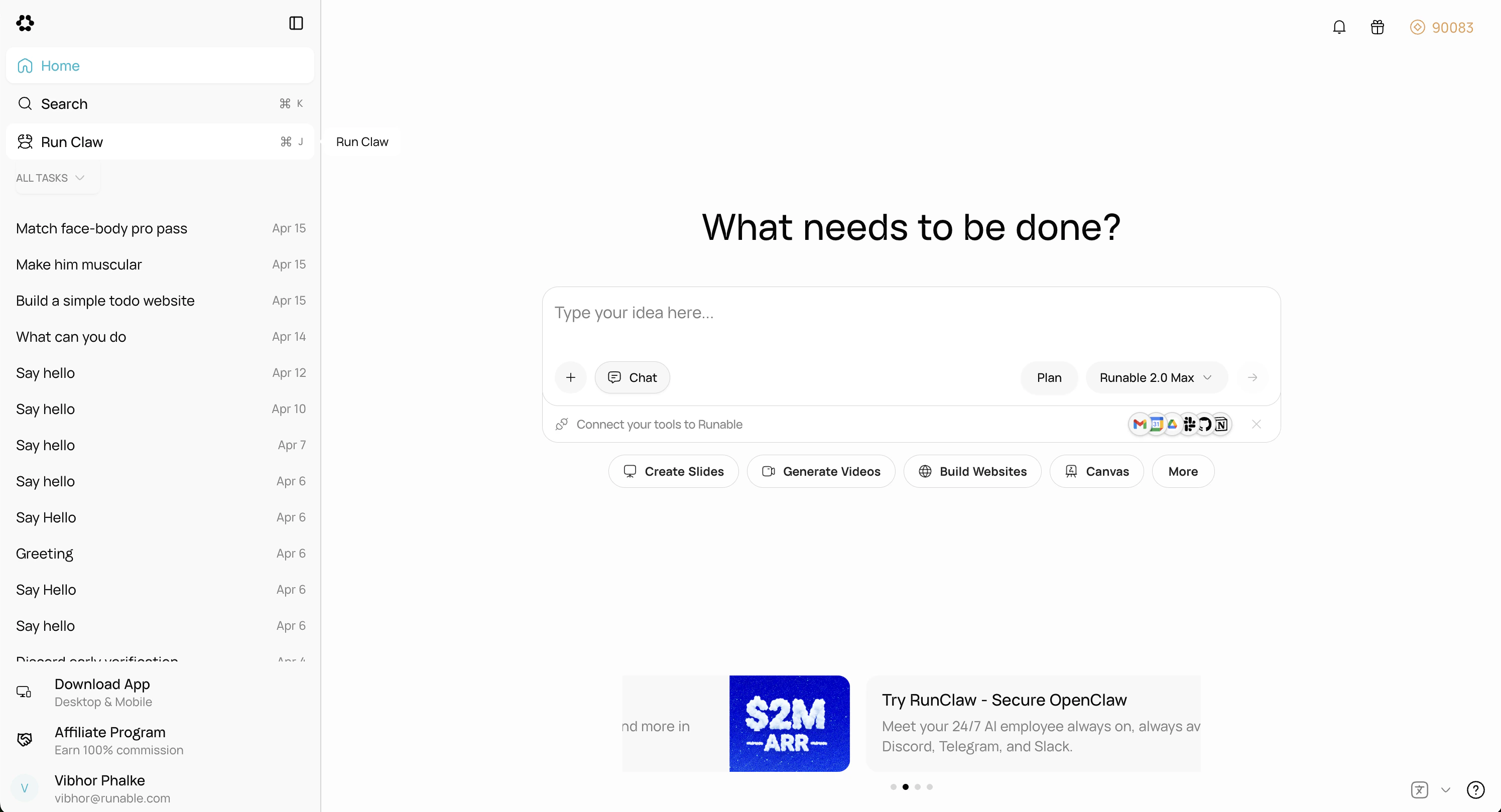
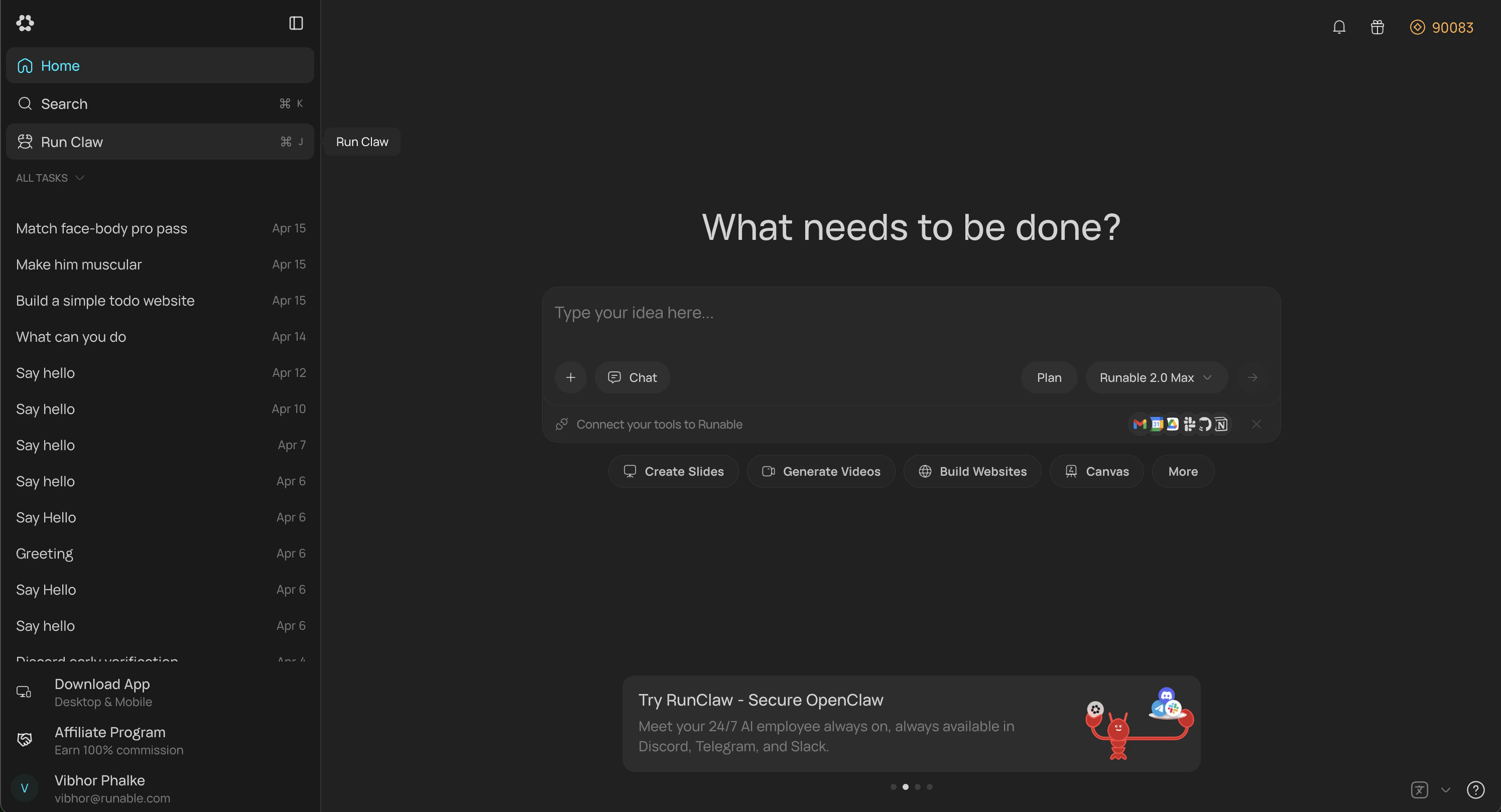
In the Runable web app, go to Sidebar → Run Claw. You can also go to Settings → Runclaw and find the Teams option there.
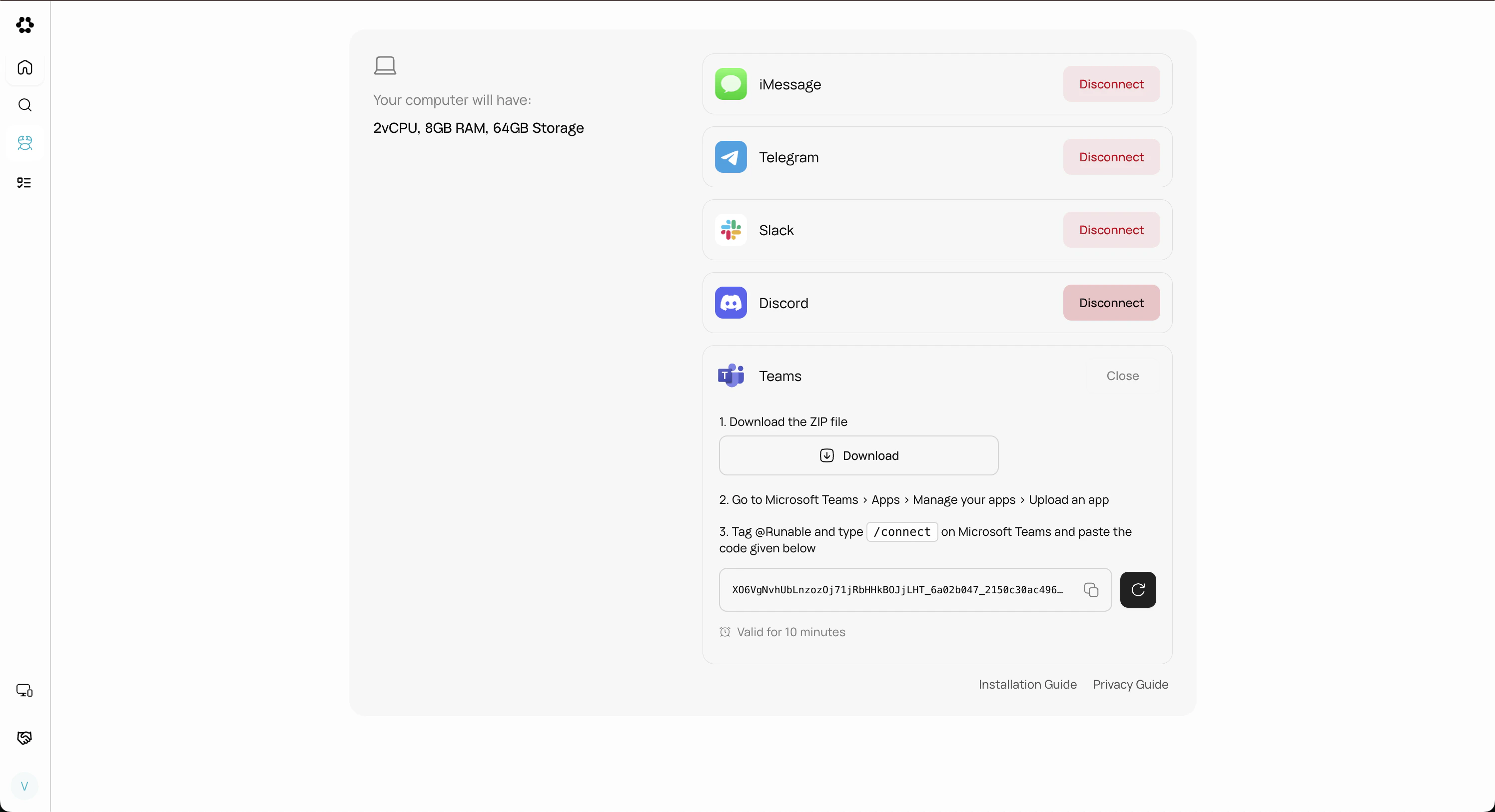
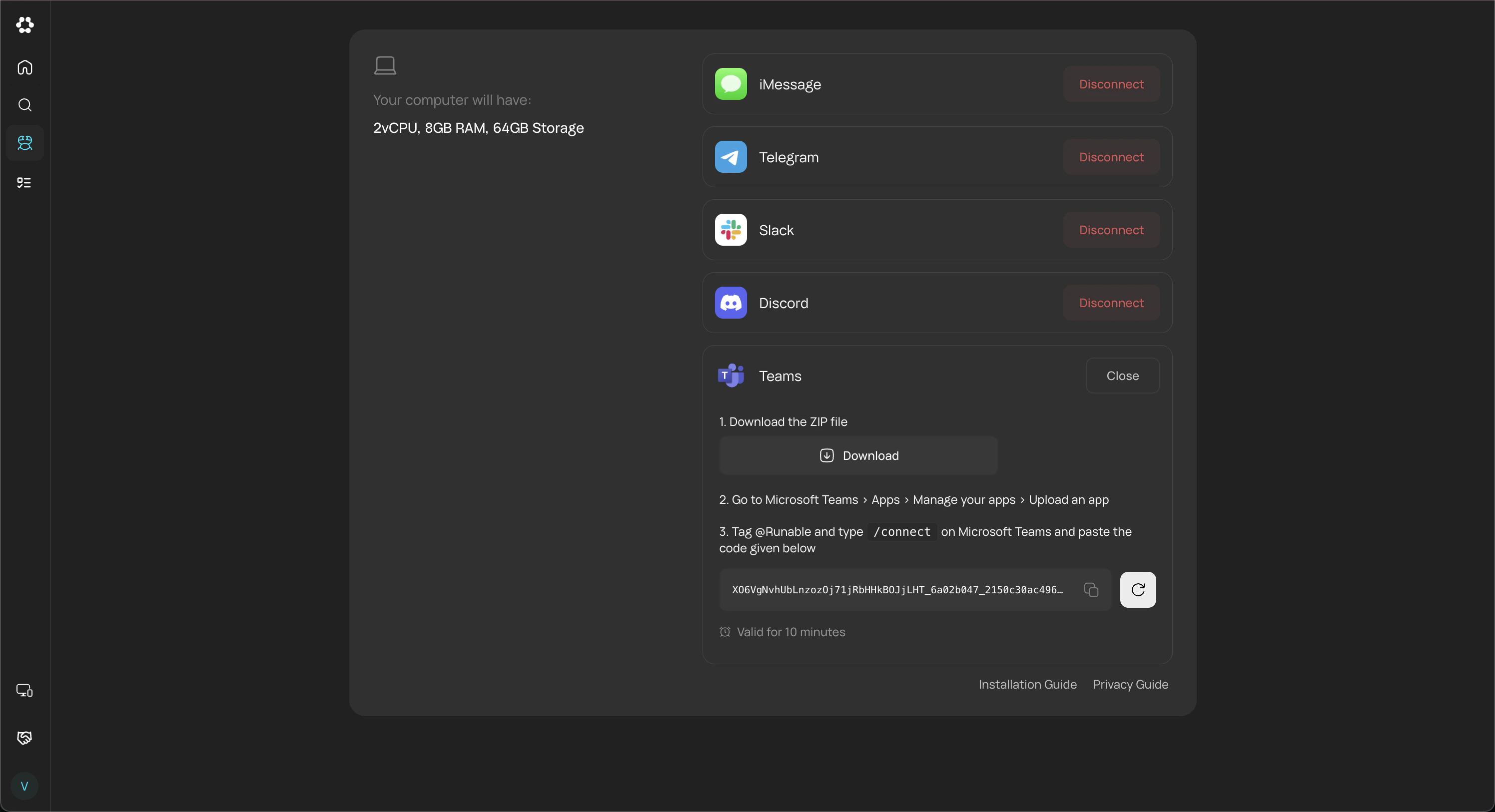
The Run Claw tab in Settings showing the Teams Connect button.
2
Connect Teams
Click the Connect button on the Teams card. You will get the Teams app package and a short lived connect token.
3
Install the app in Teams
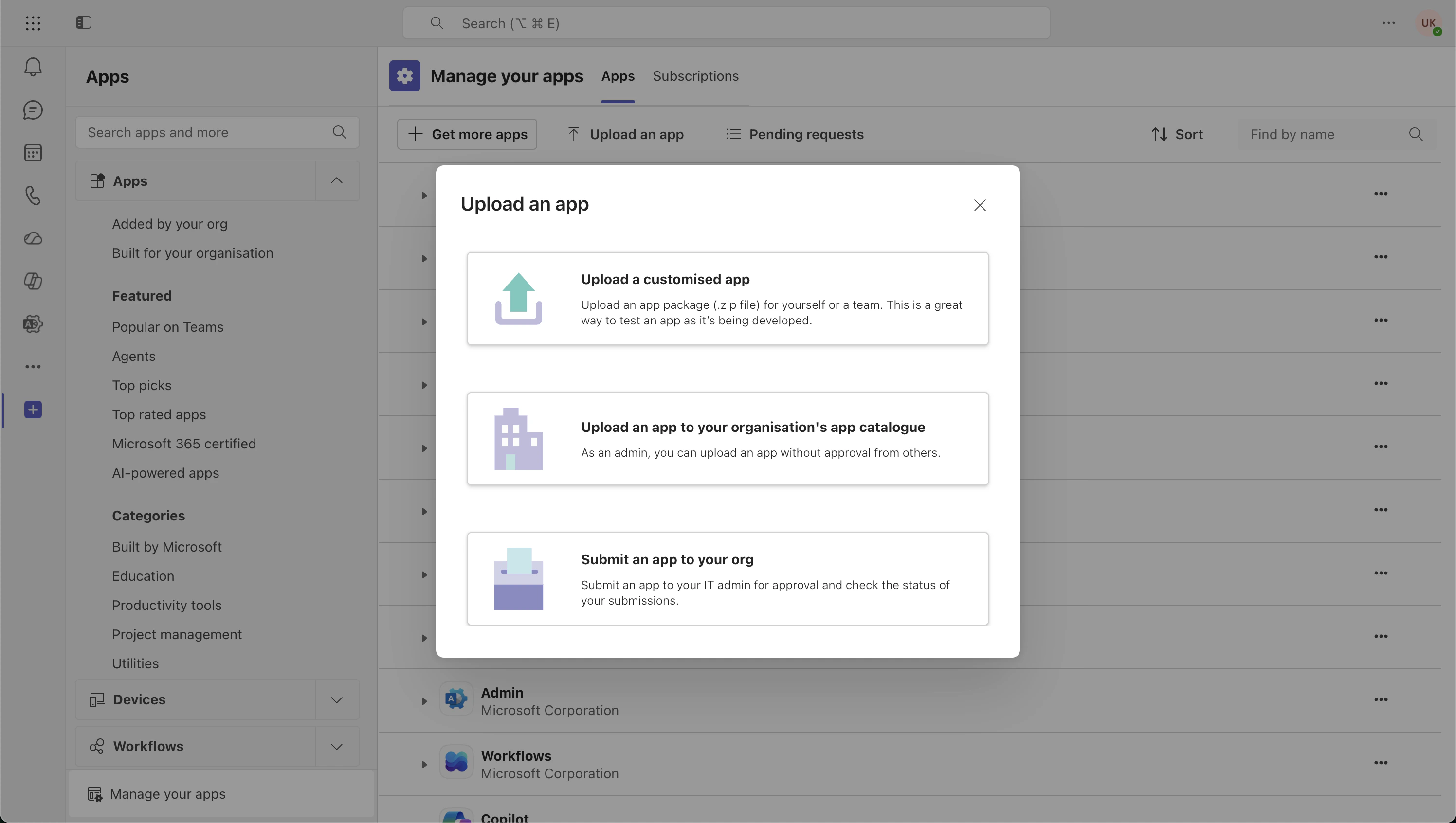
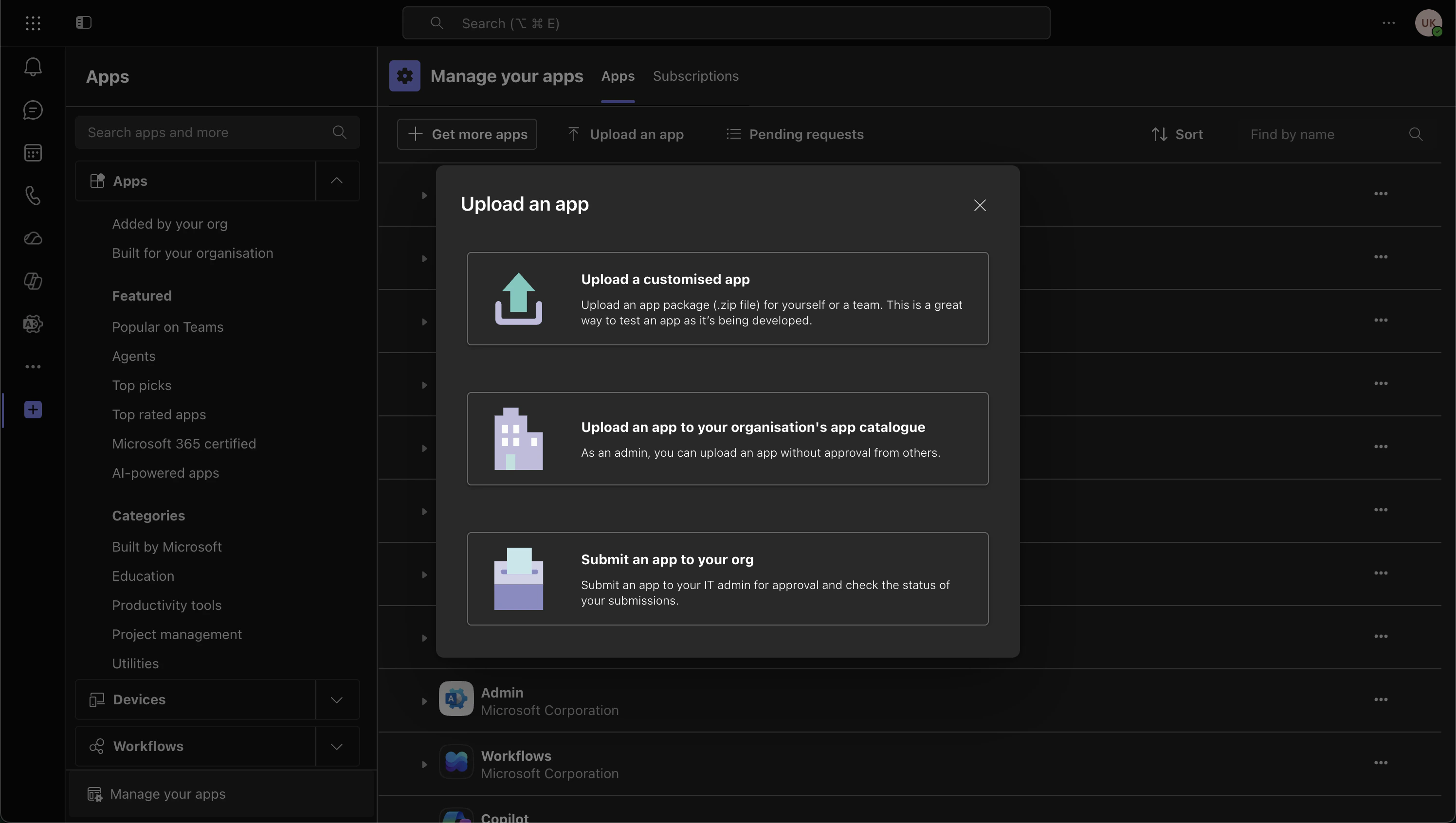
Upload the app package in Teams. Open Teams, go to Apps → Manage your apps → Upload an app, and pick the file you just downloaded to sideload your app.
4
Link your account
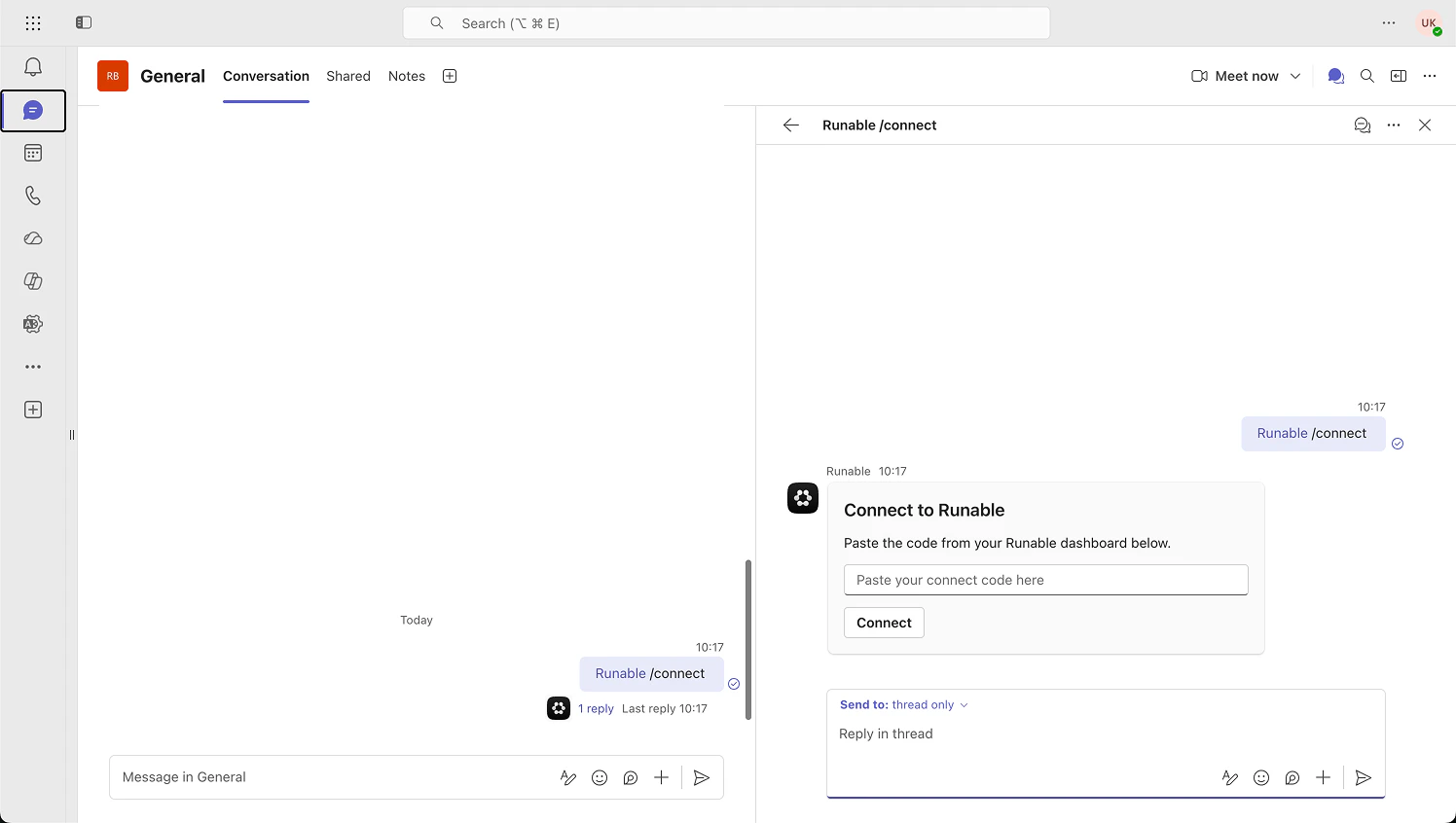
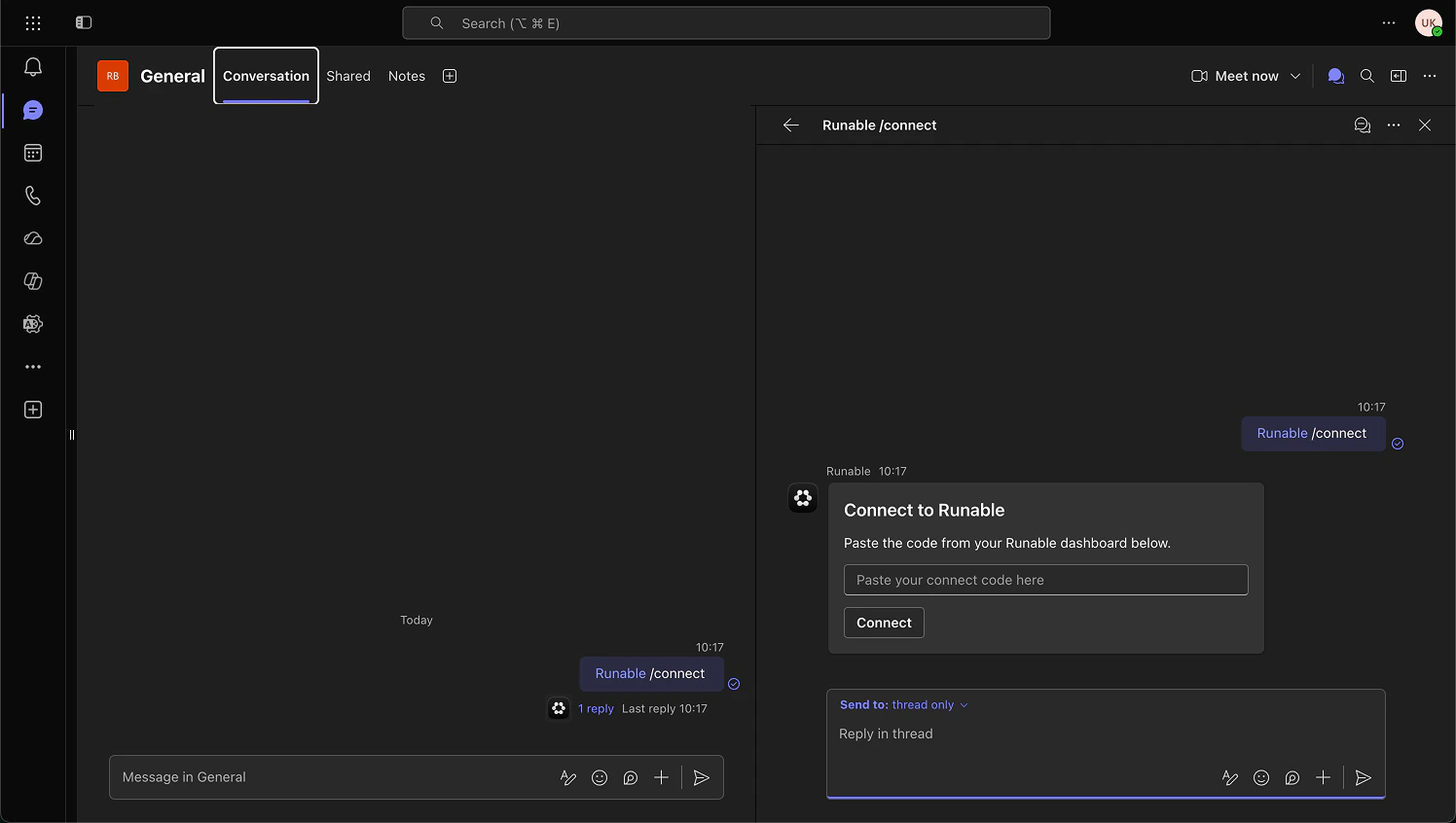
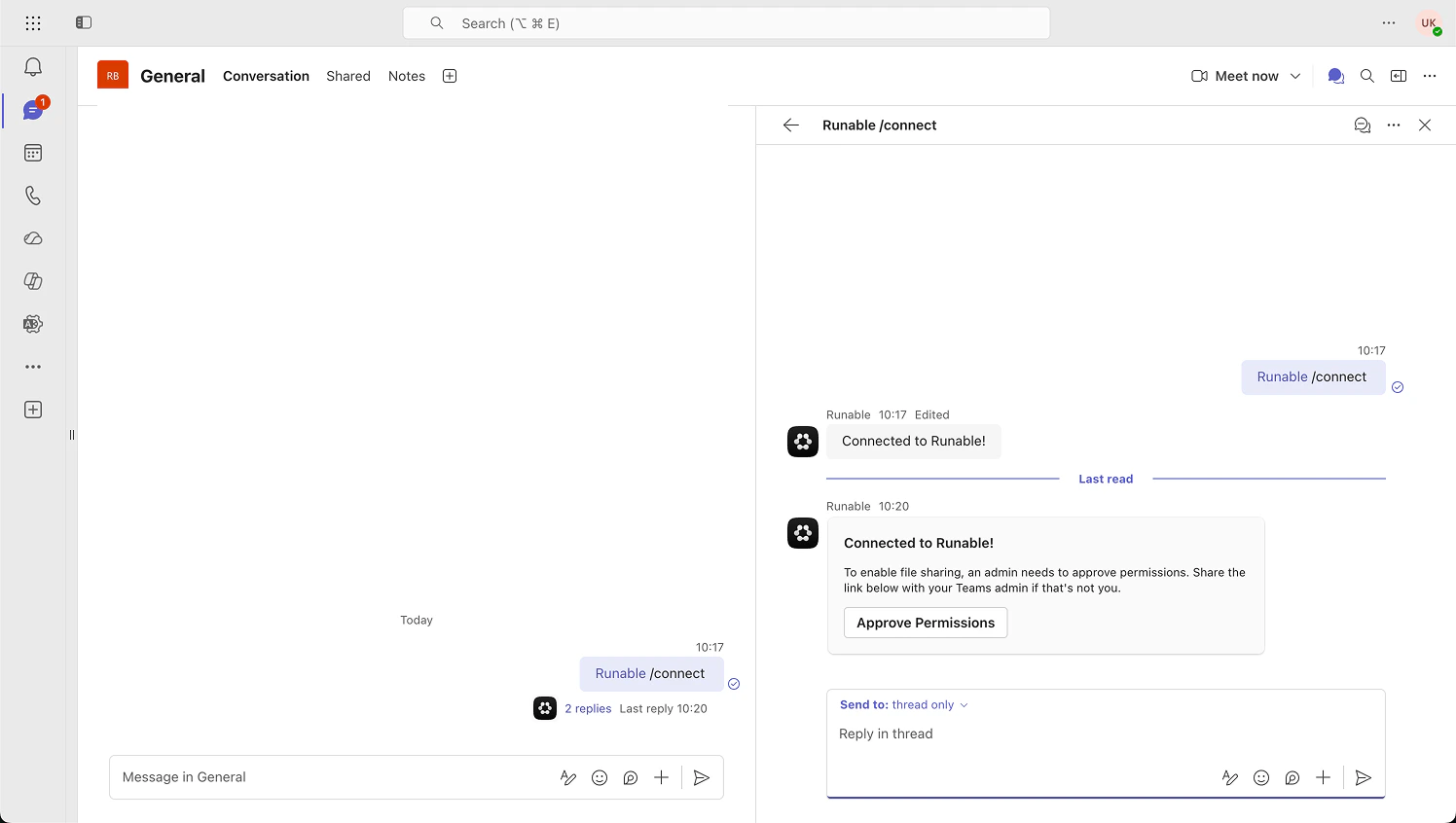
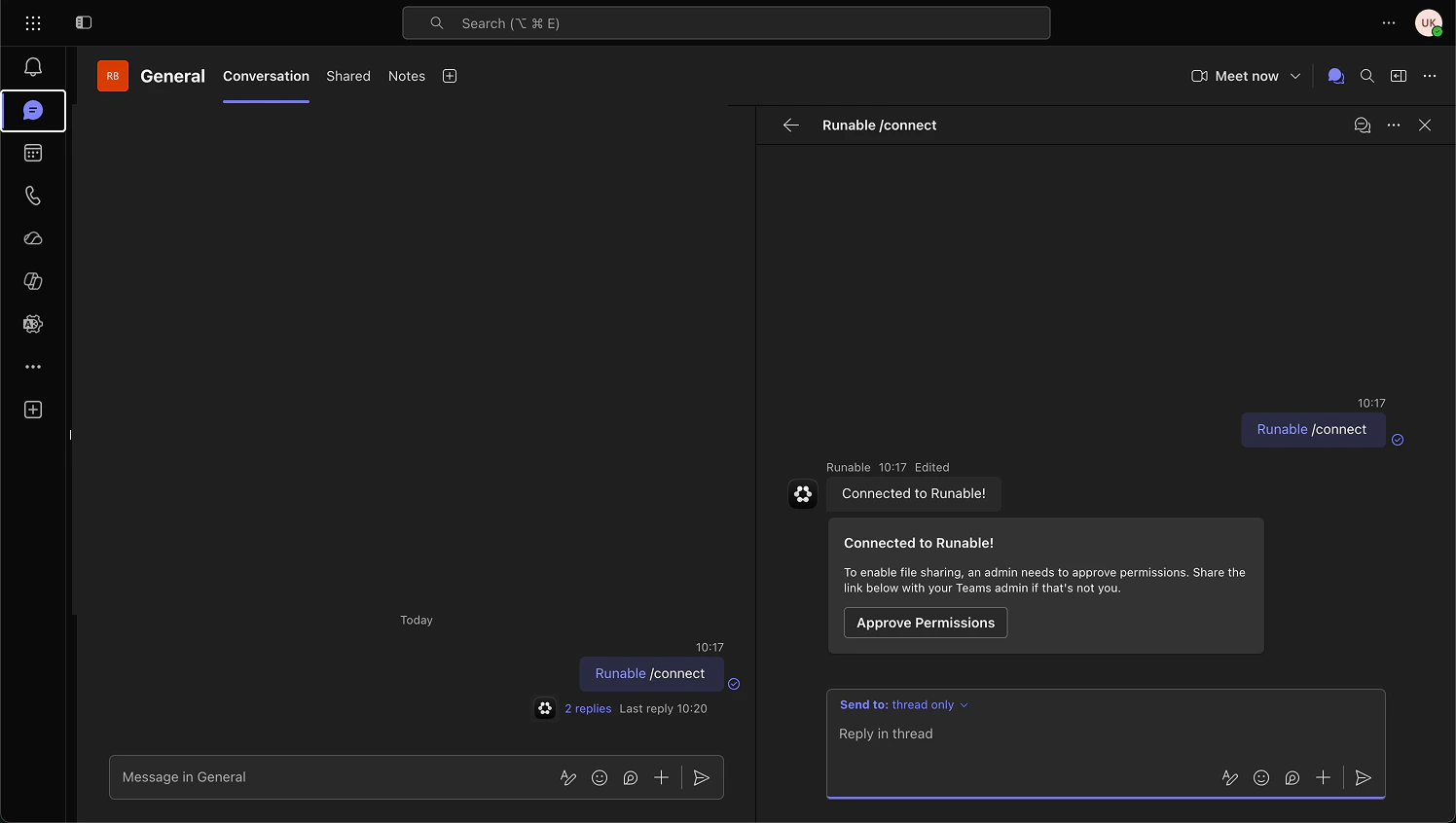
Open a chat with the Runable bot, mention @Runable, run /connect, and paste the token from the Runclaw page. The token expires in 10 minutes.
5
Approve admin permissions
After the connect succeeds, the bot will share an admin consent link. A Teams admin needs to open it once and approve. This let’s the bot read files in channels and group chats and upload generated files to your SharePoint. Without this, file features will not fully work.
6
Start Chatting
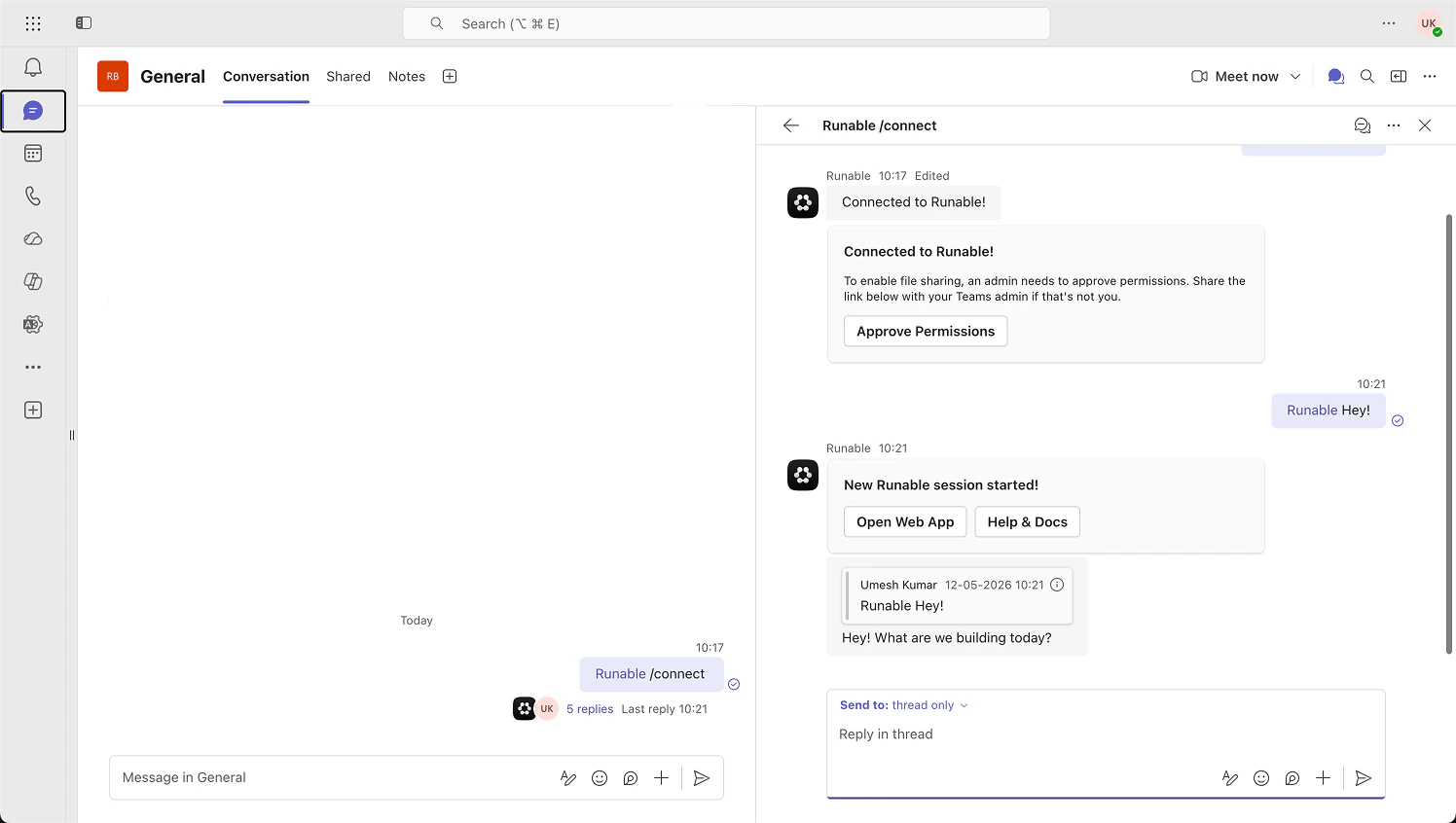
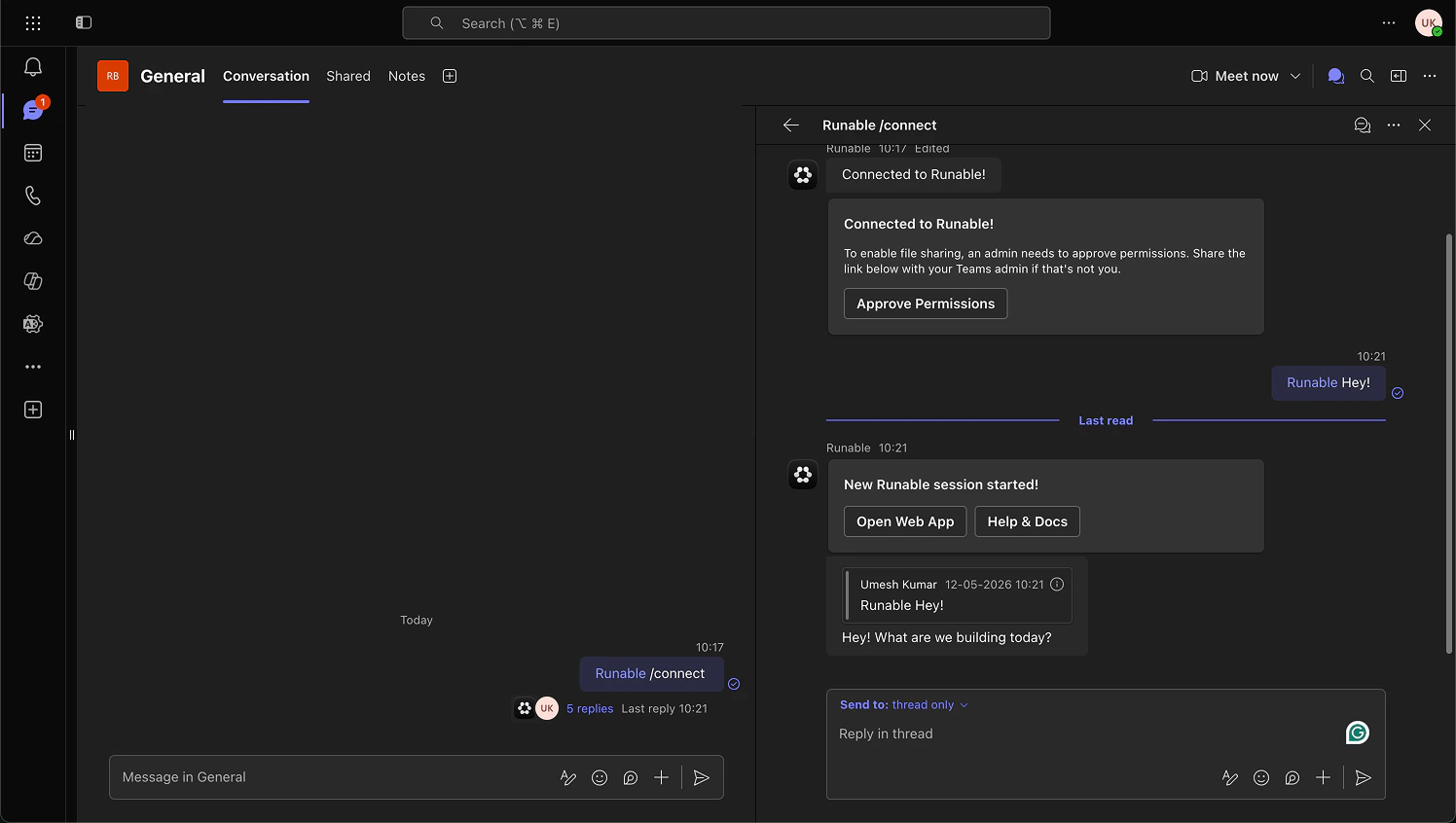
Mention @Runable in any DM, group chat, or channel and ask it to do anything.
Attach files to your messages the way you normally do in Teams. The agent receives and processes all file types. In DMs files come through directly. In group chats and channels the bot pulls them from SharePoint or OneDrive using the admin approved permissions.
When one user runs /connect in a Teams tenant, the whole workspace is linked to that user’s Runable account. Everyone in that tenant who uses the bot will run against that account, and all usage is billed to it.
Only the user who connected can change settings like chat mode, model tier, and chat model.
A Teams admin needs to approve the consent link once for file features in channels and group chats to work properly. Without it, file uploads in channels or groupa may be silently dropped and generated files will fall back to a web app link.
Generated files are uploaded to your team’s SharePoint so you can open them natively in Microsoft 365.
Runable only processes messages where you mention @Runable directly. It does not see the surrounding thread or conversation history. Thread context is a planned feature coming soon.