
How to configure SEO
1
Open the website dashboard
Go to the chat where your website was built. Click the Dashboard tab, then select SEO from the sidebar.
2
Set your site details
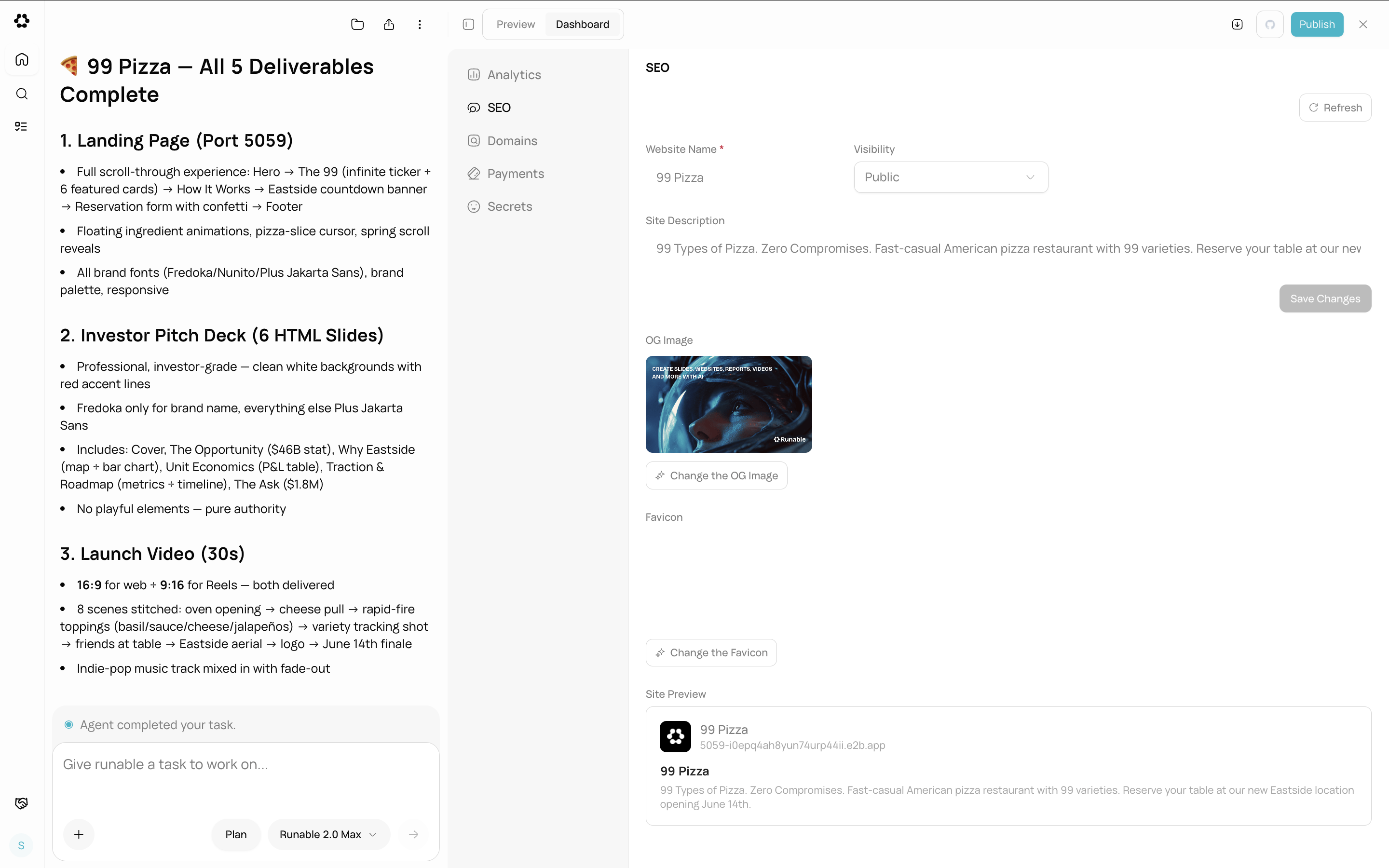
The SEO section of the website dashboard with name, description, OG image, and favicon fields.
3
Preview and save
The dashboard shows a live preview of how your site will appear in search results and social media shares. Make changes and they are saved automatically.
OG Image and Favicon
You can refresh the OG image and favicon from the dashboard. Click the Refresh button next to each preview to regenerate them from your current site content.What you cannot do
- You cannot set per-page meta tags from the dashboard. The dashboard controls site-wide defaults. The agent can add per-page meta tags in code.
- You cannot upload a custom OG image from your device through the dashboard. The OG image is generated from your site.
- You cannot add structured data (JSON-LD) from the dashboard. Ask the agent to add it in code.
Next steps
Website Analytics
Track visitors and events on your deployed site.
Deploy & Go Live
Publish your website to make SEO settings take effect.