Change the style, color grade, or content of an existing video using natural language.
Video editing lets you modify an existing video clip by describing what you want changed. The AI preserves the original motion and structure while applying your edits. This works both through the agent in the chat and directly on the canvas.
Using canvas tools directly gives you more control and uses significantly fewer credits than sending a prompt to the agent. For quick style changes, always use the canvas edit tool instead of asking the agent.
Open the canvas and click the video you want to edit.
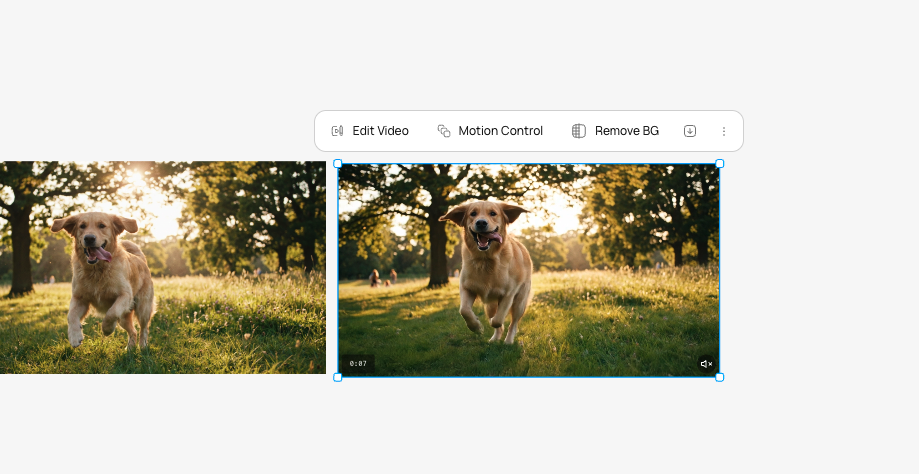
A video selected on the canvas with the editing options visible.
2
Click Edit
In the toolbar, click the edit option. A prompt field appears.
3
Describe the edit
Type what you want changed. The AI modifies the video while keeping the original motion intact.
Apply a color grade to a product video
Restyle a gym video to match brand aesthetics
Inject a logo into a video scene
Match a visual style from a reference image
You can also attach a style reference image. The AI matches the color palette and visual treatment of the reference.
4
Review the result
A new edited video appears on the canvas. Your original video is preserved as a separate item.
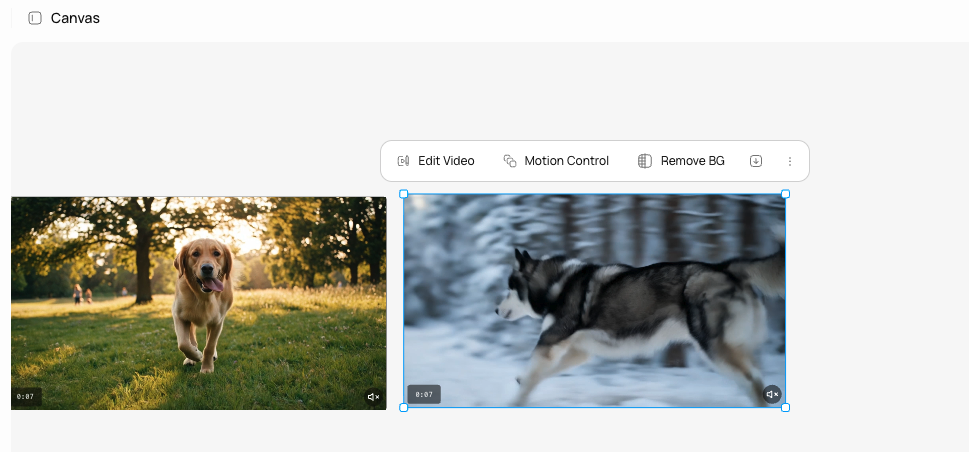
Before and after: the original video alongside the edited version.
Video editing creates a new canvas item. It does not overwrite the original. You always keep both versions. The edit preserves the original audio by default.