You open Runable. You type what you want built. The agent builds it. That is the entire premise. You do not need to describe how to do it, which tools to use, or what steps to follow. Your job is to describe the outcome. The agent handles everything else.

Just tell it what you want

Type your goal in plain language and hit send. That is it. The agent reads your message, figures out what is missing, and asks you before it starts. It might ask what style you prefer, who the audience is, how many slides you want, or whether you need a database. You answer. It builds. You see the result live in the right panel. Then you keep talking to refine it. The full loop is: describe, answer, review, iterate.

What that looks like in practice

You type:
    Build a landing page for my coffee subscription service.
The agent comes back and asks:
  • What is the name of your brand?
  • Do you want a signup form or a buy now button?
  • Any colors or style preferences?
You answer. It builds the page, starts a live preview, and shows it to you on the right.You say “make the hero darker and change the headline.” It changes it. You never leave the window.

The agent asks first, builds second

This is what makes Runable different from other AI tools. Most AI tools take your prompt and immediately generate something. If it is wrong, you start over. Runable asks clarifying questions before touching anything. That means what gets built actually matches what you meant.
You do not need a perfect prompt. A rough description is enough. The agent fills in the gaps by asking you.

You watch it work in real time

While the agent is running you see everything happening live in the chat. Commands executing, files being written, images generating, websites starting up. Nothing is hidden. You can stop the agent at any time with the stop button. It halts immediately. If your internet drops while the agent is working, it keeps going in the background. When you reconnect, the stream picks up where it left off.

The agent remembers your preferences

Every new chat, the agent checks its memory for things you have told it before. Tell it once:
My brand colors are #1a1a2e and #e94560. Font is Inter. Always dark mode.
My company is Dune. We build B2B SaaS for logistics teams.
Every design it builds from that point websites, decks, carousels starts from those defaults. No repeating yourself. No pasting style guides every time. Preferences change ? Just tell it.
Switch to light mode from now on.
Done. It remembers.

The agent uses skills for specialized work

When you ask for something specific, the agent automatically pulls up a skill — a pre-built workflow with the right tools and steps for that job. Ask for a pitch deck, it runs the presentation skill. Ask for a landing page with Stripe, it layers the website and payments skills together. You never pick skills manually unless you want to.
Runable Skills

Built-in skills cover the common stuff

Websites, reports, slides, videos, images all powered by native skills that work together automatically. The agent picks the right one based on what you ask for. Research, generate, design, publish it chains everything behind the scenes so you get complete, ready-to-use results.
Runable Skills
You do not manage tools. You describe the outcome. Runable plans, executes, and delivers the final artifact end-to-end.

How to use a skill manually

You can pick a skill yourself directly from the input bar before sending your message. Type the skill name or browse from the input bar:
Use the Email Specialist skill to write a cold outreach campaign for my SaaS product.
Or click Use Agent Skills in the input bar, search for the skill you need, and select it before sending.

How to create your own skill

If you run the same type of task repeatedly weekly client reports, a specific content format, a recurring workflow build a custom skill once and never explain it again. Just ask the agent:
Create a skill to generate anime-styled images for my brand.
It should always use dark backgrounds, neon accents, and cinematic framing.
The agent creates the skill, saves it to your workspace, and it is immediately available in every future conversation. From that point, all you type is:
Run my anime image skill for this product photo.
It follows your exact process every time.
You can also upload your own skill as a ZIP file from the input bar. Click the plus button, select Upload Skill, and drop it in.

Use Plan Mode before complex projects

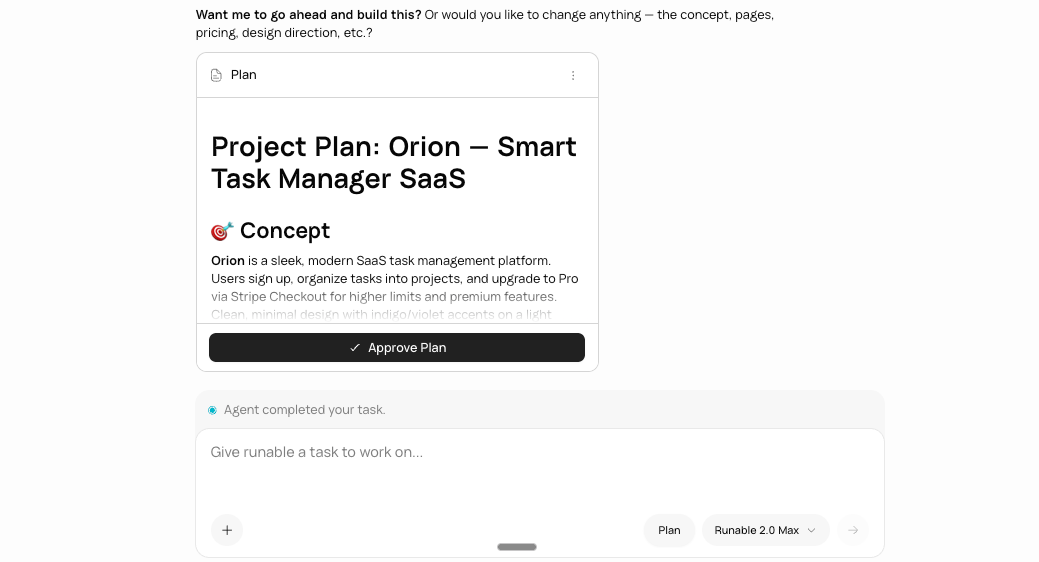
Most AI tools take your prompt and immediately start building. If it goes in the wrong direction, you find out at the end. That is frustrating and wasteful. Plan Mode flips that. Before writing a single line of code or generating anything, the agent does its homework. It searches for relevant patterns, reads any files you uploaded, checks documentation, and comes back to you with questions. Good questions. Things like:
Do you want users to sign up with email or Google?
Should payments be one-time or recurring?
Do you need an admin dashboard?
Once you have answered, it writes a full structured plan what it will build, in what order, using which tools. You read it. You adjust it. You approve it. Only then does it start.
Plan Mode

When to use it

Any site with authentication, a database, payments, or third-party integrations has too many decisions to make mid-build. Plan Mode surfaces all of them upfront so nothing gets built wrong.
Before writing 10 pages, the agent aligns on structure, sources, tone, and scope. You approve the outline before a single page is written.
Anything that chains multiple tools or systems together benefits from a plan first. You see the full sequence before it executes.
If a previous attempt went sideways halfway through, Plan Mode is the fix. It catches misalignment before it becomes wasted work.

How to turn it on

Click the Plan button in the input bar before sending your message. That is it. The agent switches into planning mode for that request.
Use Plan Mode any time a project has more than two or three pieces that need to work together. It is the difference between getting exactly what you wanted and getting something close.