Scene — What the camera sees. “A coffee cup on a wooden table, steam rising.”
Motion — What moves and how. “The camera slowly zooms in”, “A person walks left to right.”
Style — The visual treatment. “Cinematic”, “animated”, “35mm film grain.”
Duration cue — How long the action takes. “A 5-second clip of…”
AI Videos
Generate from Text
Create a video clip from a text prompt describing the scene, motion, and style.
What makes a good video prompt:
Scene — What the camera sees. “A coffee cup on a wooden table, steam rising.”
Motion — What moves and how. “The camera slowly zooms in”, “A person walks left to right.”
Style — The visual treatment. “Cinematic”, “animated”, “35mm film grain.”
Duration cue — How long the action takes. “A 5-second clip of…”
This guide walks you through generating a video from a text description. You describe the scene, choose your settings, and the agent creates a video clip on the canvas.
1
Select Video as your artifact type
On the home dashboard, click the artifact picker and select Generate Videos.
The artifact picker with Generate Videos selected.
2
Configure your settings
Set the options that appear below the artifact picker:
Option
Choices
Aspect ratio
21:9, 16:9 (default), 4:3, 1:1, 3:4, 9:16, 9:21
Audio
On (default) or muted
Muted videos use half the credits. Turn audio off if you plan to add music or voiceover in post-production.
3
Describe your video
Type a detailed description in the input bar. Write like director’s notes: describe the scene, the motion, and the mood.
Product teaser for a bakery's Instagram Reels
Short intro clip for a fitness studio's website
Social media ad for a restaurant's lunch special
4
Wait for generation
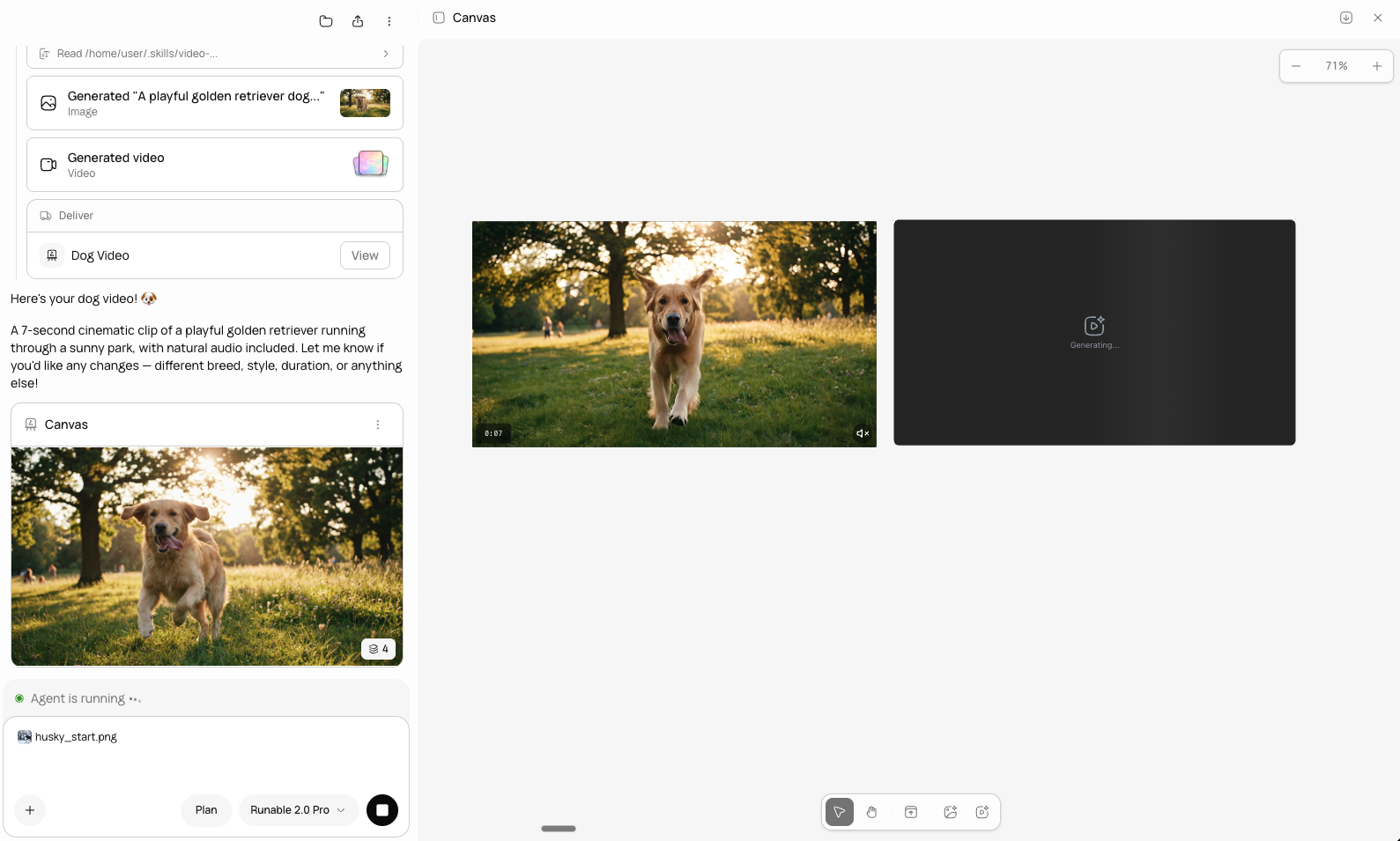
The agent generates the video. You see a placeholder on the canvas while it processes. Generation takes longer than image creation, typically 30 seconds to a few minutes depending on duration and resolution.
A video generating on the canvas with a loading indicator.
5
Review and refine
The video appears on the canvas when generation is complete. Click it to play.If the result needs changes:
Ask the agent — Describe what to change. The agent can regenerate or refine.
Edit the video — Use the video editing tools on the canvas. See Edit a Video.
Generate again — Ask for a new version with an updated prompt.