
Documentation Index

Fetch the complete documentation index at: https://docs.runable.com/llms.txt

Use this file to discover all available pages before exploring further.

Image-to-video generation takes a still image as the starting frame and animates it based on your prompt. The AI preserves the visual content of your image and adds the motion you describe.

How to generate a video from an image

1

Select Video as your artifact type

On the home dashboard, click the artifact picker and select Generate Videos.
2

Configure your settings

Set the aspect ratio and audio toggle. The same options apply as text-to-video generation.
Muted videos use half the credits. Turn audio off if you do not need spoken dialogue or ambient sound.
3

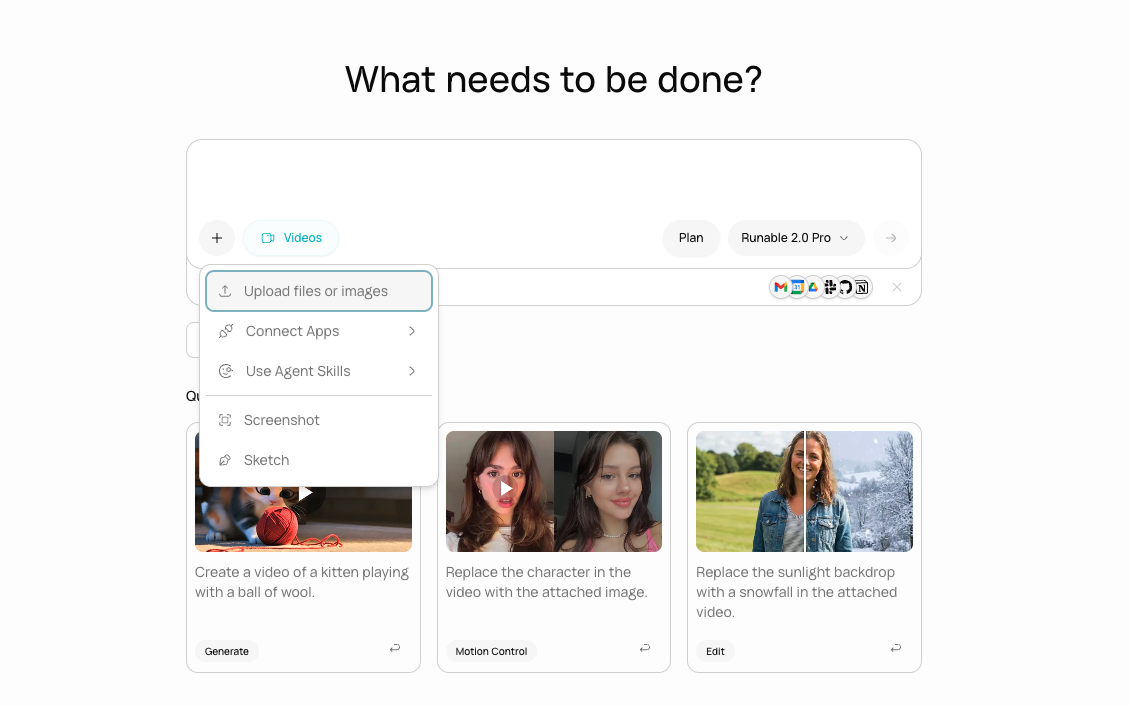
Attach your starting image

Click the + button in the input bar and upload the image you want to animate. This image becomes the first frame of the video.
Input bar with an uploaded image thumbnail visible, ready for a video generation prompt
4

Describe the motion

Type a prompt describing what should happen in the video. Focus on motion, not on what the image looks like (the AI already has the image).

Animate a product photo for an Instagram Reel

Bring a storefront photo to life for a website hero

Animate a food flat lay for a social media ad

5

Wait for generation

The agent generates the video using your image as the starting frame. A placeholder appears on the canvas while it processes.
6

Review and refine

The video appears on the canvas. Click to play. If the motion is not right, describe what to change or generate again with an updated prompt.

A→B transitions

You can provide both a starting image and an ending image. The AI generates a smooth transition between the two states.
1

Attach both images

Upload two images: one for the start and one for the end. Mention in your prompt which is the start and which is the end.
2

Describe the transition

Explain what changes between the two frames.

Product reveal: closed box to open box

Before and after: empty room to furnished

A→B transitions work best when the two images share a similar composition and the change between them is clear: a position shift, a state change, or a visual transformation.

What you cannot do

  • You cannot use a video as the source (image only). Use Edit a Video for video-to-video changes.
  • You cannot control exact frame-by-frame motion. The AI interprets your prompt.
  • You cannot set a specific frame rate. The model determines this.

Next steps

Motion Control

Transfer motion from a reference video onto your image for precise control.

Edit a Video

Change the style or content of an existing video clip.