You can generate videos directly on the canvas in two ways: from a text prompt (text-to-video) or from an existing image on the canvas (image-to-video). Both give you control over model selection, duration, aspect ratio, and audio.
Generating videos directly on the canvas lets you pick the exact model, duration, and settings. For simple generation tasks, this uses fewer credits than asking the agent in the chat.

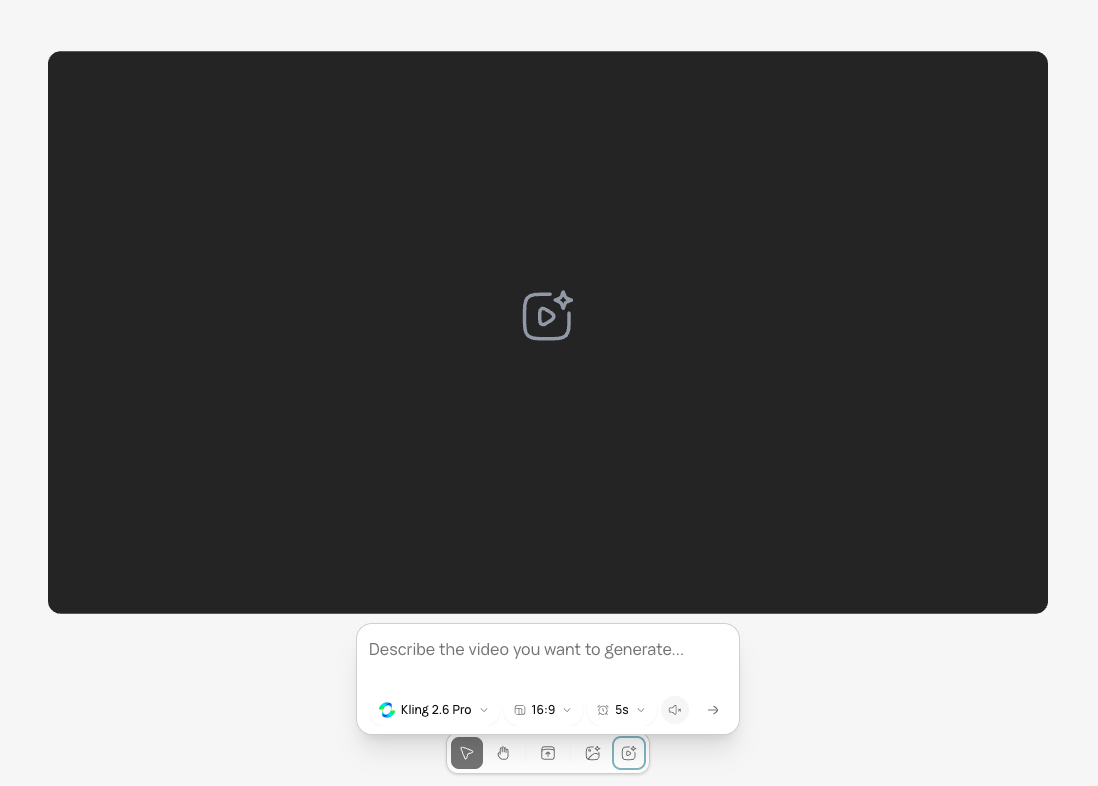
Text-to-video on the canvas

1

Click Generate Video

In the bottom toolbar, click the Generate Video button. A placeholder appears at the next available position.
Canvas bottom toolbar with the Generate Video button highlighted
2

Enter your prompt

A prompt box appears below the placeholder. Describe the video you want.

Short product teaser with camera movement.

3

Configure settings

Below the prompt, set your options:
OptionChoices
ModelSelect a video model (each has different strengths, duration limits, and audio support)
Aspect ratio16:9 (default), 9:16, 1:1
Duration3–15 seconds (varies by model)
AudioOn or off. Muted videos use roughly half the credits.
4

Submit and wait

Click submit. The placeholder shows a generating status. Video generation takes 30 seconds to a few minutes depending on duration and model.

Image-to-video on the canvas

You can animate any image already on the canvas into a video.
1

Select an image on the canvas

Click the image you want to animate. The selection toolbar appears.
2

Click Create Video

In the selection toolbar (or dropdown menu), click Create Video. A prompt box appears.
3

Describe the motion

Type a prompt describing what should move and how. The image becomes the first frame.

Animate a landscape with natural movement.

4

Configure and submit

Set your model, duration, and audio preference. Click submit. A new video item appears on the canvas when generation is complete.
Image-to-video creates a new video item on the canvas. The original image is preserved.

Edit generated videos

After a video appears on the canvas, select it and use the video editing tools:
ToolWhat it does
Edit VideoDescribe changes to style, color, or content
Motion ControlTransfer motion from a reference video
Remove BGStrip the video background frame by frame
DownloadSave the video as MP4

What you cannot do

  • You cannot set a specific resolution in pixels. Resolution is determined by the model (720p, 1080p, or 4K depending on model).
  • You cannot generate videos longer than 15 seconds in a single canvas operation. For longer content, use the timeline to stitch clips.
  • You cannot generate multiple videos at once from the canvas. Generate them one at a time.

Next steps