
Upload files to the canvas
You can add images and videos to the canvas in three ways:- Drag and drop - Drag files from your device directly onto the canvas.
- File picker - Click the Upload button in the bottom toolbar and select files from your device.
- Paste from clipboard - Copy an image and press Ctrl+V (or Cmd+V on Mac) to paste it onto the canvas.
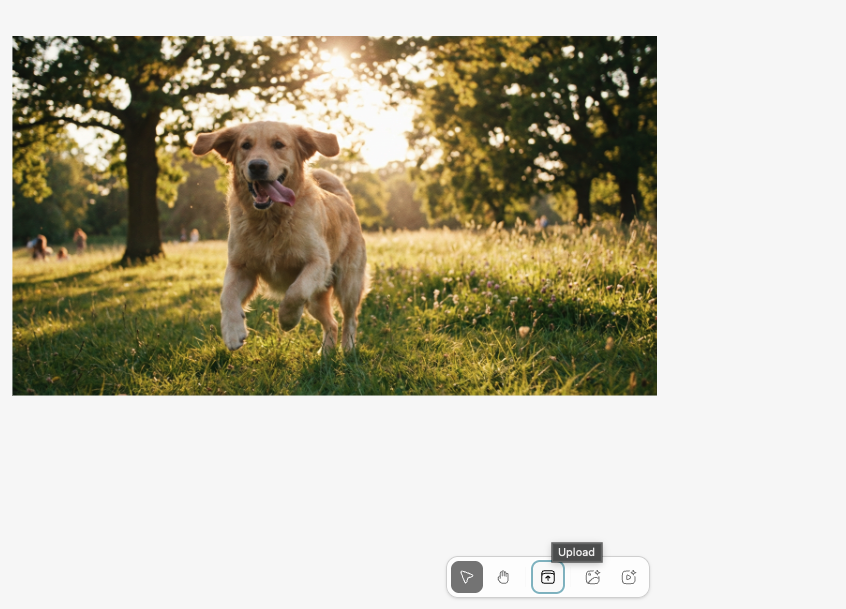
The canvas toolbar at the bottom center with the Upload button.
Uploaded files are placed automatically on the canvas in a grid layout. The canvas uses a 6-column grid to position new items without overlapping existing ones.
Navigate the canvas
Pan
- Hand tool - Click the Hand tool in the bottom toolbar, then click and drag to pan around the canvas.
- Mouse - With the Select tool active, click and drag on empty space to pan.
- Touch - On mobile or tablet, drag with one finger on empty space.
Zoom
- Scroll wheel - Scroll up to zoom in, scroll down to zoom out.
- Pinch - On touch devices, pinch to zoom in and out.
- Zoom controls - Use the zoom buttons in the top right corner of the canvas. The current zoom level is displayed between the buttons.
- Fit to content - Click the fit button in the zoom controls to zoom out and see all items on the canvas at once.
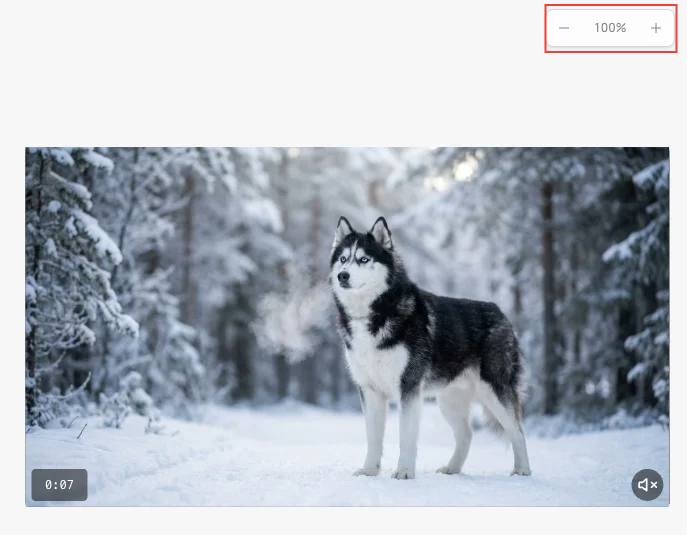
The zoom controls in the top right corner of the canvas.
Select items
- Click - Click any item to select it. A selection border and resize handles appear.
- Multi-select - Hold Ctrl (or Cmd on Mac) and click multiple items to select them together.
- Rubber-band select - Click and drag on empty space with the Select tool to draw a selection rectangle. All items inside it are selected.
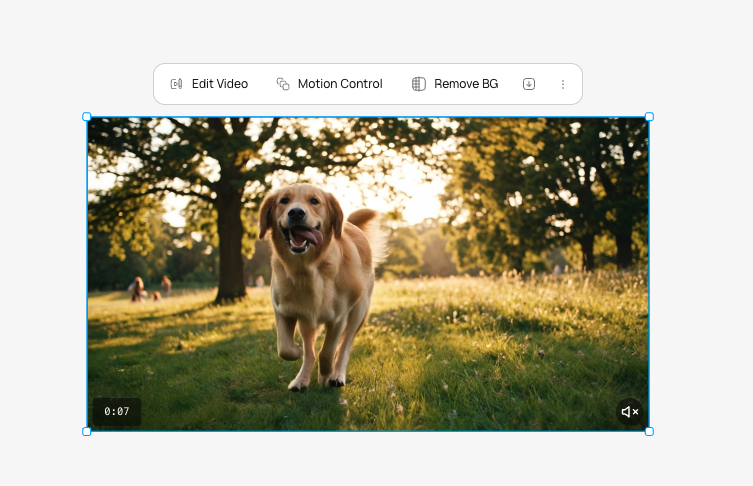
Multiple items selected with a rubber-band selection rectangle.
Move and resize items
- Move - Click and drag any selected item to reposition it on the canvas.
- Resize - Drag the handles around a selected item to resize it. The aspect ratio is maintained.
Duplicate items
Select one or more items and duplicate them. The copies are placed at the next available grid position on the canvas.Delete items
Select one or more items and press Delete or Backspace to remove them from the canvas.Keyboard shortcuts
Canvas tools
The bottom toolbar has two modes:Select tool
The default mode. Click items to select them. Drag to move. Drag handles to resize. Draw a rectangle to multi-select.Hand tool
Pan mode. Click and drag anywhere to move around the canvas. Items cannot be selected or moved in this mode. Useful for navigating large canvases.Next steps
Generate Images on Canvas
Create images from text directly on the canvas workspace.
Generate Videos on Canvas
Create videos from text or images directly on the canvas.