Create images from a text prompt directly on the canvas workspace with your choice of AI model.
You can generate images directly on the canvas without going through the chat. Click a button, type a prompt, pick a model, and the image appears on your workspace. This is faster than asking the agent and gives you more control over model selection and placement.
Generating directly on the canvas gives you more control over which model to use and where the image is placed. It also uses fewer credits than sending a prompt to the agent for simple generation tasks.
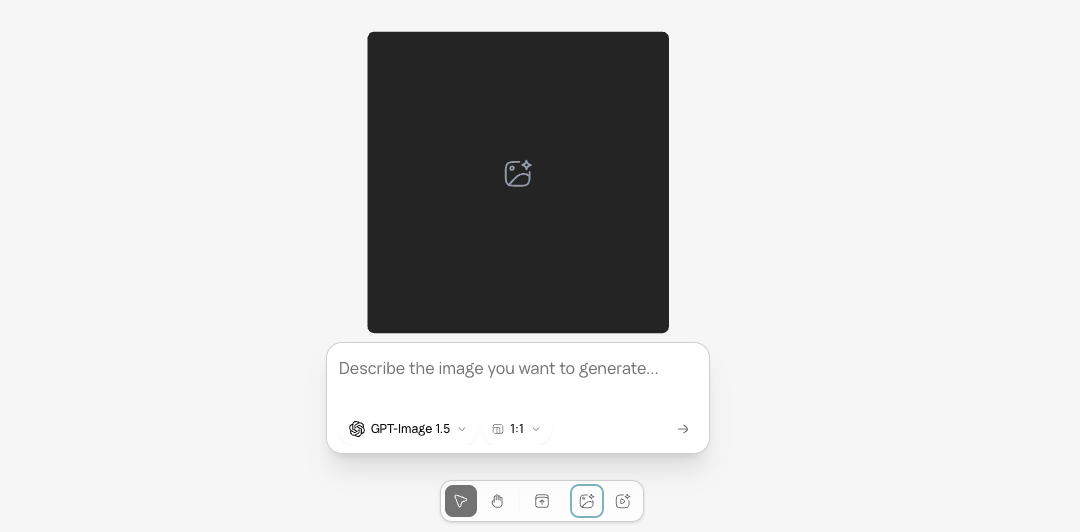
In the bottom toolbar, click the Generate Image button. A placeholder appears on the canvas at the next available grid position.
The Generate Image button in the canvas toolbar.
2
Enter your prompt
A prompt box appears below the placeholder. Type a description of the image you want.
Product photography on a clean background.
Illustration for a blog post.
3
Choose a model and aspect ratio
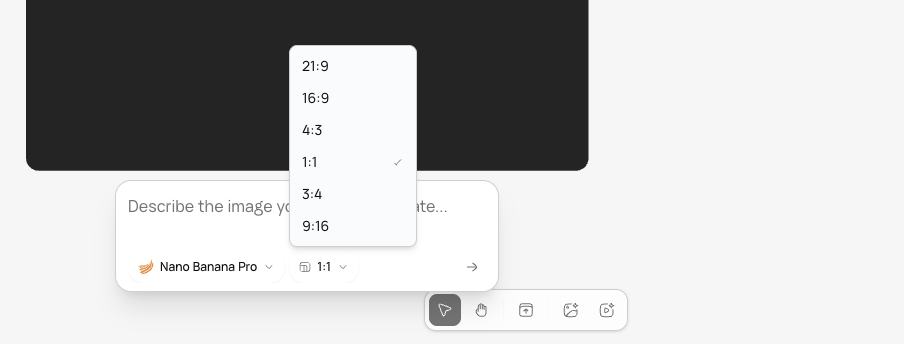
Below the prompt field, select your preferred image model and aspect ratio.
Option
What to choose
Model
Pick the model that fits your needs. Each has different strengths (color accuracy, speed, 4K output, etc.)
Aspect ratio
21:9, 16:9, 4:3, 1:1, 3:4, 9:16, or 9:21
The prompt box with model selector and aspect ratio options.
4
Submit and wait
Click the submit button. The placeholder shows a generating status while the AI creates the image. Once complete, the image replaces the placeholder on the canvas.