
How the sandbox works
When you send your first message in Agent Mode, a sandbox is created for that conversation. The agent uses it for every tool call that involves code, files, or execution. The sandbox persists across messages within the same chat, so the agent can build on its previous work. The agent can install any additional packages using npm, pip, or bun as needed.Sandbox lifecycle
Rollback
After every assistant message, a snapshot of the sandbox is saved. This snapshot captures the complete state of the sandbox: all files, installed packages, running processes, and configuration. When you rollback to a previous message, the sandbox is restored from that snapshot. Everything, files, code, database state, environment variables, returns to exactly how it was at that point.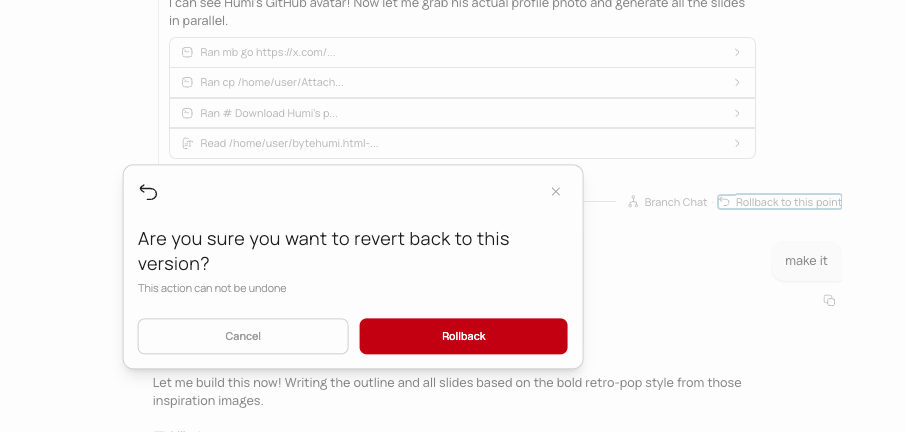
The rollback button on a previous message in the chat.
Download your work
You can download the entire sandbox contents as a ZIP file at any time. This gives you the full project source code, generated files, and everything the agent has created.What runs in the sandbox
Image and video generation happens on external AI providers. The generated files are downloaded and saved to the sandbox so the agent can reference and work with them.
What you cannot do with the sandbox
- You cannot access the sandbox directly from your browser (except through VS Code). All interaction goes through the agent or VS Code.
- You cannot keep a sandbox running indefinitely. It pauses after 45 minutes of inactivity.
- You cannot connect a sandbox to your local machine’s file system.
- You cannot run multiple sandboxes for the same chat. Each chat has exactly one sandbox.
- You cannot increase the sandbox’s resources (CPU, memory, storage). The environment is standardized.
Next steps
Branching & Rollback
Learn how rollback and branching use sandbox snapshots to manage versions.
Agent Mode
See everything the agent can do inside the sandbox.