1

Zooming

1

Mouse Wheel Zoom

  • Scroll up to zoom in
  • Scroll down to zoom out
  • Zooms toward cursor position
2

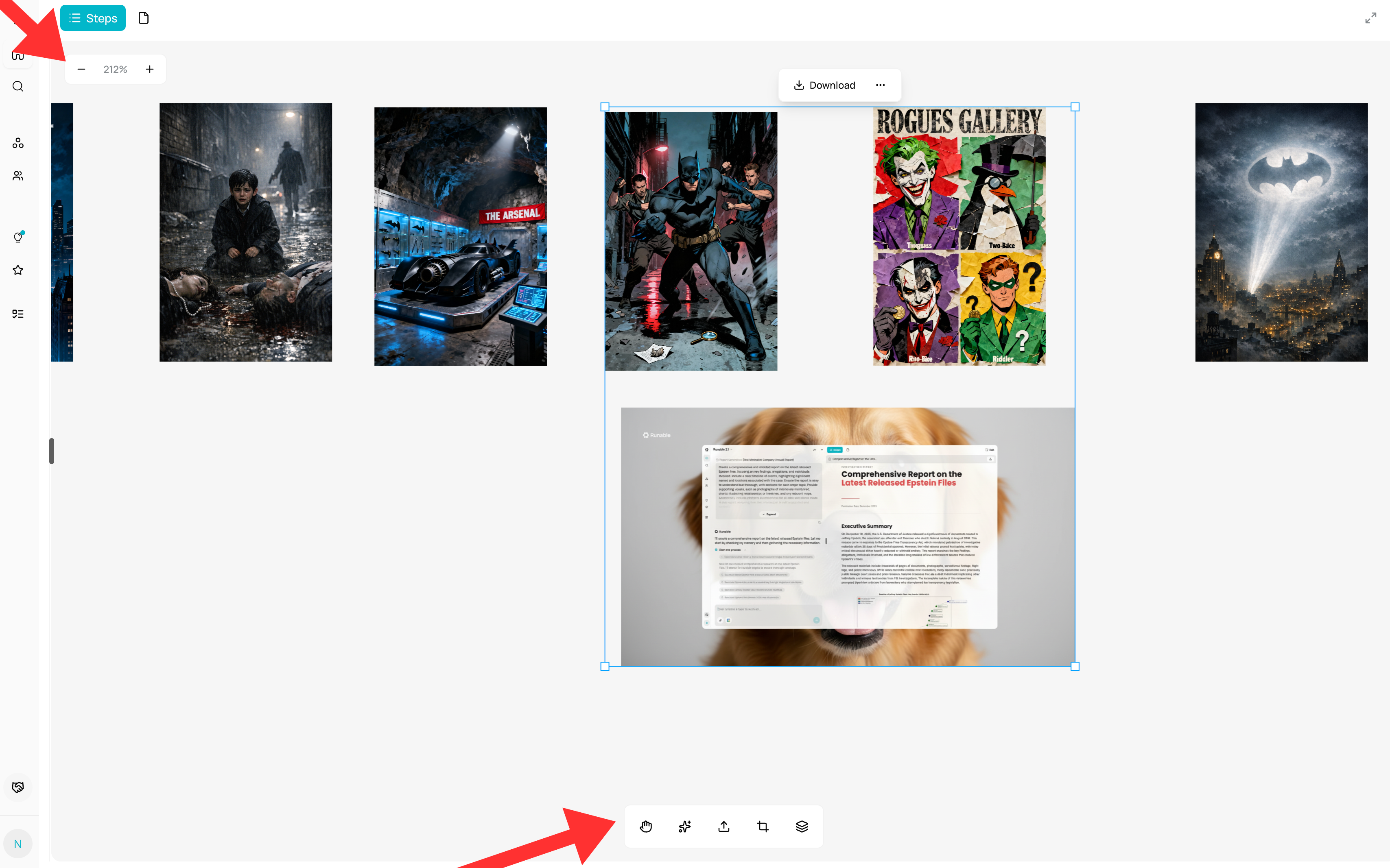
Zoom Controls

  • Click + button to zoom in
  • Click button to zoom out
  • Click percentage (e.g., “100%”) to reset
3

Zoom Range

  • Minimum: 10% (0.1x)
  • Maximum: 500% (5x)
  • Default: 100% (1x)
2

Panning

1

Hand Tool Mode

  • Click Hand icon in toolbar
  • Click and drag anywhere on canvas
  • Pan in any direction
2

Trackpad Gestures

  • Two-finger drag to pan
  • Pinch to zoom
3

Touch Support

  • Touch and drag to pan
  • Pinch gesture to zoom

View Controls Location

Find zoom/pan controls:
  • Top-right corner of canvas
  • Floating toolbar with zoom percentage
  • Hand tool icon for pan mode
Checks Passed

Tips

  • Zoom in for precise editing
  • Zoom out to see full composition
  • Use hand tool for large canvases with many items
  • Zoom follows your cursor (zoom where you point)