
.png?fit=max&auto=format&n=J3TfNmZhqEoKcaaO&q=85&s=468b5adb026aa33181cc81ab54ab68db)
What It Does
Build video sequences from your canvas items using a visual timeline editor. Set durations, reorder clips, and export as a single MP4 video.How to Use
- Select 2+ images or videos on the canvas (Shift + click multiple items)
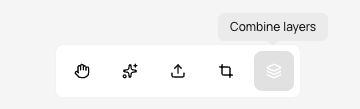
- Click “Combine” mode button in toolbar
- Timeline appears at bottom with your selected items
- Set duration for each item (how long it displays)
- Reorder items by dragging them in the timeline
- Preview total duration shown in timeline
- Click “Add to Canvas” or “Export”
- FFmpeg combines into MP4 video and adds to canvas
Timeline Controls
Adding Items:
- Select items on canvas first
- Click Combine mode to add them to timeline
- Items appear as timeline entries
Duration Settings:
- Click item in timeline to adjust duration
- Set seconds for images (e.g., 3s, 5s, 10s)
- Videos use their natural duration (can be trimmed)
Timeline Display
- Thumbnail preview for each item
- Duration label shown on each entry
- Total video length displayed
- Drag handles for reordering
What Gets Combined:
- Images display for set duration
- Videos play for their length
Output Format
- File type: MP4
- Video codec: H.264
- Audio codec: AAC
- Quality: High (maintains source quality)
Best Use Cases
- Create video slideshows from images
- Combine multiple video clips
- Build social media stories/reels
- Make product demo videos
- Assemble tutorial sequences
- Create video presentations
Result
- Final MP4 video added to canvas as new item
- Can download or use in further edits
- Original items remain on canvas unchanged
- Costs credits for video processing
Exit Combine Mode
- Click “Combine” button again to exit
- Timeline closes
- Return to normal canvas editing