
.png?fit=max&auto=format&n=J3TfNmZhqEoKcaaO&q=85&s=468b5adb026aa33181cc81ab54ab68db)
Three Ways to Add Media
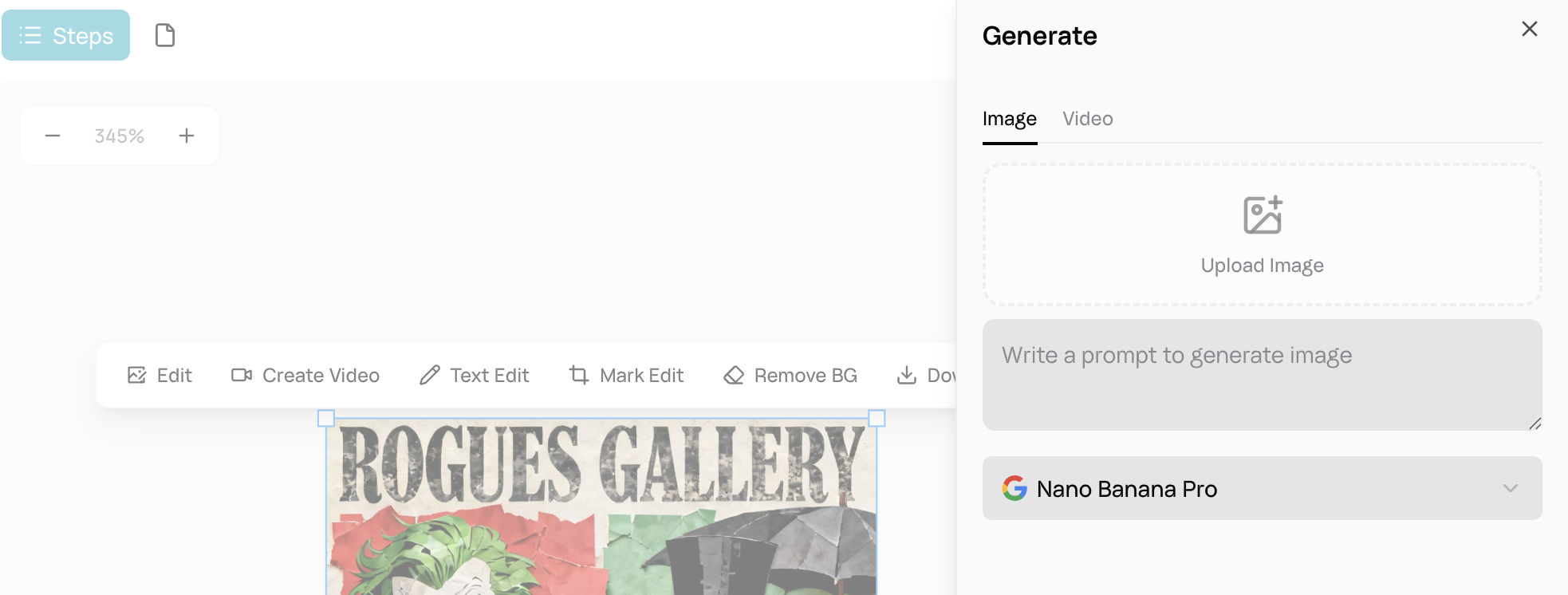
Generate with AI
- Click the ✨ Generate button (sparkles icon)
- Choose Image or Video tab
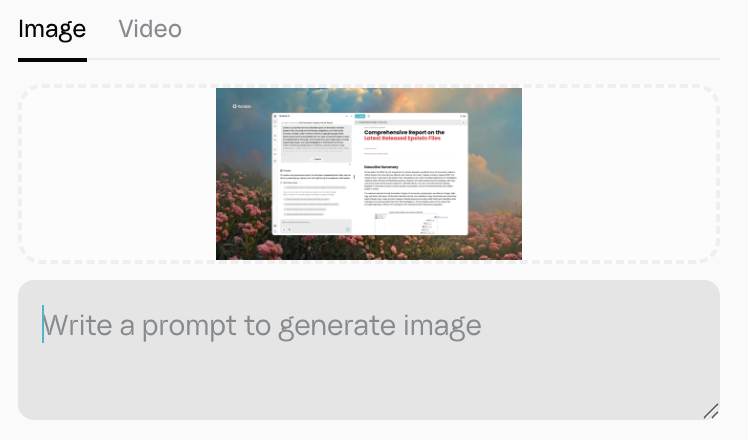
- Enter your prompt
- Select model and settings
- Click Generate
- AI-created media appears on canvas automatically
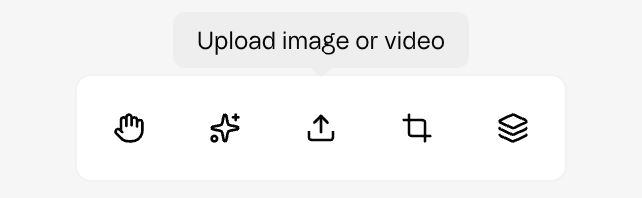
Upload from your device
- Click Add Media or Upload button
- Select image or video files
- Drag & drop files directly onto canvas
- Supported formats: PNG, JPG, WebP, MP4, MOV
Supported File Types
| Type | Supported Formats |
|---|---|
| Images | PNG (with transparency), JPEG/JPG, WebP, GIF (static) |
| Videos | MP4, MOV, WebM |
Tips
Avoid:
- Extremely large files (slow loading)
- Unsupported formats (will show error)
- Too many high-res videos (impacts performance)
Once media is on canvas, you can select, move, resize, and apply AI operations.