
.png?fit=max&auto=format&n=J3TfNmZhqEoKcaaO&q=85&s=468b5adb026aa33181cc81ab54ab68db)
What It Does
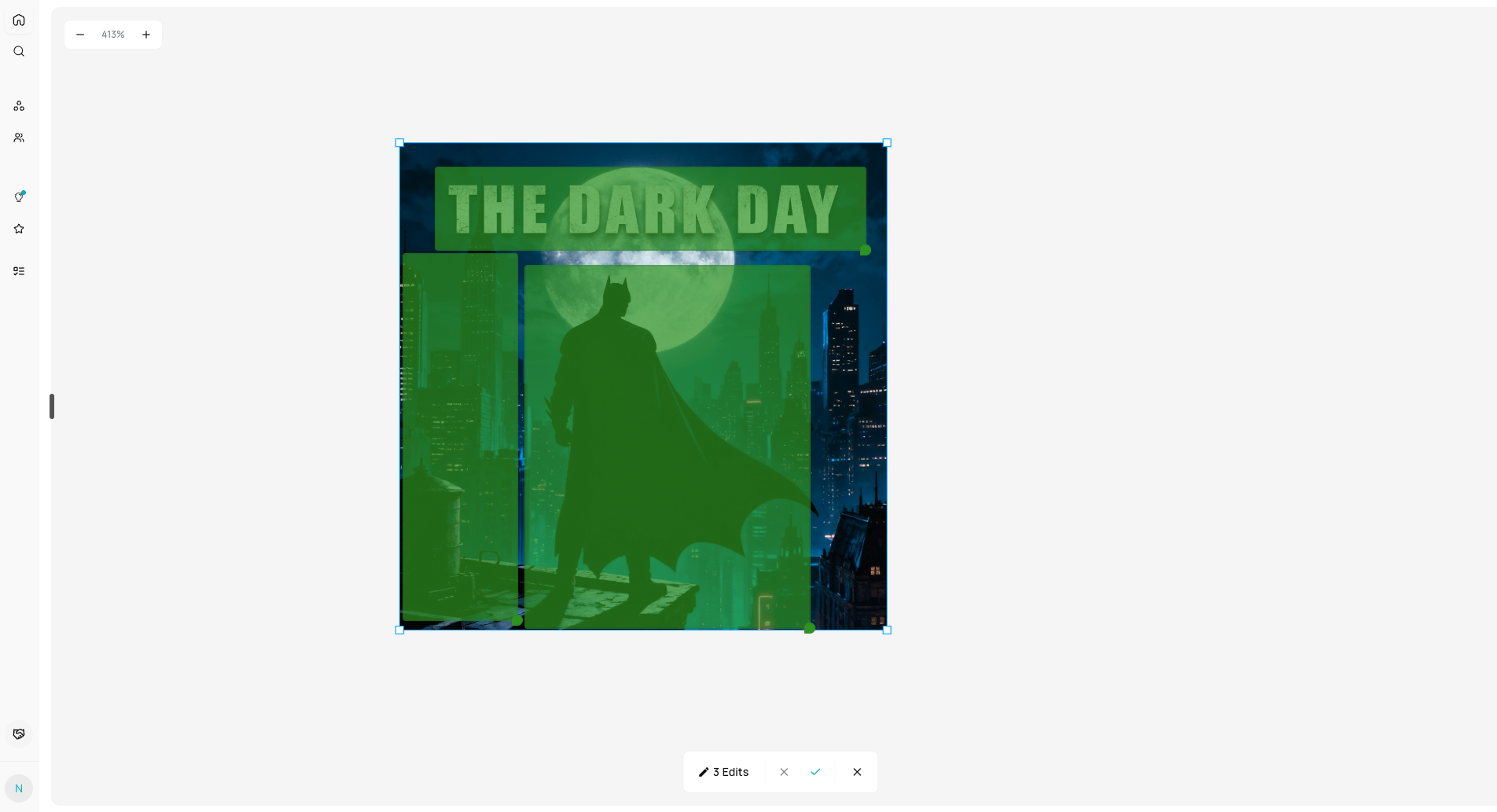
Draw rectangular regions on your image to target operations to specific areas only. Perfect for making edits to just part of an image without affecting the whole thing.How to Use
- Select an image on the canvas
- Click “Mark Edit” mode button in toolbar
- Draw rectangles around areas you want to edit (click and drag)
- Select a marked region by clicking its numbered badge
- **Write/upload **what you want to apply to that region
- Click “Apply”
- AI edits only the marked area and integrates it back
Drawing Regions
- Click and drag to create rectangular regions
- Multiple regions can be drawn on same image
- Each region gets a numbered badge
- Resize or reposition regions before applying
Best Use Cases
- Edit backgrounds while keeping subject intact
- Apply effects to specific objects
- Fix issues in part of an image
- Targeted color correction
- Selective enhancements
Result
- AI processes only the marked region
- Result patched back into original image
- New composite image added to canvas
- Original unchanged