> ## Documentation Index
> Fetch the complete documentation index at: https://docs.runable.com/llms.txt
> Use this file to discover all available pages before exploring further.
# Website Analytics
> Track page views, visitors, and events on your deployed website.
Every deployed website includes built-in analytics. See who visits your site, which pages they view, and what actions they take. No external analytics tools or tracking scripts needed.
## How to view analytics
Go to the chat where your website was built. Click the **Dashboard** tab, then select **Analytics** from the sidebar.
The analytics dashboard shows page views, unique visitors, and traffic trends. Data updates automatically as visitors interact with your site.
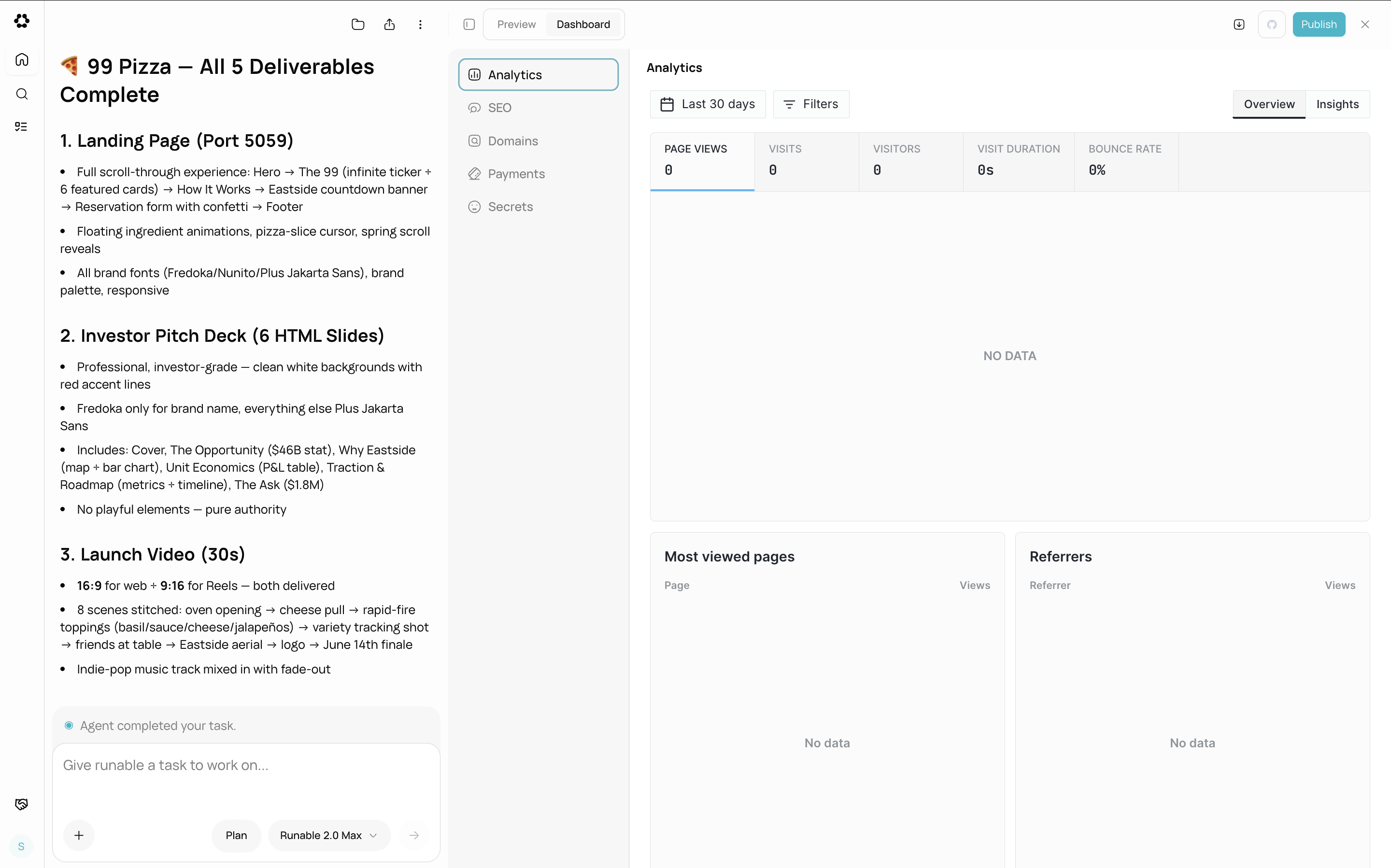 Analytics are available as soon as your website is published. There is nothing to install or configure.
## What analytics tracks
| Metric | Description |
| -------------- | ------------------------------------------------ |
| **Page views** | Total number of pages viewed across all visitors |
| **Visitors** | Unique visitors to your site |
| **Top pages** | Which pages receive the most traffic |
| **Events** | Custom events tracked by your website's code |
## Custom event tracking
The agent can add custom event tracking to your website. Tell the agent what user actions you want to track (button clicks, form submissions, purchases) and it writes the tracking code.
Track when users click the "Get Started" button and when they submit the contact form. Show these events in the analytics dashboard.
## What you cannot do
* You cannot export analytics data to CSV or other formats from the dashboard.
* You cannot set date ranges or filters beyond the default view.
* You cannot connect external analytics tools (Google Analytics, Mixpanel) through the dashboard. The agent can add these via code if you need them.
* You cannot view analytics for unpublished websites. Analytics only track live, deployed sites.
## Next steps
Configure meta tags, Open Graph, and social previews for your site.
Connect your own domain to your deployed website.
Analytics are available as soon as your website is published. There is nothing to install or configure.
## What analytics tracks
| Metric | Description |
| -------------- | ------------------------------------------------ |
| **Page views** | Total number of pages viewed across all visitors |
| **Visitors** | Unique visitors to your site |
| **Top pages** | Which pages receive the most traffic |
| **Events** | Custom events tracked by your website's code |
## Custom event tracking
The agent can add custom event tracking to your website. Tell the agent what user actions you want to track (button clicks, form submissions, purchases) and it writes the tracking code.
Track when users click the "Get Started" button and when they submit the contact form. Show these events in the analytics dashboard.
## What you cannot do
* You cannot export analytics data to CSV or other formats from the dashboard.
* You cannot set date ranges or filters beyond the default view.
* You cannot connect external analytics tools (Google Analytics, Mixpanel) through the dashboard. The agent can add these via code if you need them.
* You cannot view analytics for unpublished websites. Analytics only track live, deployed sites.
## Next steps
Configure meta tags, Open Graph, and social previews for your site.
Connect your own domain to your deployed website.