> ## Documentation Index
> Fetch the complete documentation index at: https://docs.runable.com/llms.txt
> Use this file to discover all available pages before exploring further.
# Share a Chat
> Make your conversation public with a link or share it with specific people by email.
You can share any chat in Runable so others can see the conversation and the results the agent produced. There are two ways to share: with a public link or with specific people by email.
## Share with a public link
In the chat header, click the **Share** button. A panel appears with sharing options.
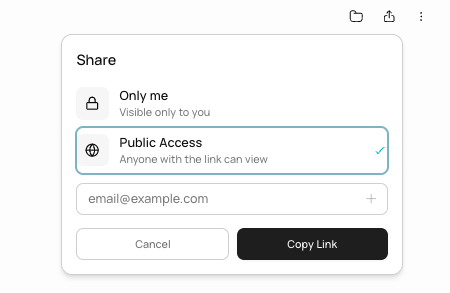 Toggle the visibility to **Public**. This generates a shareable link. Anyone with the link can view the conversation and all generated artifacts.
Copy the link and send it to anyone. They can view the full conversation, including generated slides, websites, images, videos, and other artifacts.
## Share with specific people
Click the **Share** button in the chat header.
Type the email addresses of the people you want to share with. They receive an email notification with a link to the chat.
Click **Share**. The invited users can view the conversation when they sign in.
Shared users can view the conversation and results. They cannot edit, send messages, or modify anything in the chat. Sharing is read-only.
## Remove access
To make a public chat private again, go to the share panel and toggle visibility back to **Private**. The public link stops working immediately.
To remove specific users, go to the share panel and remove their email addresses.
## Chat management
Beyond sharing, the chat header gives you these options:
| Action | What it does |
| ------------ | ---------------------------------------------------------- |
| **Favorite** | Star the chat for quick access in the sidebar |
| **Rename** | Change the auto-generated chat title |
| **Delete** | Permanently delete the chat, all messages, and the sandbox |
Deleting a chat is permanent. All messages, generated artifacts, and the associated sandbox are removed. This cannot be undone.
## What you cannot do
* You cannot give shared users edit access. Sharing is view-only.
* You cannot share individual artifacts (a single image or slide). Sharing includes the entire conversation.
* You cannot set an expiration date on a shared link.
* You cannot share a chat with someone who does not have a Runable account (for email shares). Public links work for anyone.
## Next steps
Learn how the agent executes code in an isolated environment.
Go back to any previous version or try multiple directions in parallel.
Toggle the visibility to **Public**. This generates a shareable link. Anyone with the link can view the conversation and all generated artifacts.
Copy the link and send it to anyone. They can view the full conversation, including generated slides, websites, images, videos, and other artifacts.
## Share with specific people
Click the **Share** button in the chat header.
Type the email addresses of the people you want to share with. They receive an email notification with a link to the chat.
Click **Share**. The invited users can view the conversation when they sign in.
Shared users can view the conversation and results. They cannot edit, send messages, or modify anything in the chat. Sharing is read-only.
## Remove access
To make a public chat private again, go to the share panel and toggle visibility back to **Private**. The public link stops working immediately.
To remove specific users, go to the share panel and remove their email addresses.
## Chat management
Beyond sharing, the chat header gives you these options:
| Action | What it does |
| ------------ | ---------------------------------------------------------- |
| **Favorite** | Star the chat for quick access in the sidebar |
| **Rename** | Change the auto-generated chat title |
| **Delete** | Permanently delete the chat, all messages, and the sandbox |
Deleting a chat is permanent. All messages, generated artifacts, and the associated sandbox are removed. This cannot be undone.
## What you cannot do
* You cannot give shared users edit access. Sharing is view-only.
* You cannot share individual artifacts (a single image or slide). Sharing includes the entire conversation.
* You cannot set an expiration date on a shared link.
* You cannot share a chat with someone who does not have a Runable account (for email shares). Public links work for anyone.
## Next steps
Learn how the agent executes code in an isolated environment.
Go back to any previous version or try multiple directions in parallel.