> ## Documentation Index
> Fetch the complete documentation index at: https://docs.runable.com/llms.txt
> Use this file to discover all available pages before exploring further.
# SEO
> Configure meta tags, Open Graph images, favicons, and social previews for your website.
The SEO section of the website dashboard lets you configure how your site appears in search results and when shared on social media. Set your site name, description, Open Graph image, favicon, and visibility.
## How to configure SEO
Go to the chat where your website was built. Click the **Dashboard** tab, then select **SEO** from the sidebar.
| Field | What it controls |
| --------------- | ----------------------------------------------------------------------------------------- |
| **Name** | The site title shown in search results and browser tabs |
| **Description** | The meta description shown below your title in search results |
| **OG Image** | The image shown when your site is shared on social media (Twitter, LinkedIn, Slack, etc.) |
| **Favicon** | The small icon shown in browser tabs |
| **Visibility** | Public (indexed by search engines) or private (not indexed) |
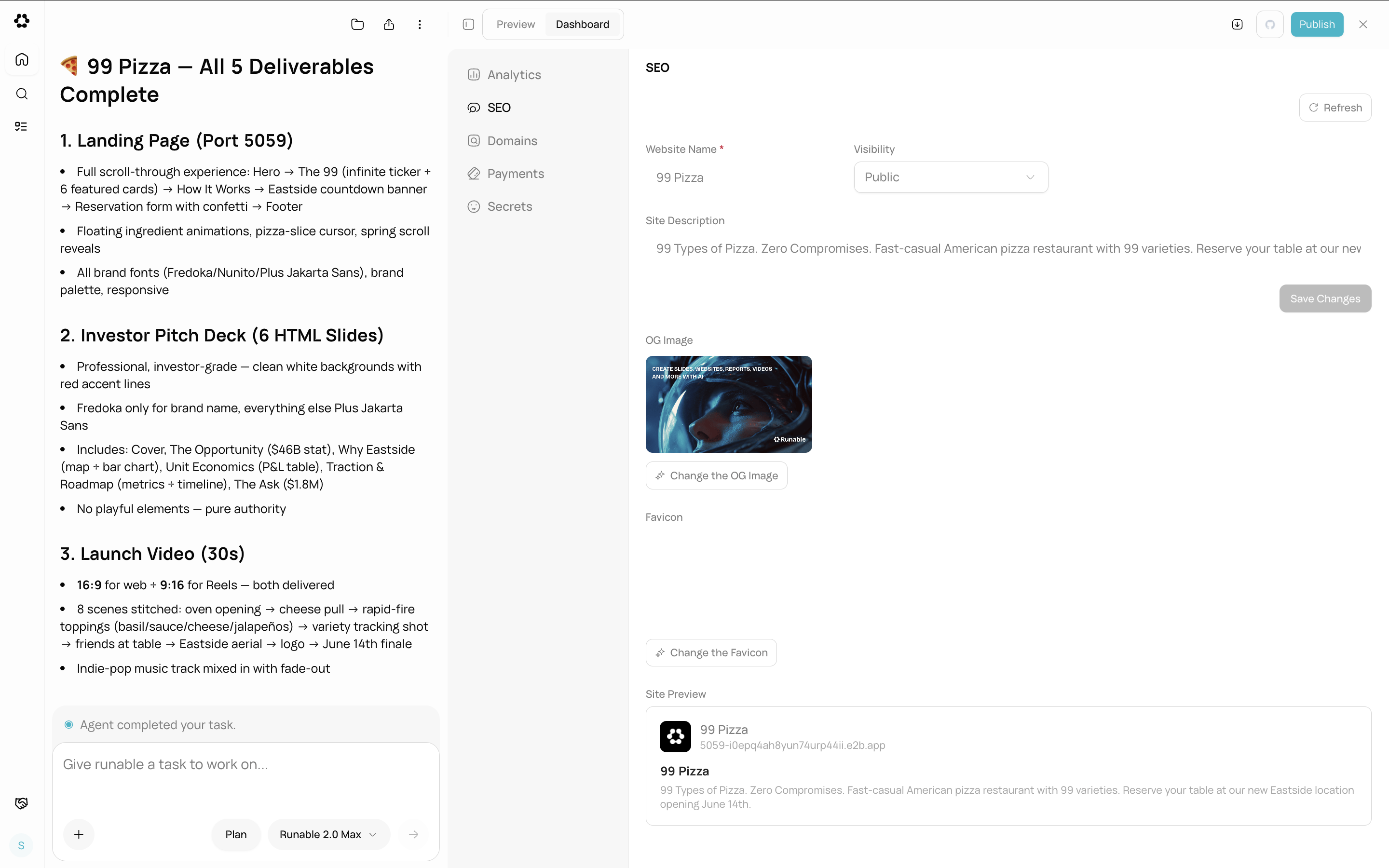 The dashboard shows a live preview of how your site will appear in search results and social media shares. Make changes and they are saved automatically.
## OG Image and Favicon
You can refresh the OG image and favicon from the dashboard. Click the **Refresh** button next to each preview to regenerate them from your current site content.
Set your OG image before sharing your site on social media. Without one, platforms show a generic placeholder or a random screenshot. A good OG image is 1200x630 pixels with your site name and a visual that represents your content.
## What you cannot do
* You cannot set per-page meta tags from the dashboard. The dashboard controls site-wide defaults. The agent can add per-page meta tags in code.
* You cannot upload a custom OG image from your device through the dashboard. The OG image is generated from your site.
* You cannot add structured data (JSON-LD) from the dashboard. Ask the agent to add it in code.
## Next steps
Track visitors and events on your deployed site.
Publish your website to make SEO settings take effect.
The dashboard shows a live preview of how your site will appear in search results and social media shares. Make changes and they are saved automatically.
## OG Image and Favicon
You can refresh the OG image and favicon from the dashboard. Click the **Refresh** button next to each preview to regenerate them from your current site content.
Set your OG image before sharing your site on social media. Without one, platforms show a generic placeholder or a random screenshot. A good OG image is 1200x630 pixels with your site name and a visual that represents your content.
## What you cannot do
* You cannot set per-page meta tags from the dashboard. The dashboard controls site-wide defaults. The agent can add per-page meta tags in code.
* You cannot upload a custom OG image from your device through the dashboard. The OG image is generated from your site.
* You cannot add structured data (JSON-LD) from the dashboard. Ask the agent to add it in code.
## Next steps
Track visitors and events on your deployed site.
Publish your website to make SEO settings take effect.