> ## Documentation Index
> Fetch the complete documentation index at: https://docs.runable.com/llms.txt
> Use this file to discover all available pages before exploring further.
# Telegram
> Set up the Runable agent in Telegram. Message it directly, send files, use slash commands, and more.
Telegram is the fastest platform to connect. You tap one link, press Start, and the bot is ready. From there, you message it like any other Telegram contact and the Runable agent responds in real time.
## How to connect
In the Runable web app, go to **Sidebar** → **Run Claw**. You can also go to **Settings** → **Runclaw** and find same option there.
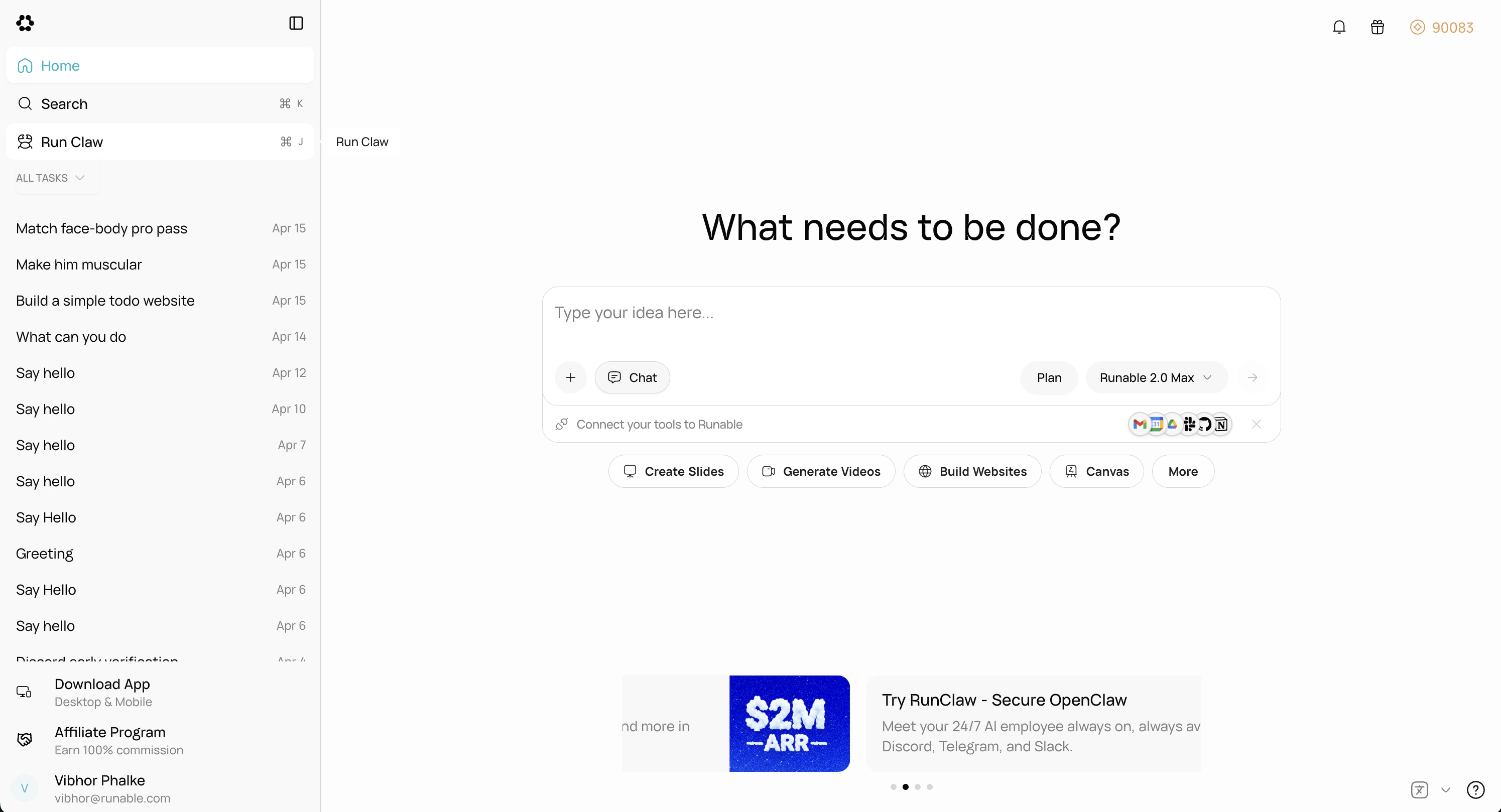
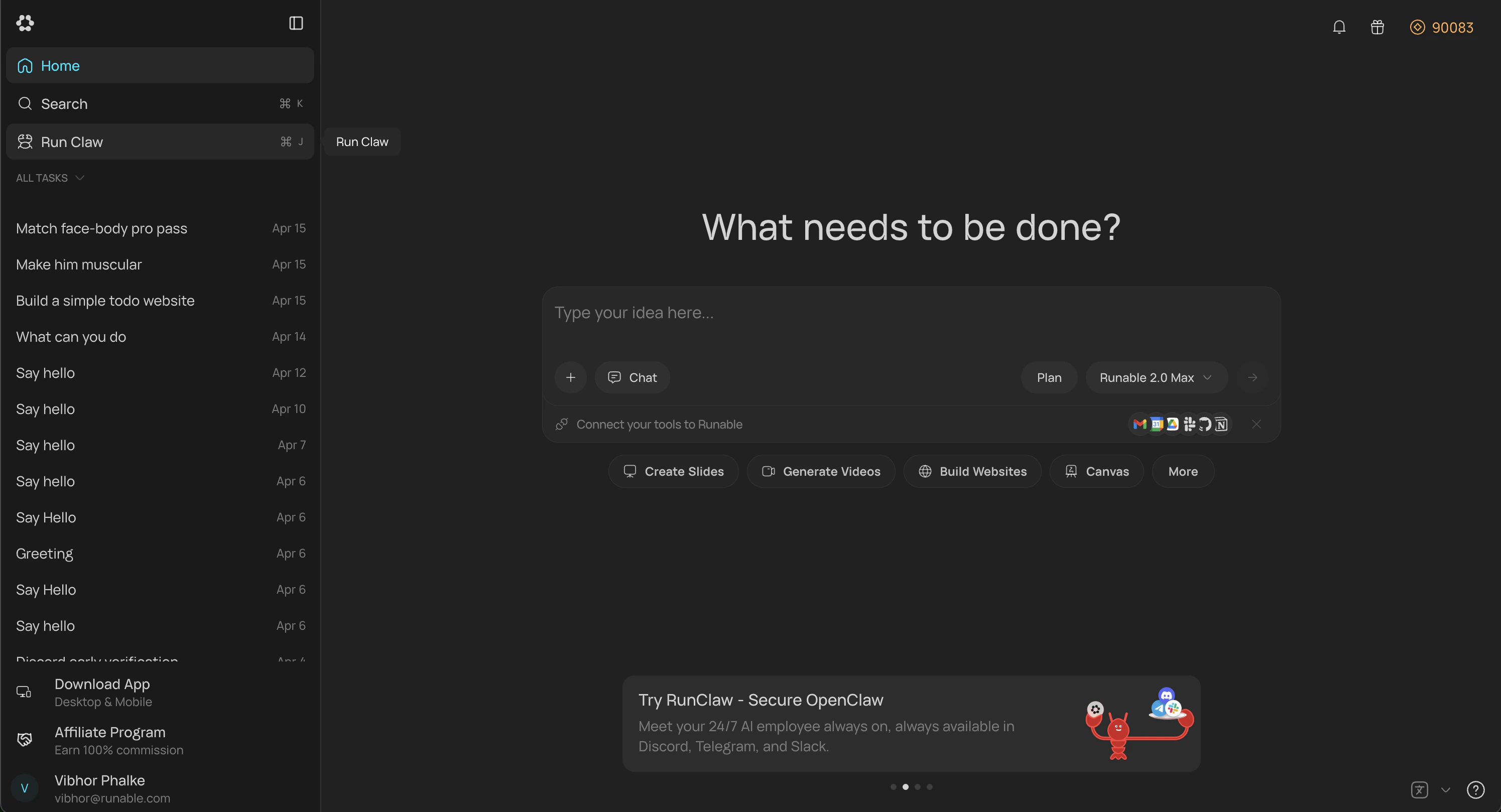 Click **Connect** on the Telegram card. You'll see a **QR code** and an **open link**. Scan the QR with your phone or tap the link to start a chat with the bot in Telegram.
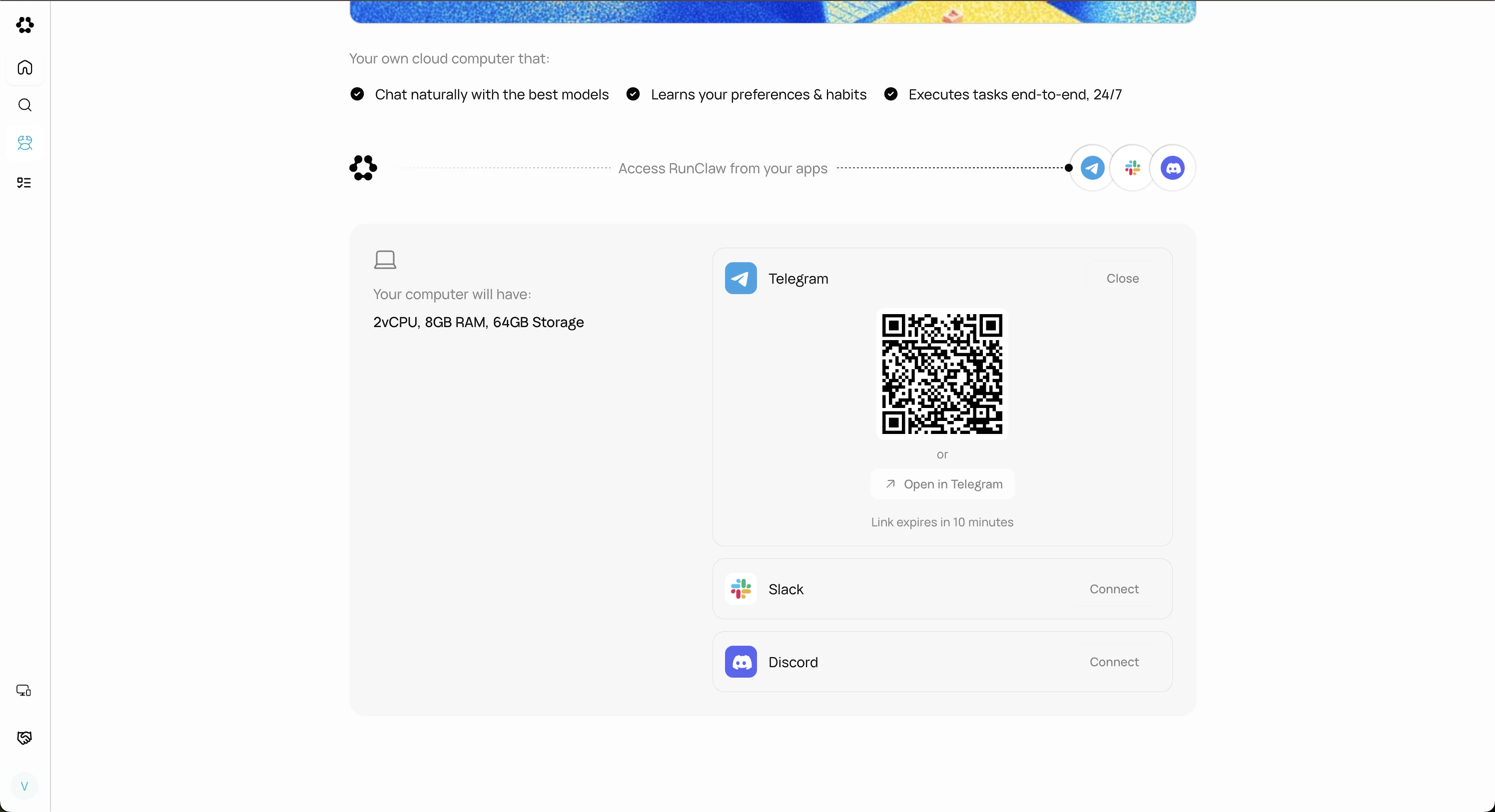
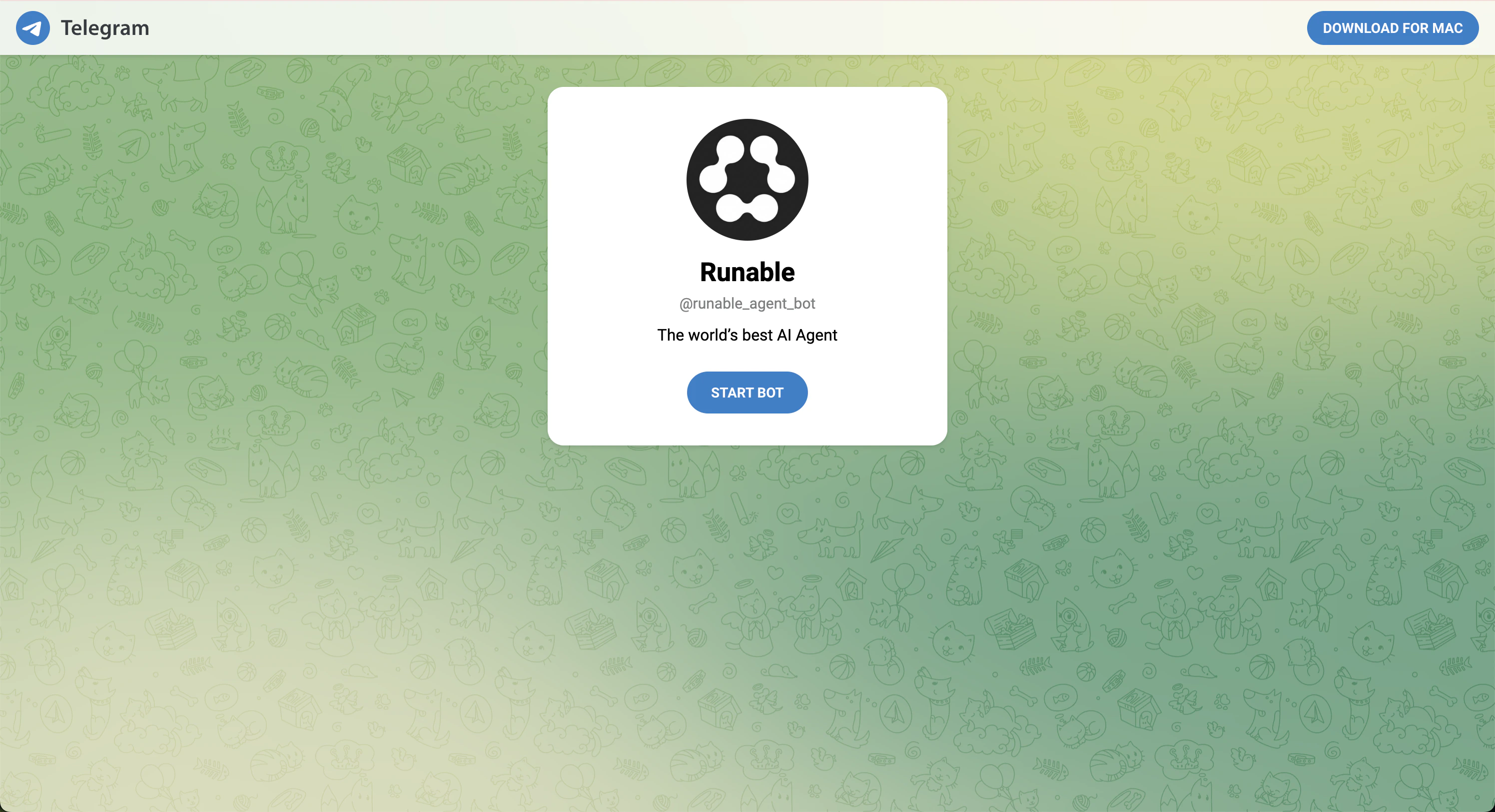
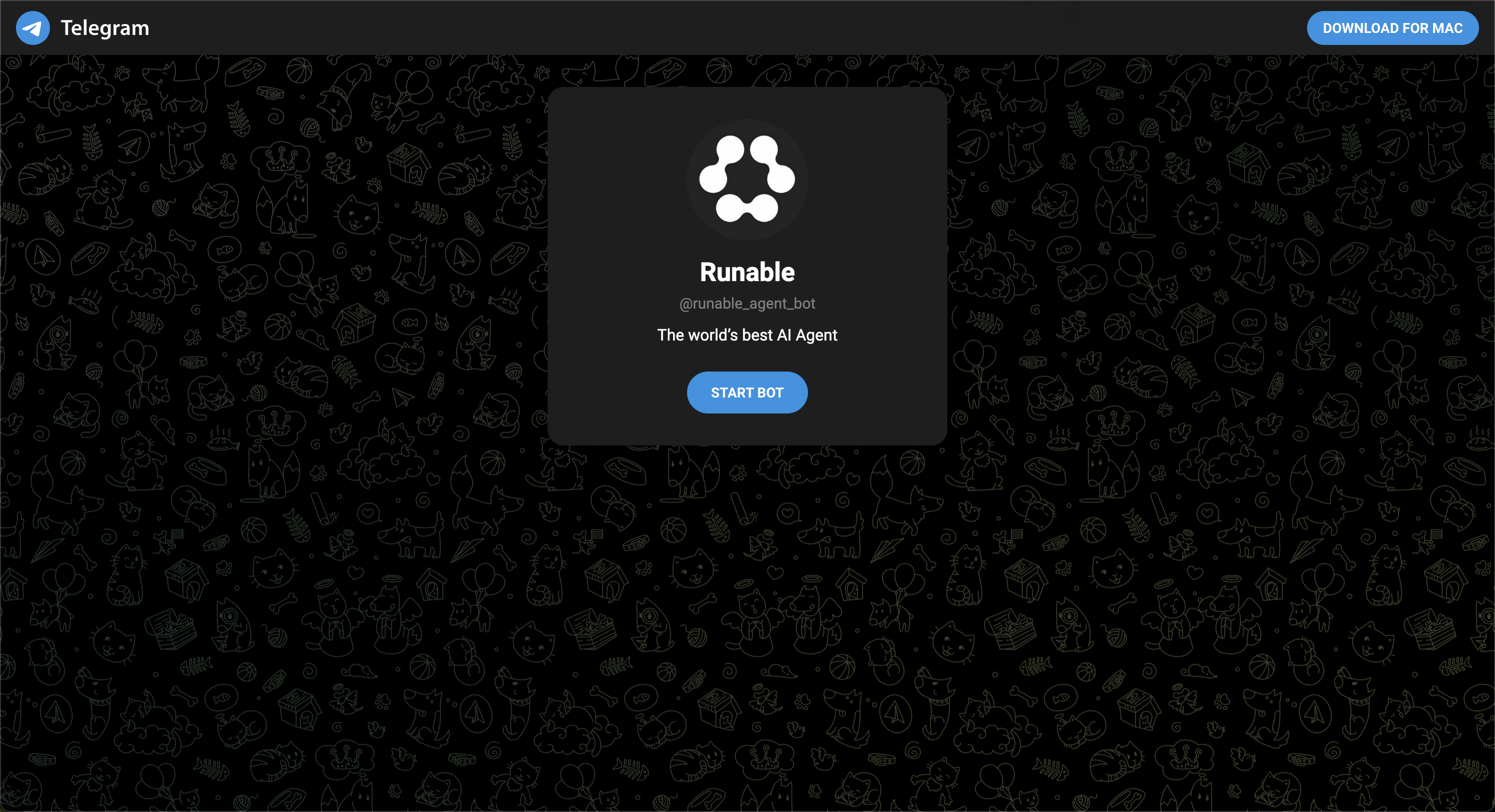
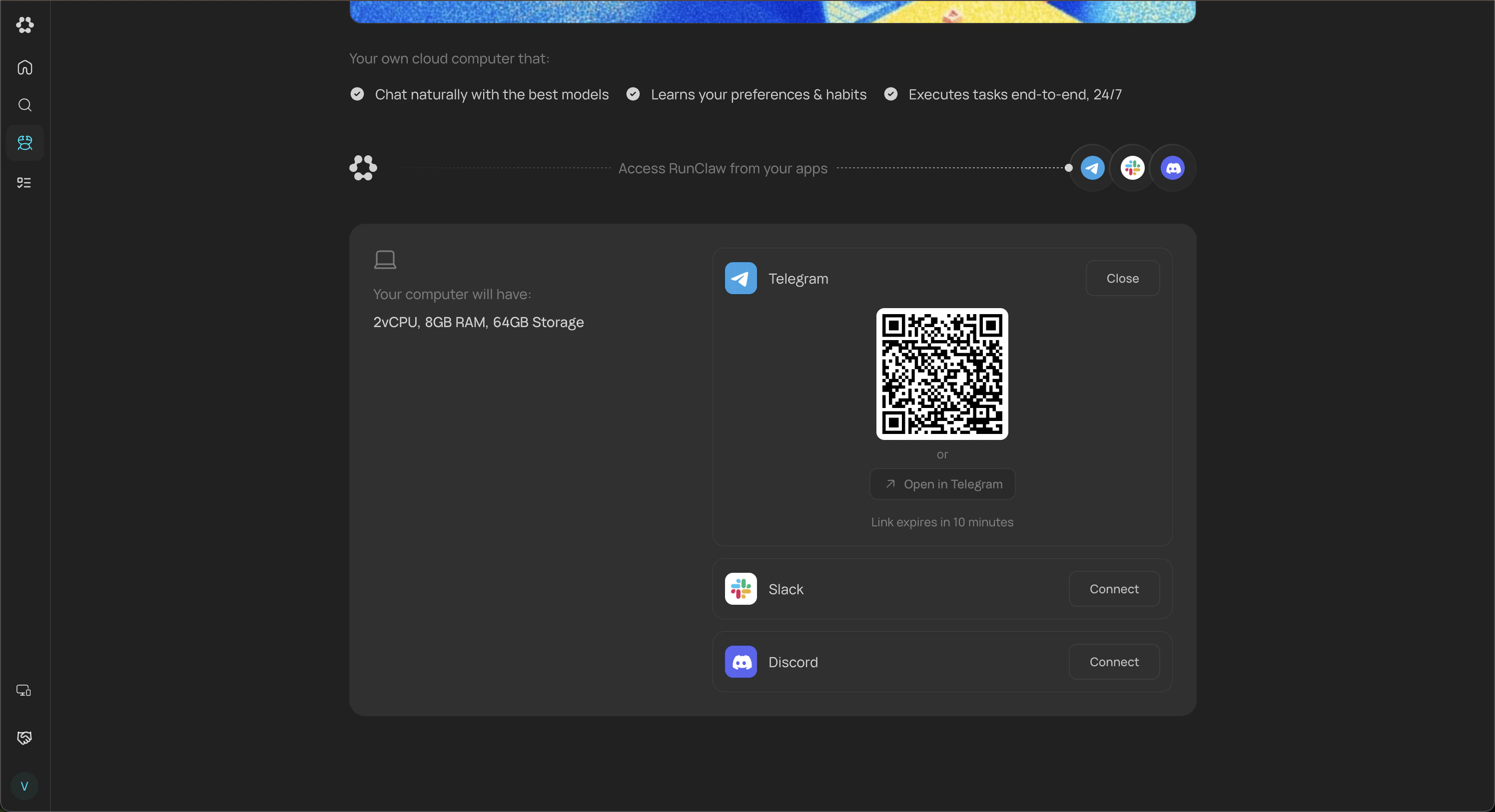 You'll be redirected to the Start Bot screen for the Runable bot. Tap Start Bot to send a `/start` command, which links your Telegram account to Runable. This requires Telegram to be installed on your device (desktop or mobile) or signed in to Telegram Web, without an active Telegram session, the button won't work.
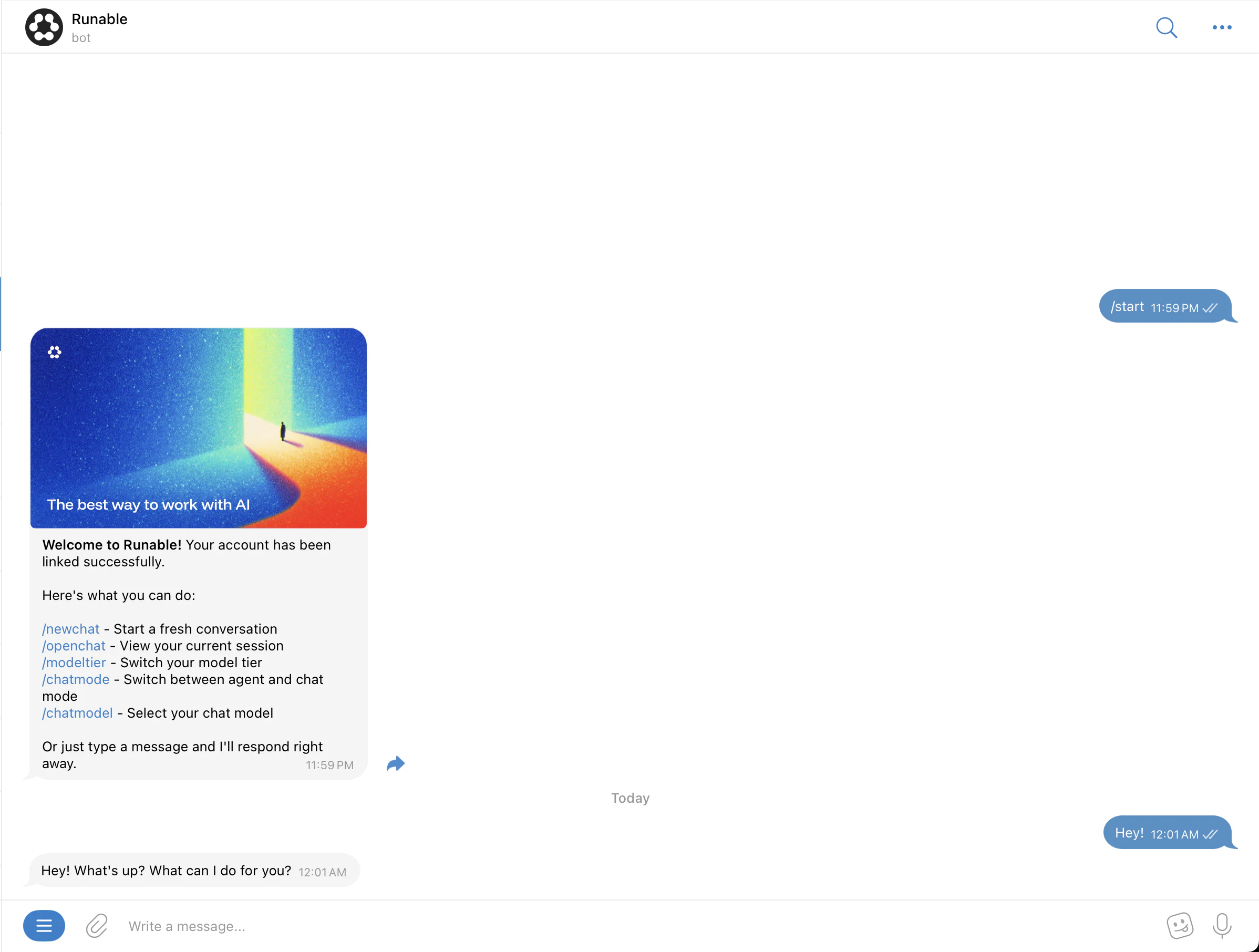
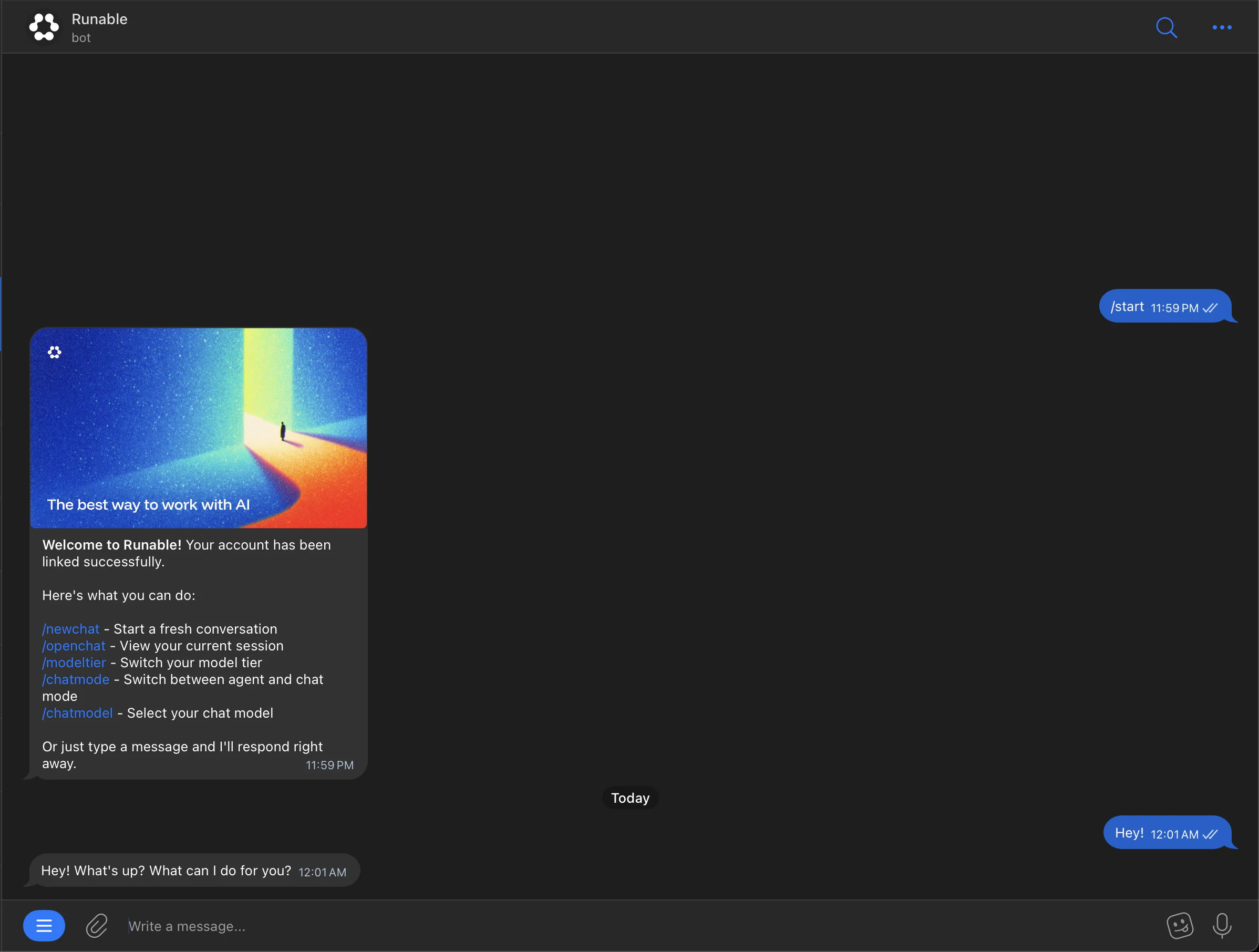
 You'll see a connection success message. You can now start chatting with the Runable bot in Telegram.
 ### Send files
Attach files (images, documents, videos) to your messages the way you normally attach files in Telegram. The agent receives and processes them.
### Slash commands
Telegram supports these slash commands for managing your connection:
| Command | What it does |
| ------------ | ------------------------------------------------------------------------------------------------------------------- |
| `/newchat` | Start a new conversation. |
| `/openchat` | You'll receive a chat link where your current session is synced with the Runable app. |
| `/modeltier` | Switch between Lite, Pro, and Max modes. |
| `/chatmode` | Switch between Runable Chat mode and Agent mode. Mode changes apply to new chats only. Use `/newchat` to start one. |
| `/chatmodel` | Switch between different LLMs from various providers, available only in Chat mode. |
## How to disconnect
Go back to **Settings** → **Run Claw** in the Runable web app. Click **Disconnect** on the Telegram card. Your Telegram account is unlinked immediately.
## Important Details
* The bot supports DMs only. It cannot be added to group chats or channels.
* Each Telegram account can be linked to one Runable account at a time. To connect a different Runable account, disconnect the existing one first from your Runable settings.
## Next steps
Add Runable to your Slack workspace with channel support.
Add Runable to your Discord server with thread-based conversations.
### Send files
Attach files (images, documents, videos) to your messages the way you normally attach files in Telegram. The agent receives and processes them.
### Slash commands
Telegram supports these slash commands for managing your connection:
| Command | What it does |
| ------------ | ------------------------------------------------------------------------------------------------------------------- |
| `/newchat` | Start a new conversation. |
| `/openchat` | You'll receive a chat link where your current session is synced with the Runable app. |
| `/modeltier` | Switch between Lite, Pro, and Max modes. |
| `/chatmode` | Switch between Runable Chat mode and Agent mode. Mode changes apply to new chats only. Use `/newchat` to start one. |
| `/chatmodel` | Switch between different LLMs from various providers, available only in Chat mode. |
## How to disconnect
Go back to **Settings** → **Run Claw** in the Runable web app. Click **Disconnect** on the Telegram card. Your Telegram account is unlinked immediately.
## Important Details
* The bot supports DMs only. It cannot be added to group chats or channels.
* Each Telegram account can be linked to one Runable account at a time. To connect a different Runable account, disconnect the existing one first from your Runable settings.
## Next steps
Add Runable to your Slack workspace with channel support.
Add Runable to your Discord server with thread-based conversations.