> ## Documentation Index
> Fetch the complete documentation index at: https://docs.runable.com/llms.txt
> Use this file to discover all available pages before exploring further.

> Use Runable on iMessage. Just send the message to Runable contact

# iMessage

The iMessage integration connects the Runable agent to your Messages app. Text your assigned Runable number to start a private conversation from any Apple device. Each conversation stays tied to one persistent chat, syncing across iPhone, iPad, and Mac. Generated artifacts (images, slides, videos) appear as rich previews you can tap to open right inside the thread.

## How to connect

<Steps>
  <Step title="Open RunClaw Page">
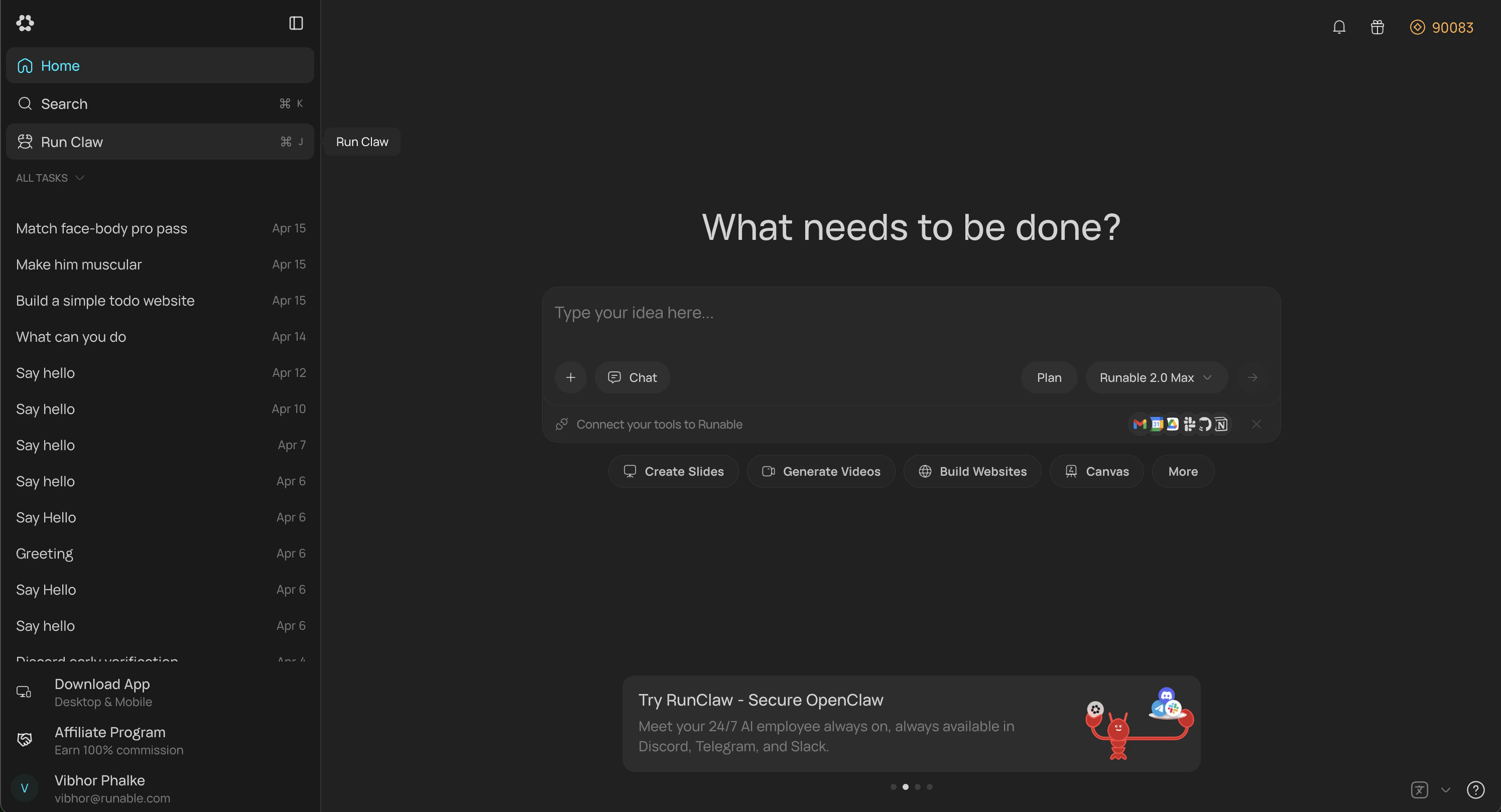
    In the Runable web app, go to **Sidebar**  → **Run Claw**. You can also go to **Settings** → **Runclaw** and find **iMessage** option there.
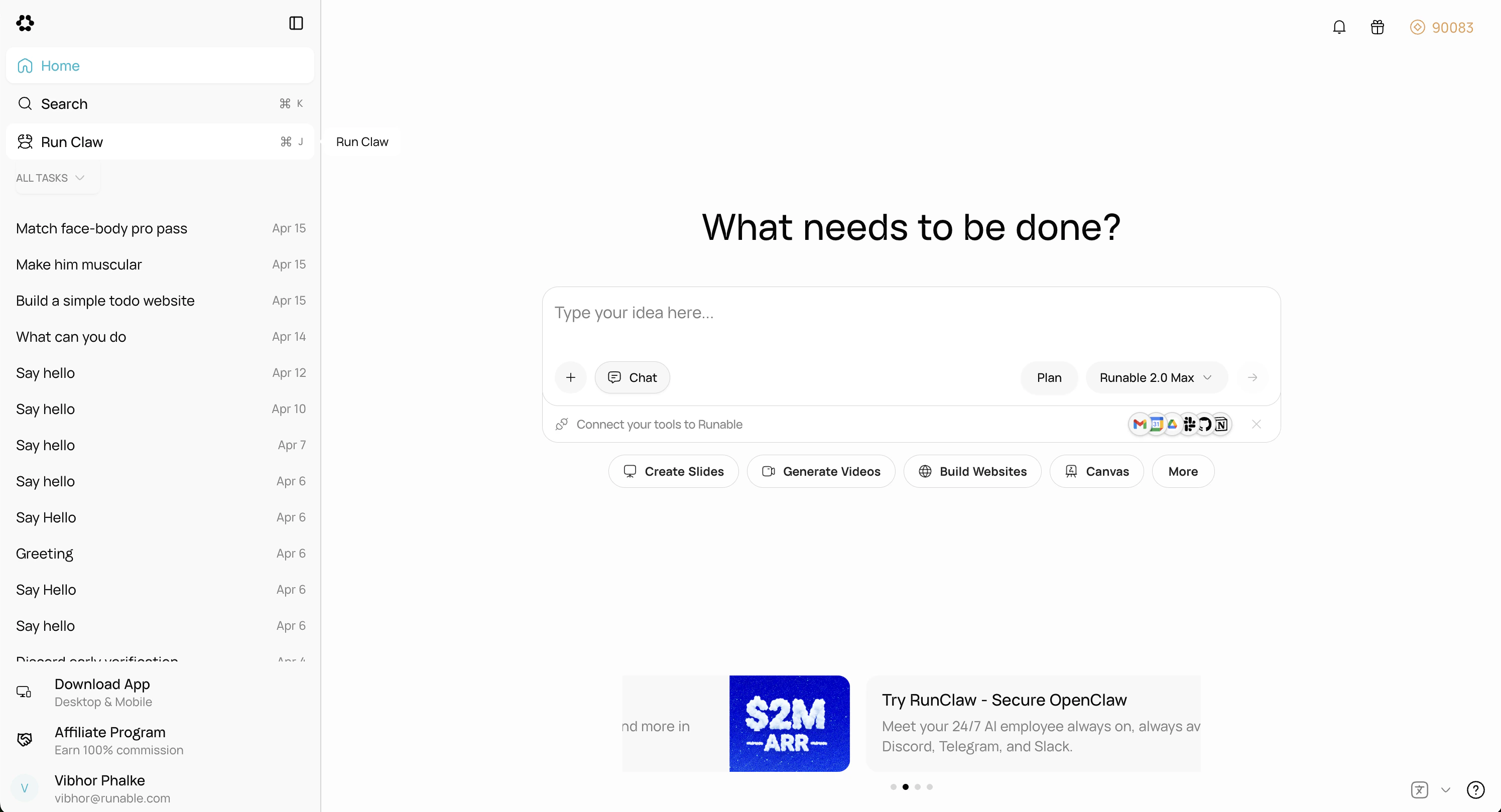
    <Frame caption="The Run Claw tab in Settings showing the Discord Connect button.">
      <img alt="Screenshot 2026 04 25 At 6 37 39 PM" title="Screenshot 2026 04 25 At 6 37 39 PM" lightAlt="Screenshot 2026 04 25 At 6 37 39 PM" darkAlt="Screenshot 2026 04 25 At 6 37 39 PM" src="https://mintcdn.com/runableinc/gB6o39YgqwosUHnl/images/Screenshot-2026-04-25-at-6.44.42-PM.png?fit=max&auto=format&n=gB6o39YgqwosUHnl&q=85&s=528097200d33009faac3d0613af0c05e" className="dark:hidden" width="2990" height="1618" data-path="images/Screenshot-2026-04-25-at-6.44.42-PM.png" />

      <img alt="Screenshot 2026 04 25 At 6 37 39 PM" title="Screenshot 2026 04 25 At 6 37 39 PM" lightAlt="Screenshot 2026 04 25 At 6 37 39 PM" darkAlt="Screenshot 2026 04 25 At 6 37 39 PM" src="https://mintcdn.com/runableinc/gB6o39YgqwosUHnl/images/Screenshot-2026-04-25-at-6.44.02-PM.png?fit=max&auto=format&n=gB6o39YgqwosUHnl&q=85&s=5952d4533039301718c21ebf575a8c39" className="hidden dark:block" width="2990" height="1618" data-path="images/Screenshot-2026-04-25-at-6.44.02-PM.png" />
    </Frame>
  </Step>

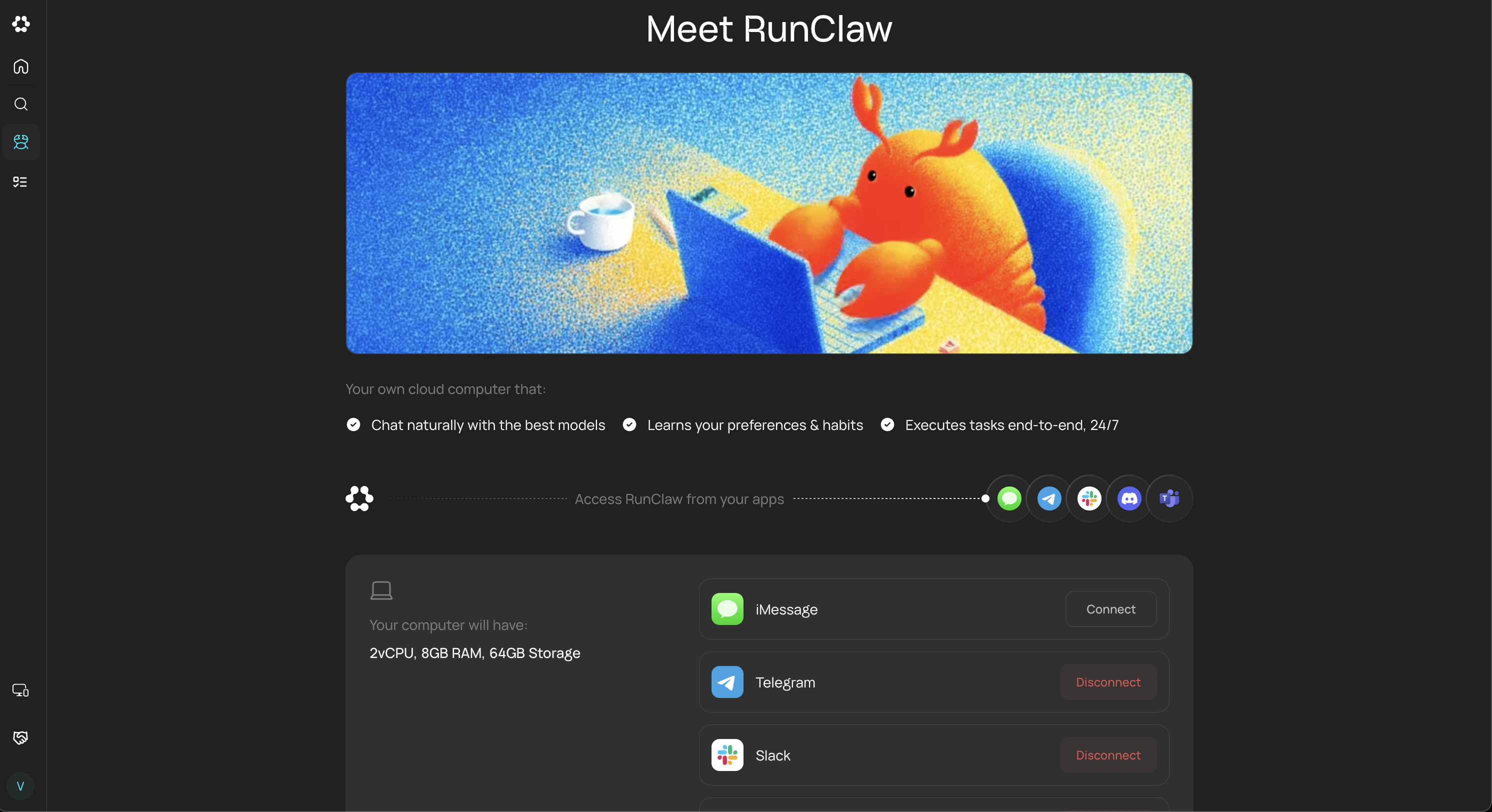
  <Step title="Connect iMessage">
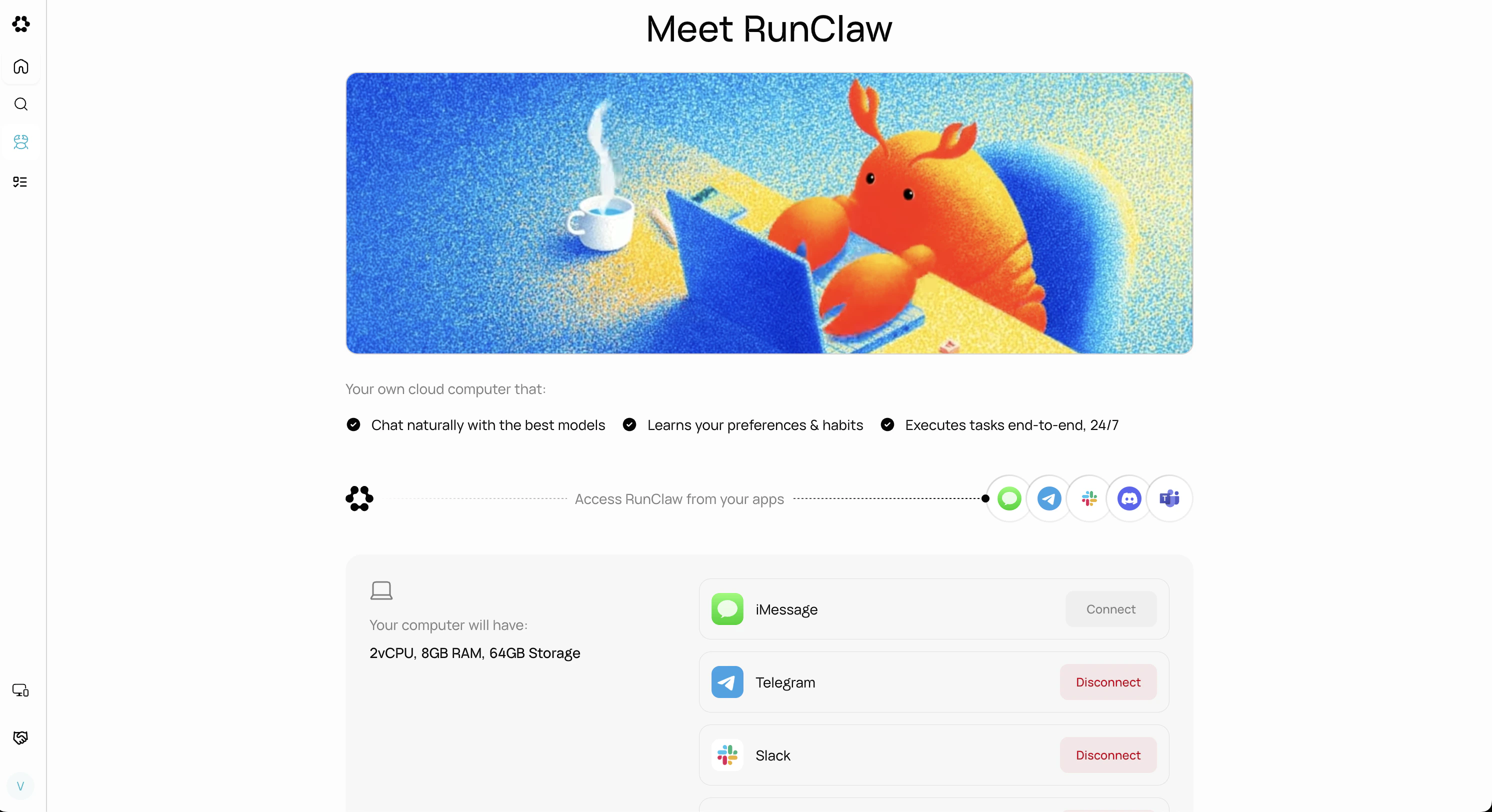
    Click the **Connect** button on the iMessage card.
    <Frame>
      <img alt="Screenshot 2026 04 25 At 6 37 39 PM 1" title="Screenshot 2026 04 25 At 6 37 39 PM 1" lightAlt="Screenshot 2026 04 25 At 6 37 39 PM 1" darkAlt="Screenshot 2026 04 25 At 6 37 39 PM 1" src="https://mintcdn.com/runableinc/XG74ZIimV_stVOOH/images/Screenshot-2026-05-11-at-11.32.16-PM.png?fit=max&auto=format&n=XG74ZIimV_stVOOH&q=85&s=b9e00454722e22eec4a29c9591f917fe" className="dark:hidden" width="2984" height="1624" data-path="images/Screenshot-2026-05-11-at-11.32.16-PM.png" />

      <img alt="Screenshot 2026 04 25 At 6 37 39 PM 1" title="Screenshot 2026 04 25 At 6 37 39 PM 1" lightAlt="Screenshot 2026 04 25 At 6 37 39 PM 1" darkAlt="Screenshot 2026 04 25 At 6 37 39 PM 1" src="https://mintcdn.com/runableinc/XG74ZIimV_stVOOH/images/Screenshot-2026-05-11-at-11.30.56-PM-1.png?fit=max&auto=format&n=XG74ZIimV_stVOOH&q=85&s=13bca988a6efc74fb45a90de02ec8661" className="hidden dark:block" width="2984" height="1624" data-path="images/Screenshot-2026-05-11-at-11.30.56-PM-1.png" />
    </Frame>
  </Step>

  <Step title="Link your iMessage">
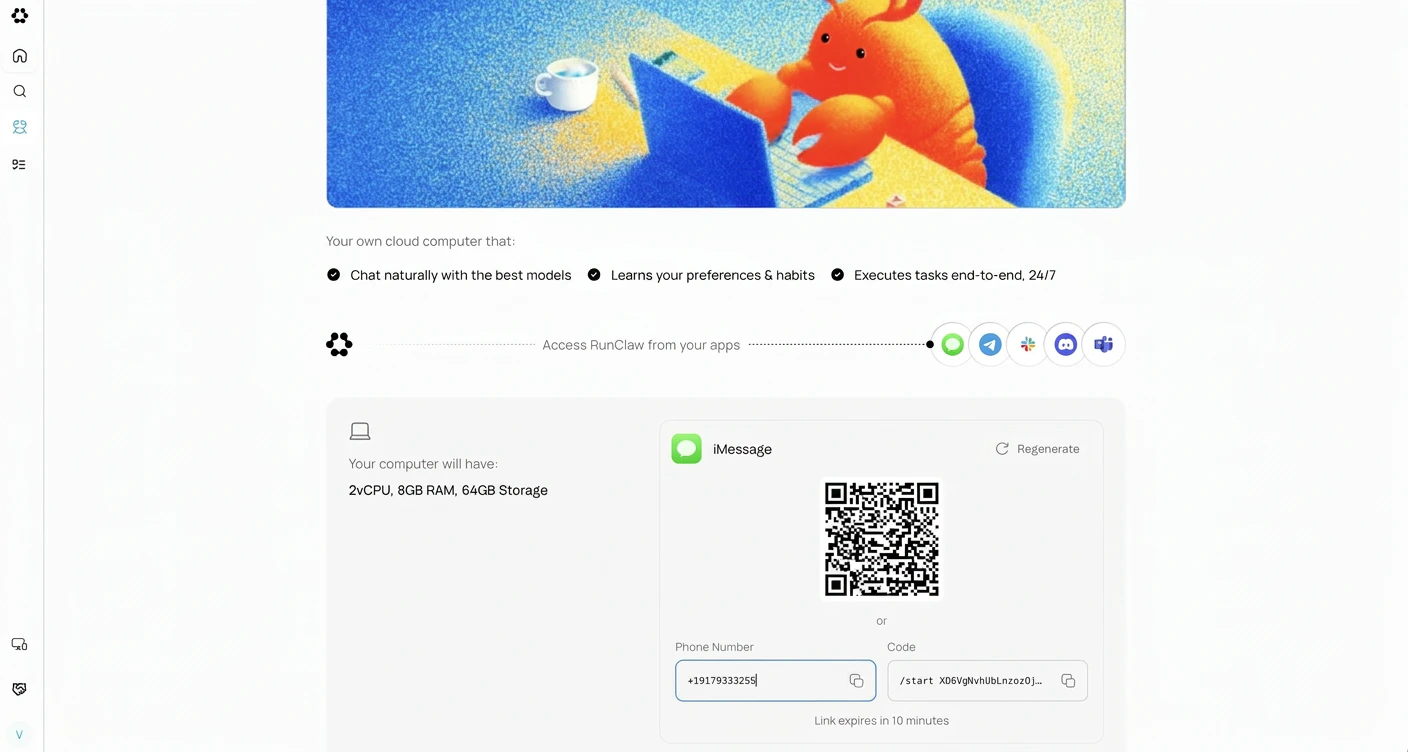
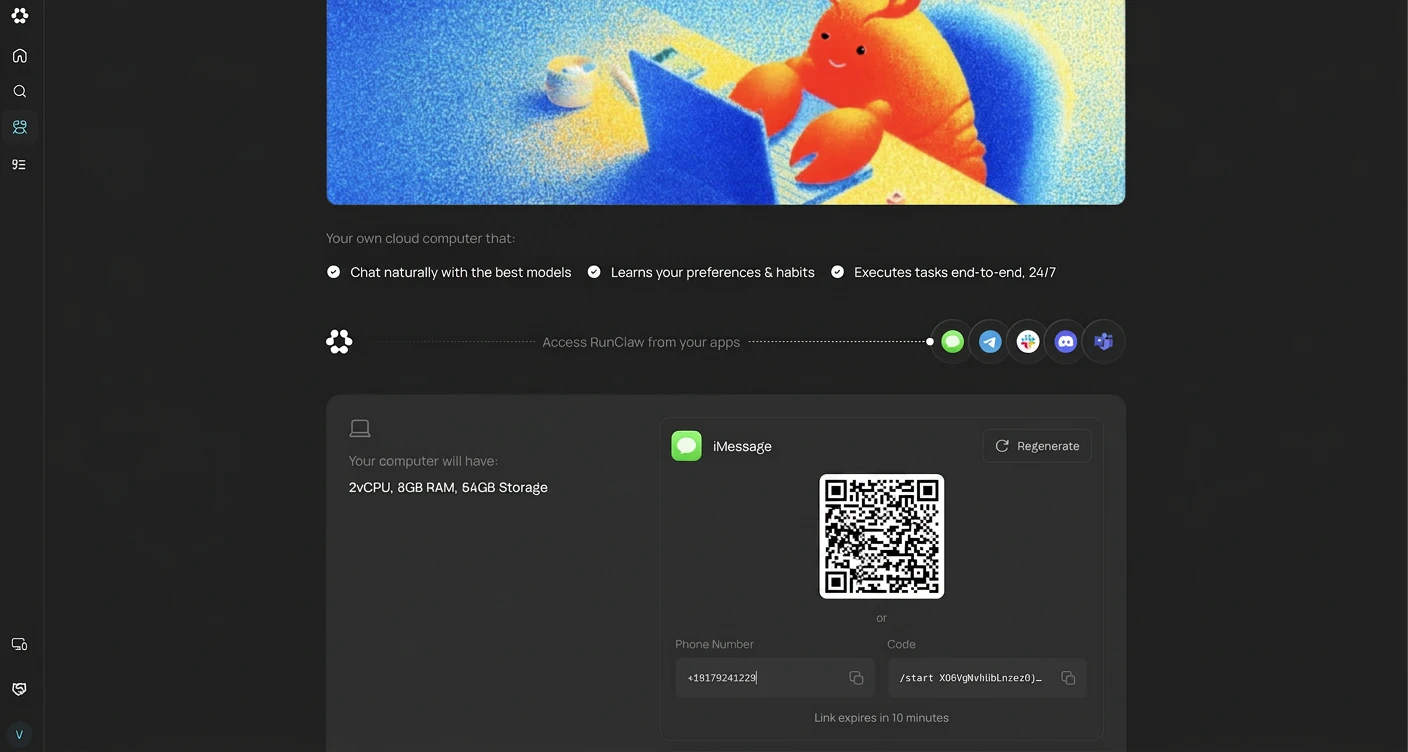
    Scan the QR with your iPhone, or send the code below to the phone line from Messages. The link expires in 10 minutes.
    <Frame>
      <img src="https://mintcdn.com/runableinc/XG74ZIimV_stVOOH/images/image-s6wl71vfn0-1.png?fit=max&auto=format&n=XG74ZIimV_stVOOH&q=85&s=e10fd70ca262d2be71c51c66000efe33" alt="Image Xezqnja2y5" lightAlt="Image Xezqnja2y5" darkAlt="Image Xezqnja2y5" className="dark:hidden" width="1408" height="752" data-path="images/image-s6wl71vfn0-1.png" />

      <img src="https://mintcdn.com/runableinc/XG74ZIimV_stVOOH/images/image-c9rkk4okdd-1.png?fit=max&auto=format&n=XG74ZIimV_stVOOH&q=85&s=091441a5f5d5bdc21a175466f4cc5bcd" alt="Image Xezqnja2y5" lightAlt="Image Xezqnja2y5" darkAlt="Image Xezqnja2y5" className="hidden dark:block" width="1408" height="752" data-path="images/image-c9rkk4okdd-1.png" />
    </Frame>
  </Step>

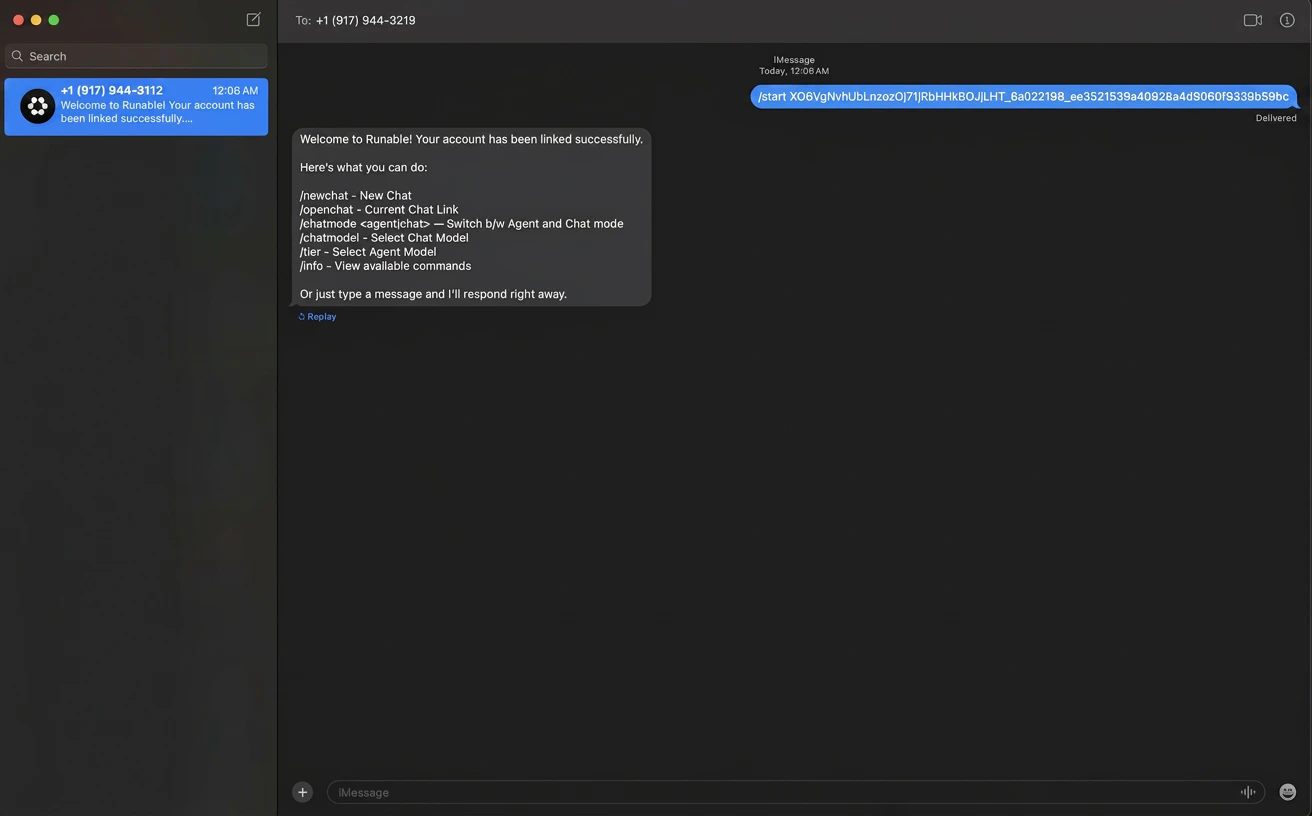
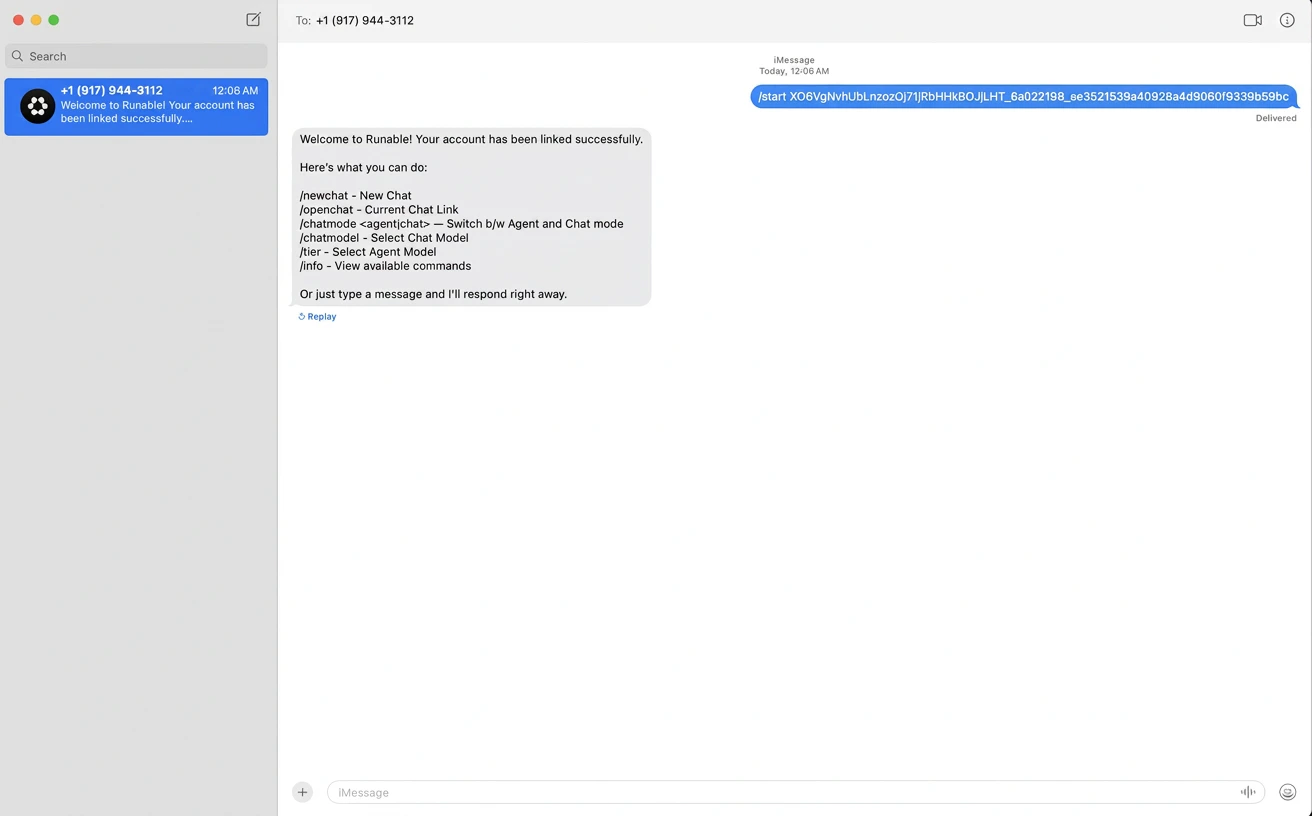
  <Step title="Confirmation">
    After authorization succeeds, you will see a connection success message.
    <Frame>
      <img alt="Screenshot 2026 04 25 At 7 15 25 PM" title="Screenshot 2026 04 25 At 7 15 25 PM" lightAlt="Screenshot 2026 04 25 At 7 15 25 PM" darkAlt="Screenshot 2026 04 25 At 7 15 25 PM" src="https://mintcdn.com/runableinc/XG74ZIimV_stVOOH/images/image-eeglexeeep-1.png?fit=max&auto=format&n=XG74ZIimV_stVOOH&q=85&s=1e44a33d81c5daf6a1dfa385ba93eb26" className="dark:hidden" width="1312" height="816" data-path="images/image-eeglexeeep-1.png" />

      <img alt="Screenshot 2026 04 25 At 7 15 25 PM" title="Screenshot 2026 04 25 At 7 15 25 PM" lightAlt="Screenshot 2026 04 25 At 7 15 25 PM" darkAlt="Screenshot 2026 04 25 At 7 15 25 PM" src="https://mintcdn.com/runableinc/XG74ZIimV_stVOOH/images/image-zrw9kgu13i-2.png?fit=max&auto=format&n=XG74ZIimV_stVOOH&q=85&s=bc3abf96227035c8022890cc3fc6e447" className="hidden dark:block" width="1312" height="816" data-path="images/image-zrw9kgu13i-2.png" />
    </Frame>
  </Step>

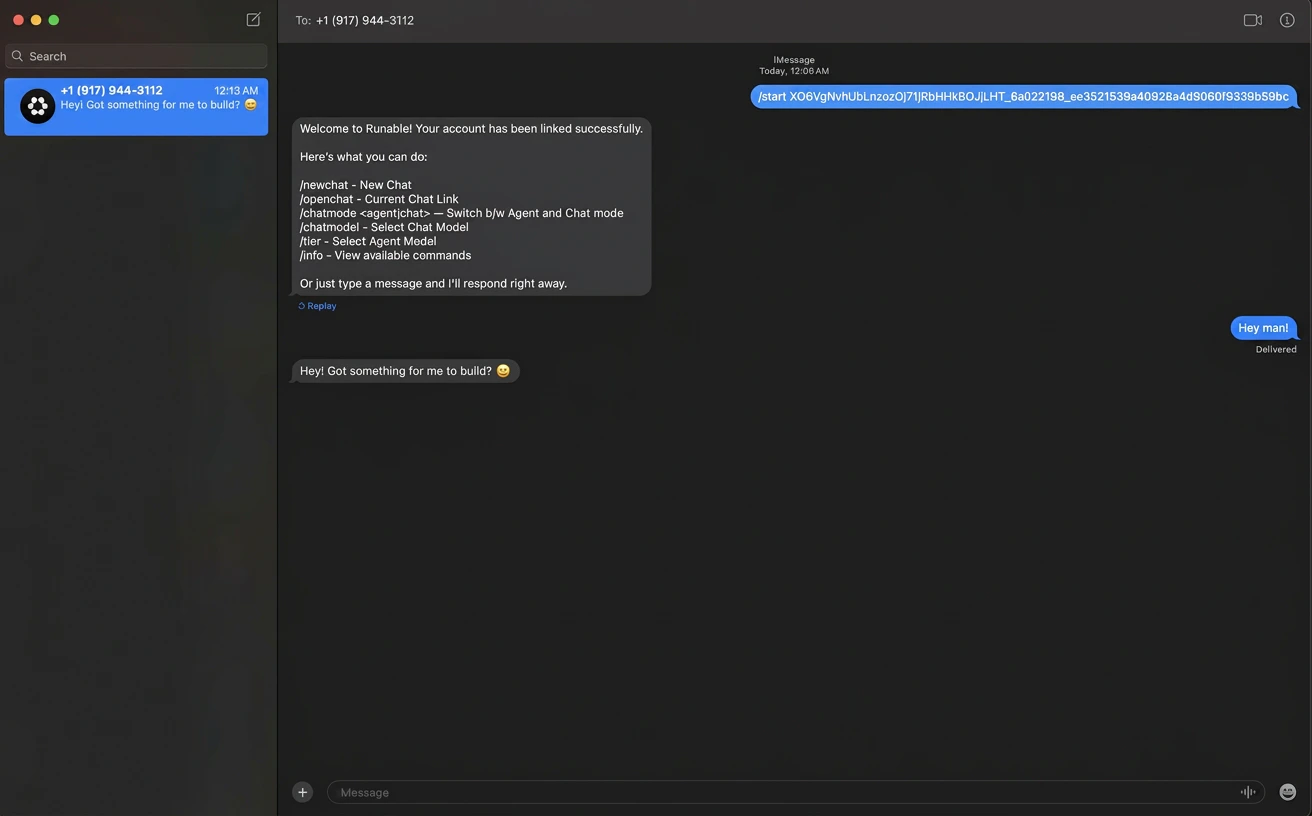
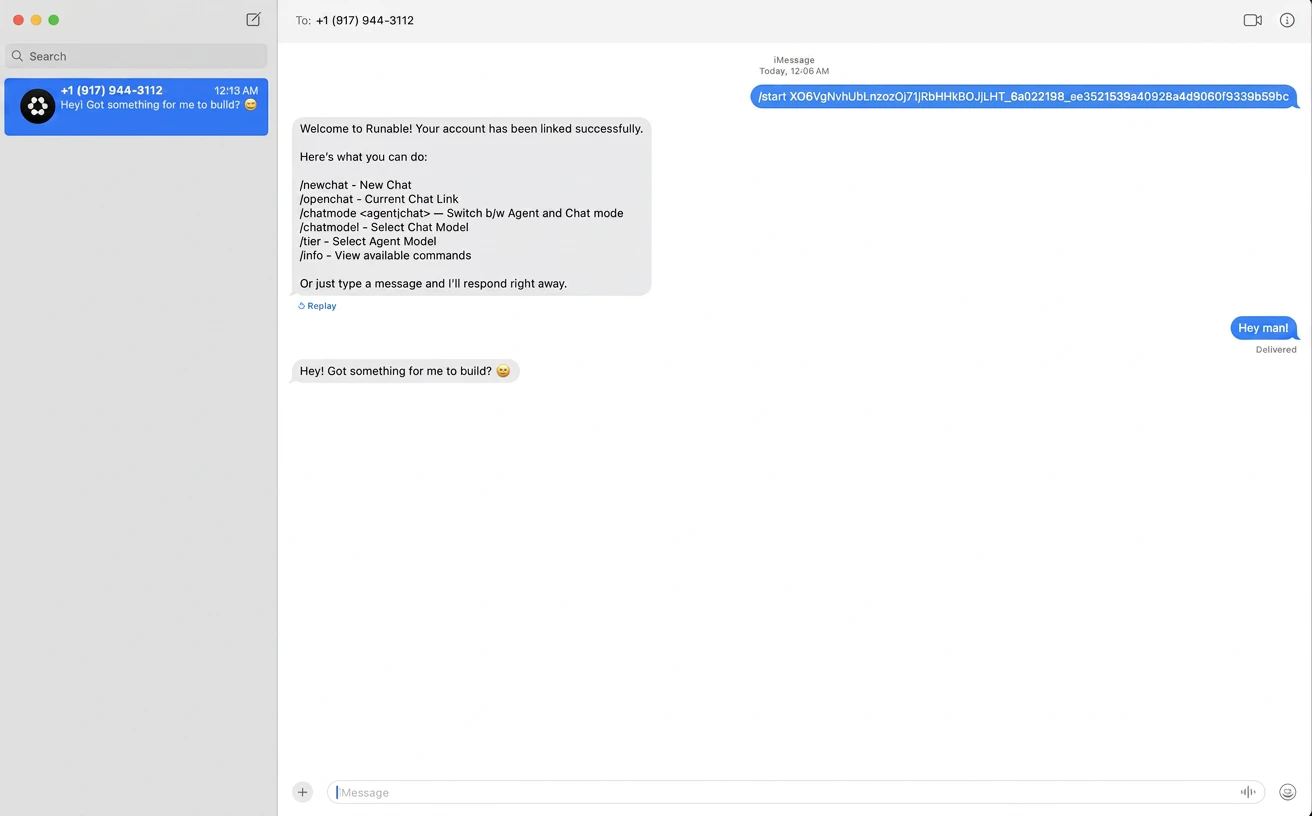
  <Step title="Start Chatting">
    Just text your Runable line to get your work done.
    <Frame>
      <img alt="Screenshot 2026 04 25 At 7 25 33 PM" lightAlt="Screenshot 2026 04 25 At 7 25 33 PM" darkAlt="Screenshot 2026 04 25 At 7 25 33 PM" src="https://mintcdn.com/runableinc/XG74ZIimV_stVOOH/images/image-bobeu9qvqc-1.png?fit=max&auto=format&n=XG74ZIimV_stVOOH&q=85&s=9f73d73a08800a6839dfde081baf8e42" className="dark:hidden" width="1312" height="816" data-path="images/image-bobeu9qvqc-1.png" />

      <img alt="Screenshot 2026 04 25 At 7 25 33 PM" lightAlt="Screenshot 2026 04 25 At 7 25 33 PM" darkAlt="Screenshot 2026 04 25 At 7 25 33 PM" src="https://mintcdn.com/runableinc/XG74ZIimV_stVOOH/images/image-ni4a6hh84o-1.png?fit=max&auto=format&n=XG74ZIimV_stVOOH&q=85&s=363ed40d32b021f427647cf7fdcc4b47" className="hidden dark:block" width="1312" height="816" data-path="images/image-ni4a6hh84o-1.png" />
    </Frame>
  </Step>
</Steps>

## Send files

Attach files to your messages the way you normally attach files in iMessage. The agent receives and processes all file types.

## Supported Commands

| Command      | What it Does                                                                                                                                              |
| ------------ | --------------------------------------------------------------------------------------------------------------------------------------------------------- |
| `/chatmode`  | View your current mode and switch between Runable Chat mode and Agent mode. Use `/chat` or `/agent` to switch. Mode changes apply only to new chats.      |
| `/chatmodel` | List available LLMs and switch between them with `/chatmodel <number>`. Command is chat mode only. Changes apply immediately to the current session.      |
| `/newchat`   | Start a new conversation thread.                                                                                                                          |
| `/openchat`  | View your current session.                                                                                                                                |
| `/tier`      | View available agent tiers (Max, Pro, Lite) and switch between them with `/tier <number>`. Agent mode only. Changes apply immediately to current session. |
| `/info`      | View the full list of available commands and how to use them.                                                                                             |

## How to disconnect

Go back to **Settings** → **Run Claw** in the Runable web app. Click **Disconnect** on the iMessage card.

## Next steps

<CardGroup cols={2}>
  <Card title="Connect Telegram" icon="paper-plane" href="/runclaw-telegram">
    Set up Runable in Telegram with slash commands and instant connection.
  </Card>

  <Card title="Connect Teams" icon="slack" href="/runclaw-slack">
    Add Runable to your Slack workspace with channel support.
  </Card>
</CardGroup>