> ## Documentation Index
> Fetch the complete documentation index at: https://docs.runable.com/llms.txt
> Use this file to discover all available pages before exploring further.
# Discord
> Add Runable to your Discord server. DM the bot for private conversations or mention it in any channel to start a thread.
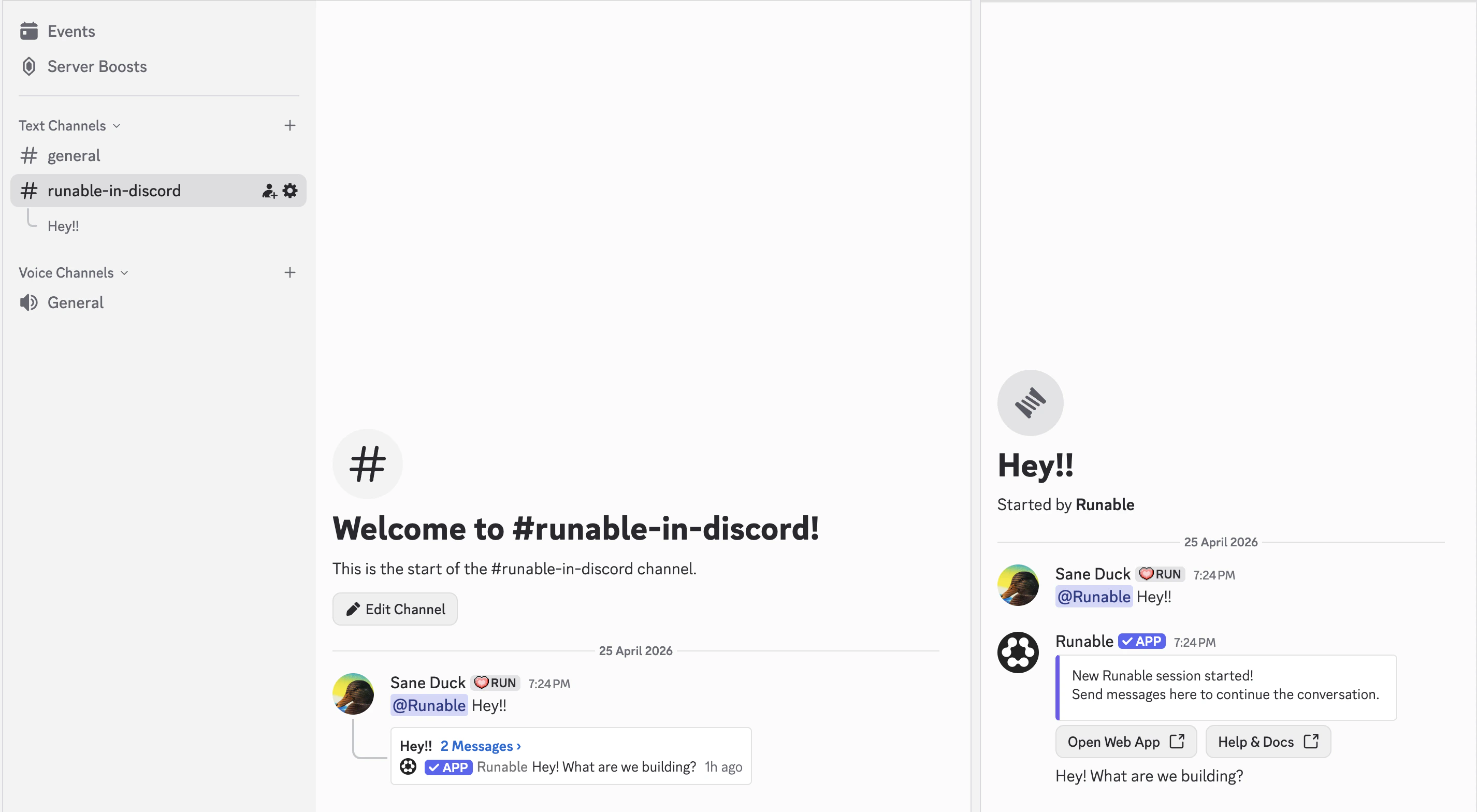
The Discord integration adds the Runable agent to your server. DM the bot for private conversations or mention it in any channel. The bot automatically creates threads to keep conversations organized. Generated artifacts (websites, decks, videos) appear inline with embed previews you can interact with right in Discord.
## How to connect
In the Runable web app, go to **Sidebar** → **Run Claw**. You can also go to **Settings** → **Runclaw** and find same option there.
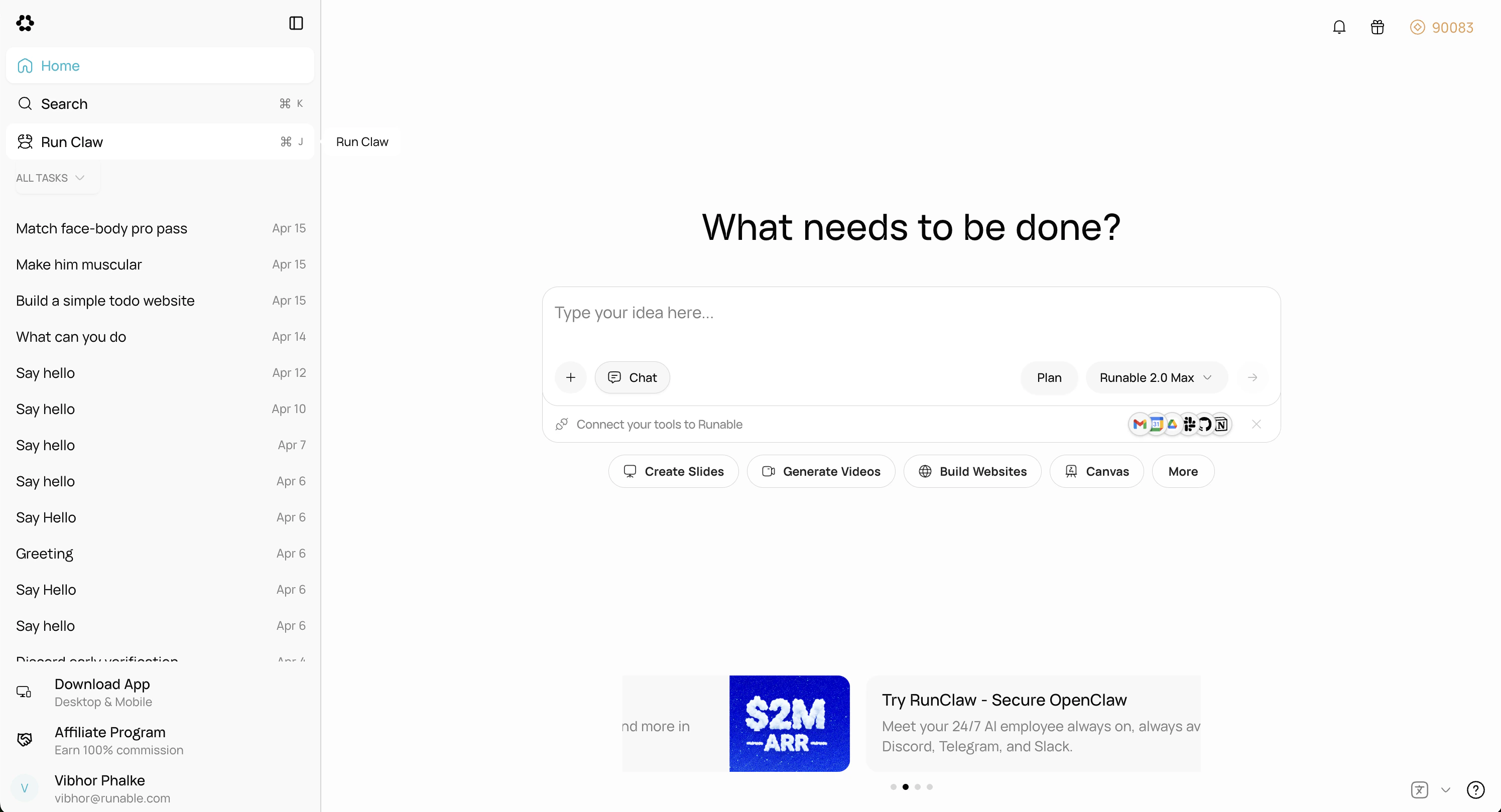
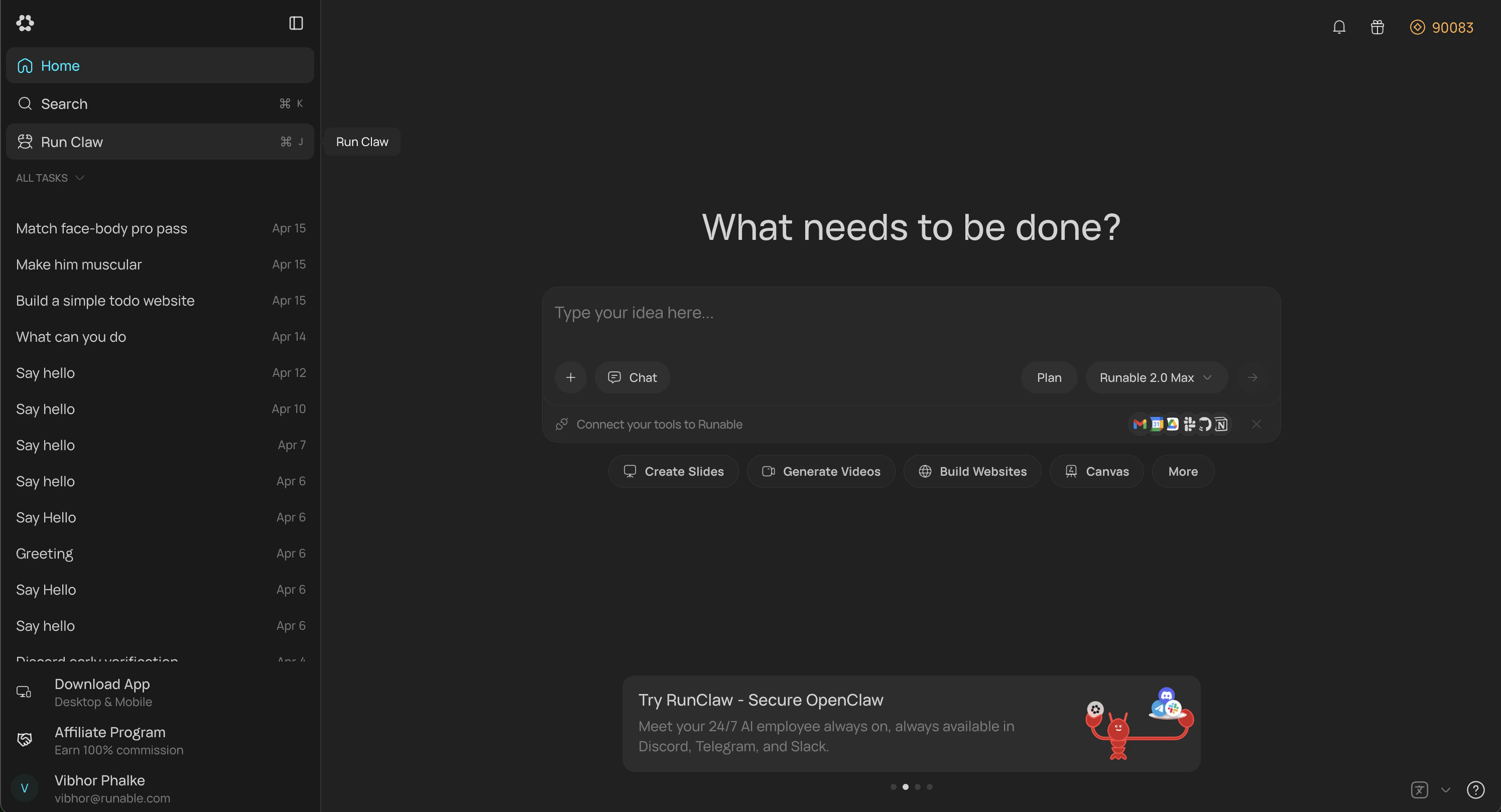 Click the **Connect** button on the Discord card.
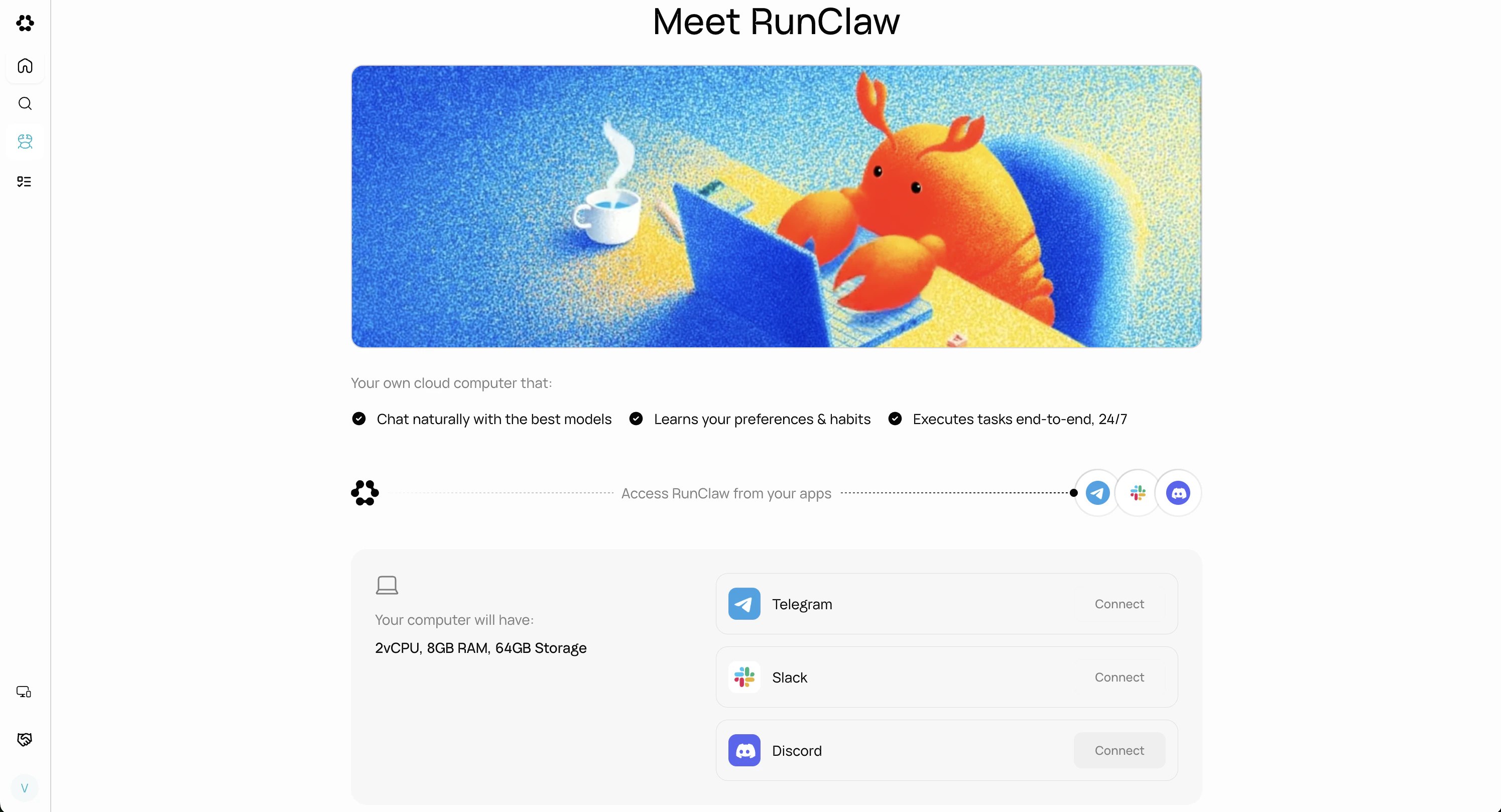
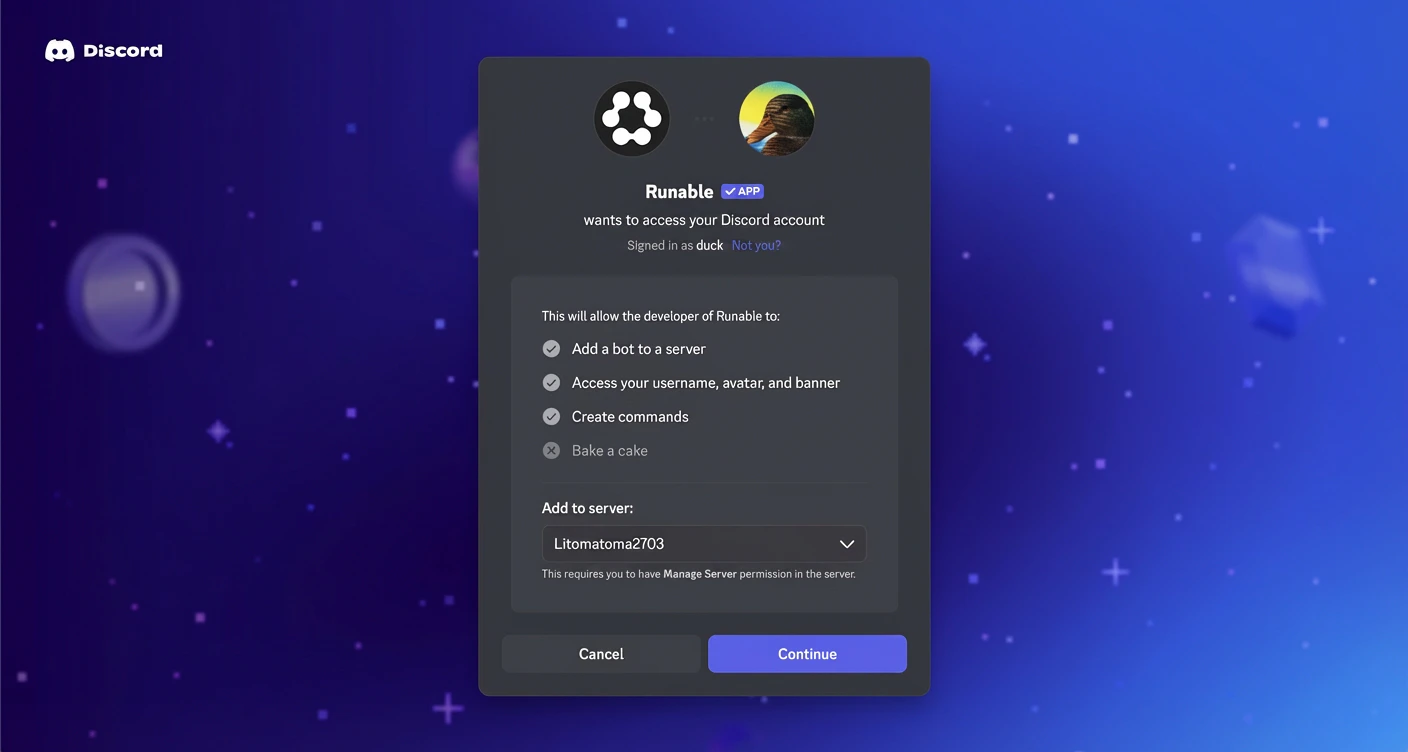
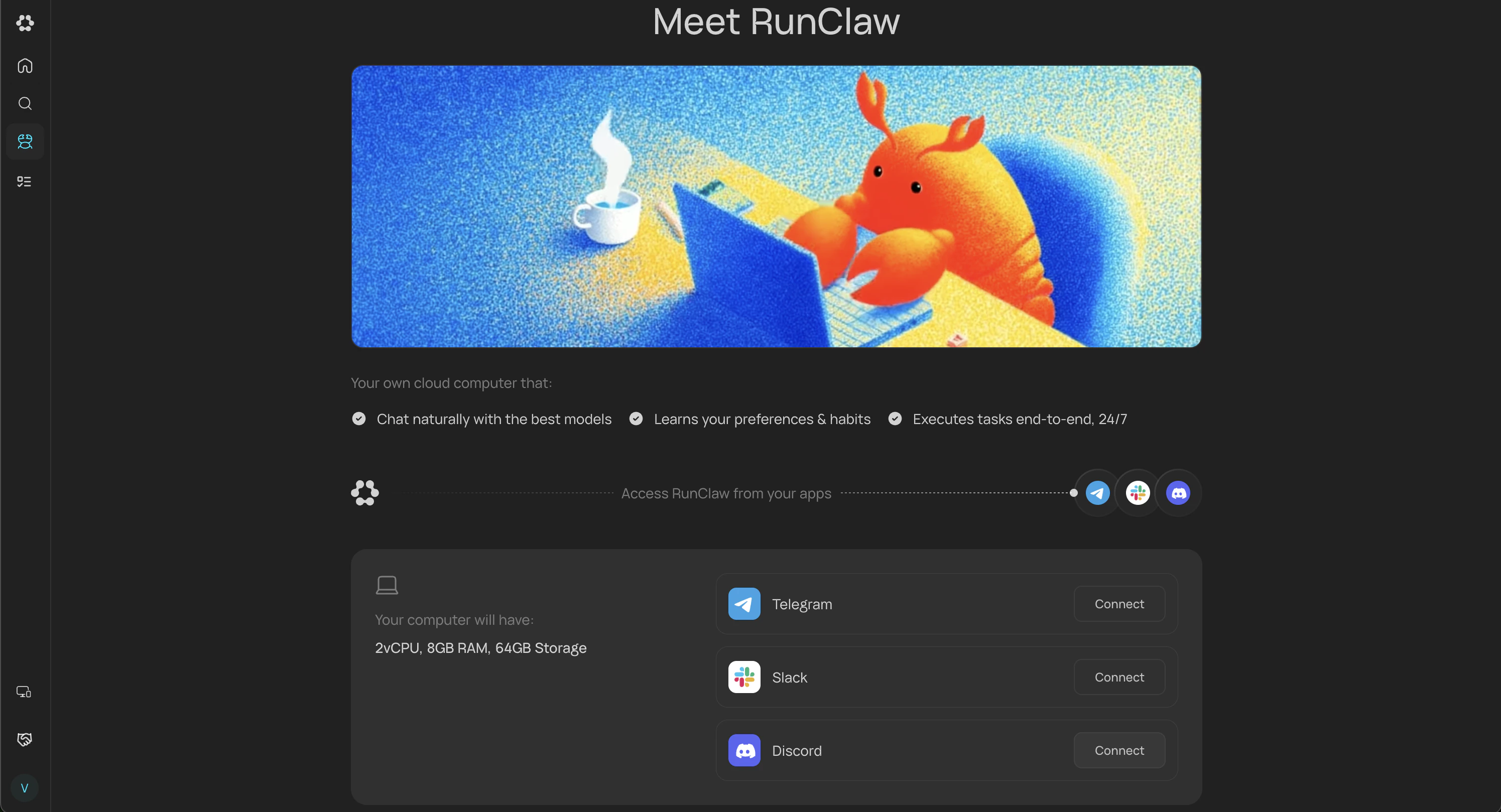 After clicking **Connect**, the Discord OAuth screen appears. Select the server where you want to add the bot and authorize access.
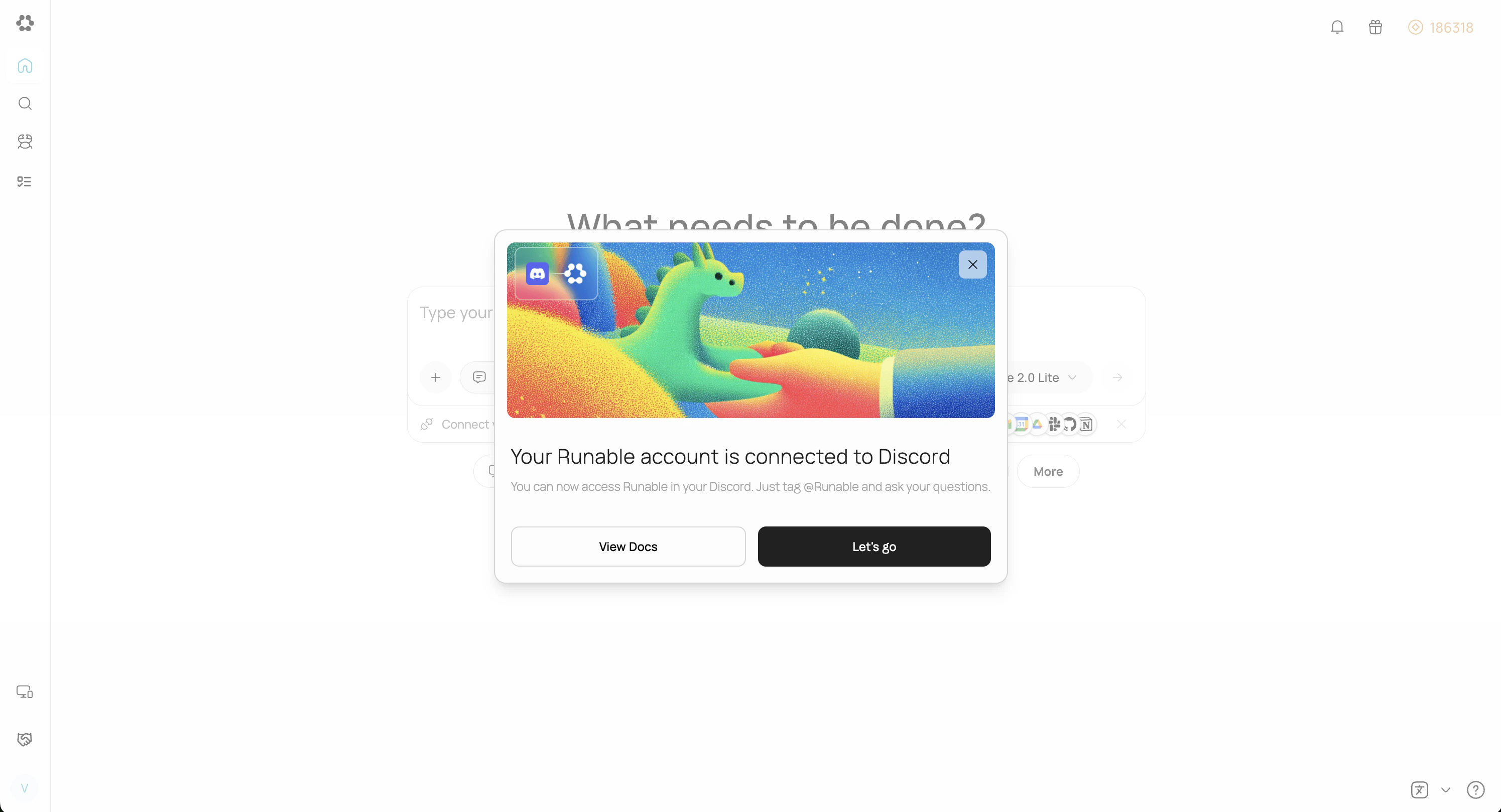
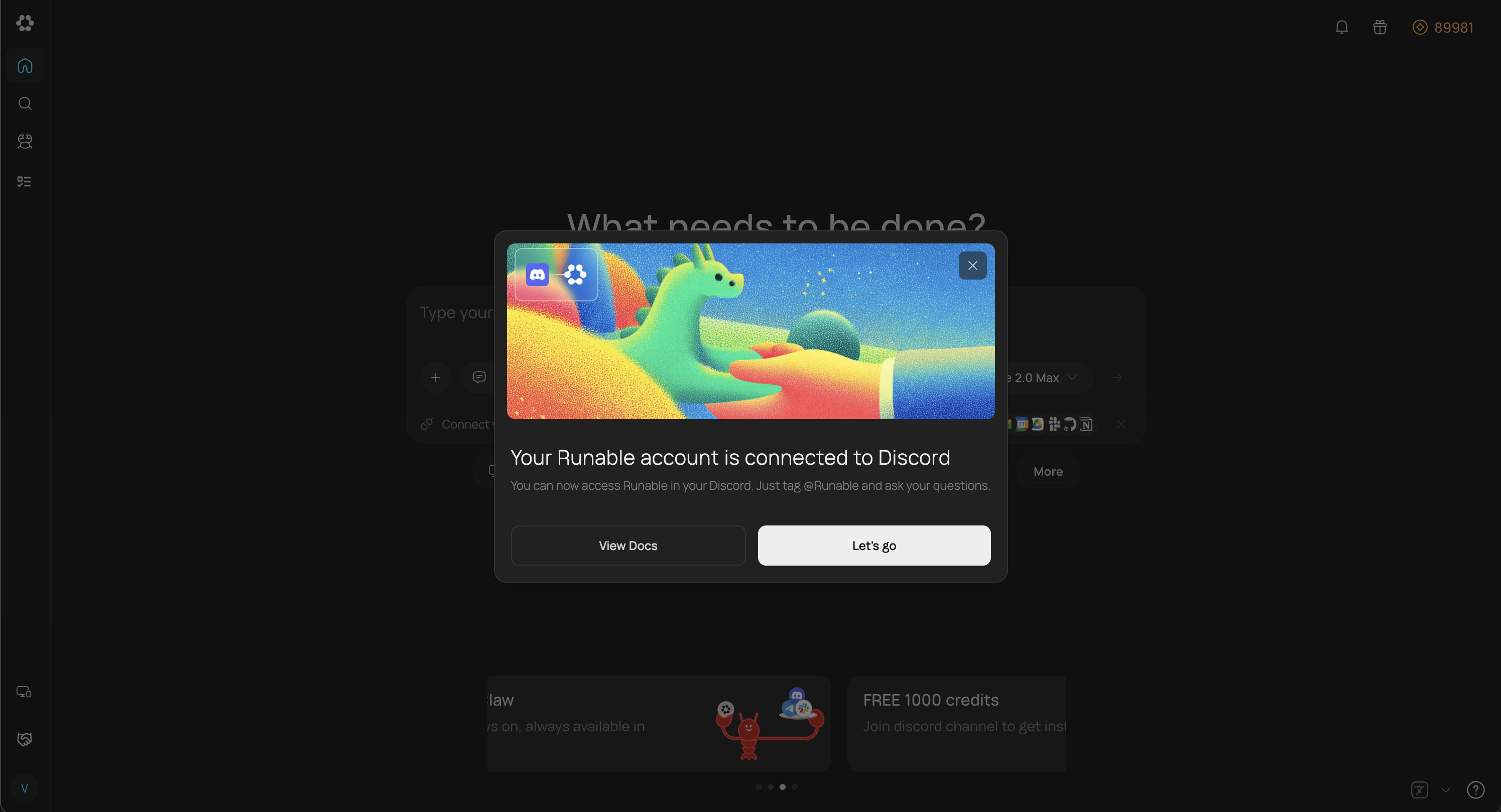
 After authorization succeeds, you'll be redirected to Runable and a confirmation popup will appear.
 Just mention **@Runable** in any channel to get your work done. The chat is synced with the web and mobile apps, so you can continue there anytime.
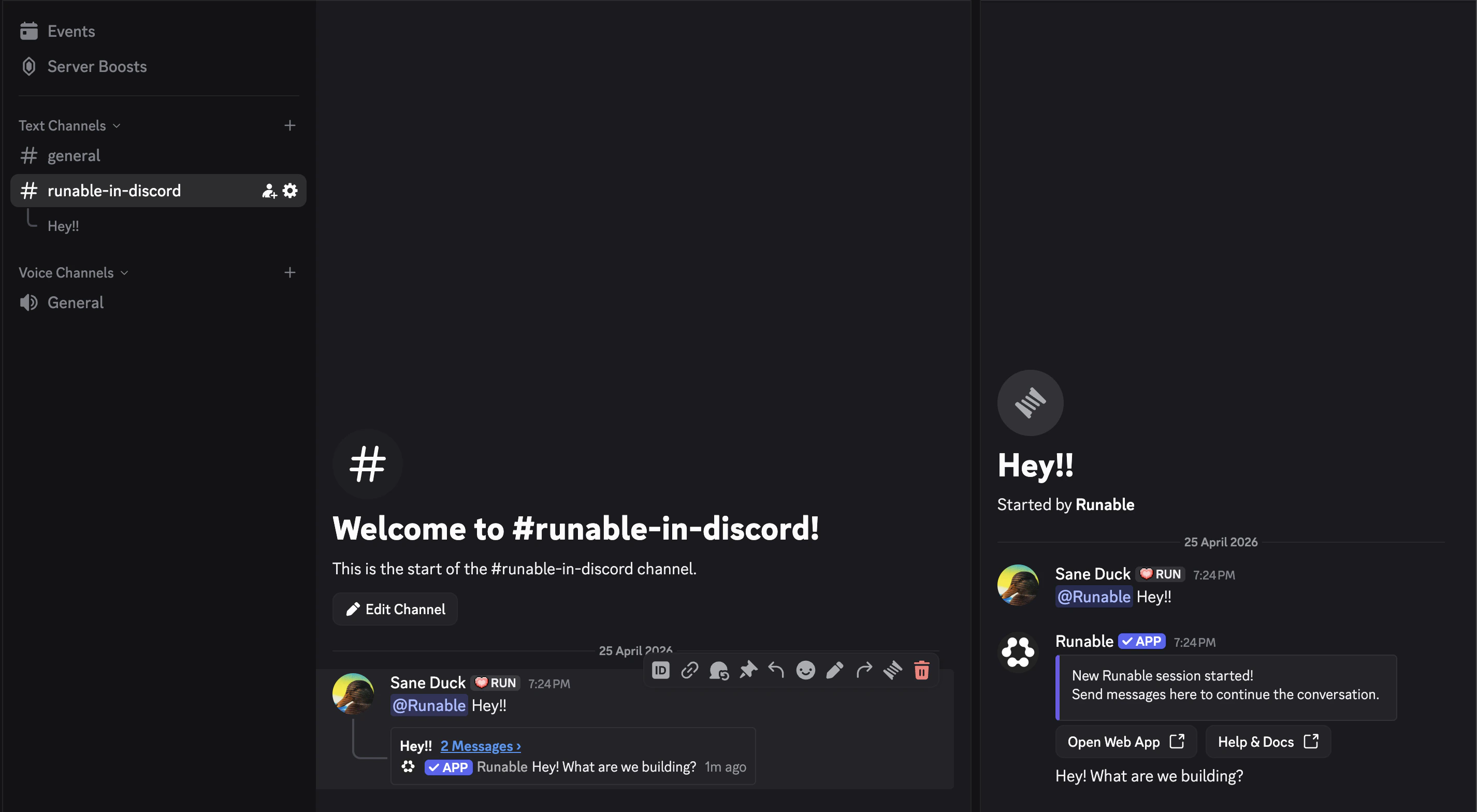 ## Two ways to use Discord
## Send files
Attach files to your messages the way you normally attach files in Discord. The agent receives and processes all file types.
## Supported Commands
| Command | What it Does |
| ------------ | ------------------------------------------------------------------------------------------------- |
| `/chatmode` | Switch between Runable Chat mode and Agent mode. Mode changes apply only to new chats or threads. |
| `/chatmodel` | Switch between different LLMs from various providers, available only in Chat mode. |
| `/newchat` | Start a new conversation thread. Available only in DMs. |
| `/session` | View your current session. Available only in DMs. |
| `/settings` | Switch between different chat modes (Lite, Pro, and Max) to match your needs. |
## How to disconnect
Go back to **Settings** → **Run Claw** in the Runable web app. Click **Disconnect** on the Discord card or remove the bot from the server.
## Important Details
* When one user installs Runable on a Discord server, members in the server can use the bot. All usage is billed to the account that installed it.
* Direct messages with the bot are limited to the user who installed it on the server.
* Discord provides native access control for the bot. Go to Server Settings → Integrations → Runable → Manage to configure who can use it and other settings.
* Runable only processes messages that mention it directly. It does not see the surrounding thread or conversation history. Thread context is a planned feature.
## Next steps
Set up Runable in Telegram with slash commands and instant connection.
Set up Runable in iMessage with slash commands and instant connection.
## Two ways to use Discord
## Send files
Attach files to your messages the way you normally attach files in Discord. The agent receives and processes all file types.
## Supported Commands
| Command | What it Does |
| ------------ | ------------------------------------------------------------------------------------------------- |
| `/chatmode` | Switch between Runable Chat mode and Agent mode. Mode changes apply only to new chats or threads. |
| `/chatmodel` | Switch between different LLMs from various providers, available only in Chat mode. |
| `/newchat` | Start a new conversation thread. Available only in DMs. |
| `/session` | View your current session. Available only in DMs. |
| `/settings` | Switch between different chat modes (Lite, Pro, and Max) to match your needs. |
## How to disconnect
Go back to **Settings** → **Run Claw** in the Runable web app. Click **Disconnect** on the Discord card or remove the bot from the server.
## Important Details
* When one user installs Runable on a Discord server, members in the server can use the bot. All usage is billed to the account that installed it.
* Direct messages with the bot are limited to the user who installed it on the server.
* Discord provides native access control for the bot. Go to Server Settings → Integrations → Runable → Manage to configure who can use it and other settings.
* Runable only processes messages that mention it directly. It does not see the surrounding thread or conversation history. Thread context is a planned feature.
## Next steps
Set up Runable in Telegram with slash commands and instant connection.
Set up Runable in iMessage with slash commands and instant connection.