> ## Documentation Index
> Fetch the complete documentation index at: https://docs.runable.com/llms.txt
> Use this file to discover all available pages before exploring further.
# Remove Video Background
> Strip the background from a video clip, leaving the subject isolated.
Remove Video Background detects the subject in a video and removes everything else, frame by frame. The result is a video of the isolated subject that you can layer over other content. This is a direct canvas operation, so you do not need to send a prompt to the agent.
Using canvas tools directly gives you more control and uses significantly fewer credits than sending a prompt to the agent. For background removal, always use this tool instead of asking the agent.
## How to remove a video background
Open the canvas and click the video you want to edit. The video editing toolbar appears.
In the toolbar, click the background removal option. The AI processes the video frame by frame.
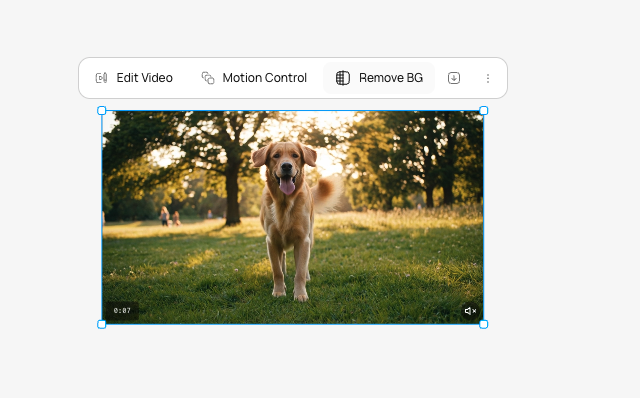
Background removal takes longer than image background removal because every frame is processed individually. A placeholder appears on the canvas while it runs.
A new video appears on the canvas with the background removed. Your original video is preserved as a separate item.
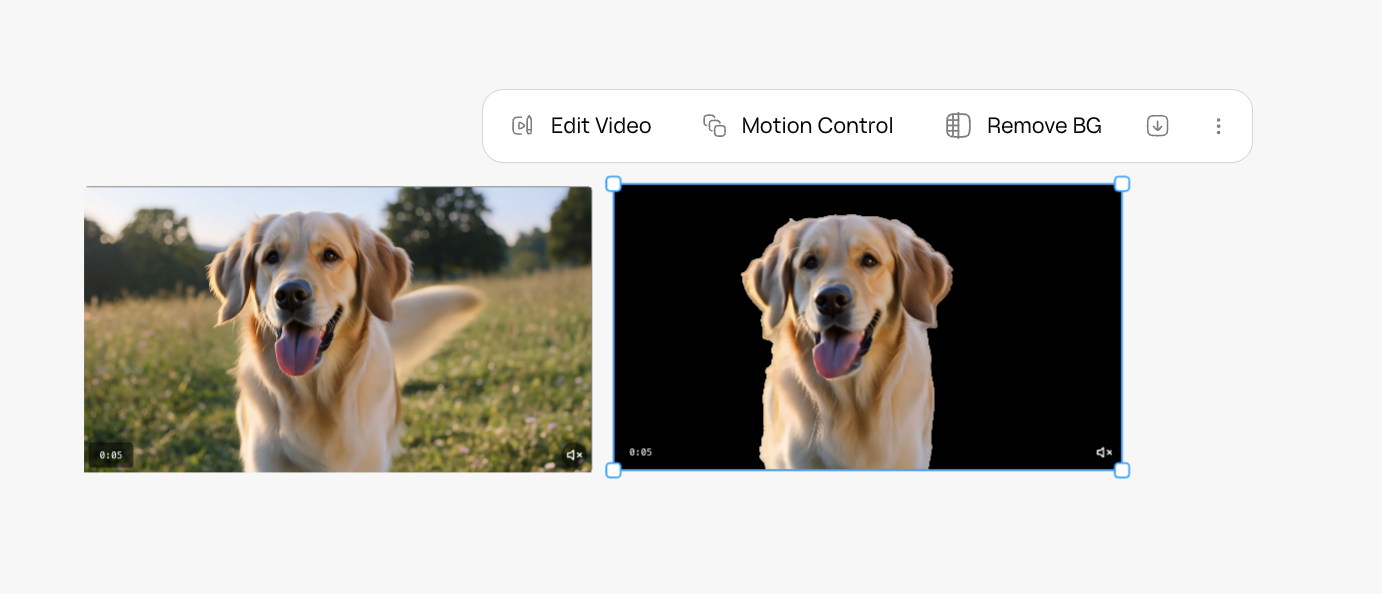
Remove Video Background creates a new canvas item. It does not overwrite the original. You always keep both versions.
## When to use this
* Isolating a person or product for compositing over a different background.
* Creating overlay content for presentations or social media.
* Preparing footage for green-screen-style layering in external editors.
## What you cannot do
* You cannot select which parts of the background to keep. The AI removes the entire background.
* You cannot replace the background with a new scene in a single step (unlike images). Remove the background first, then composite in an external editor.
* You cannot adjust the quality of edge detection after processing.
## Next steps
Transfer motion from a reference video onto a still image.
Arrange multiple clips into a single video.