> ## Documentation Index
> Fetch the complete documentation index at: https://docs.runable.com/llms.txt
> Use this file to discover all available pages before exploring further.
# Plan Mode
> The agent researches, asks questions, and writes a full plan before building anything.
Plan Mode makes the agent stop and think before acting. Instead of immediately building, the agent researches your request, asks clarifying questions, and produces a detailed plan document. You review the plan, adjust it, and approve it. Only then does the agent start building.
Use Plan Mode for complex projects where getting it right the first time saves credits and effort.
## How to use Plan Mode
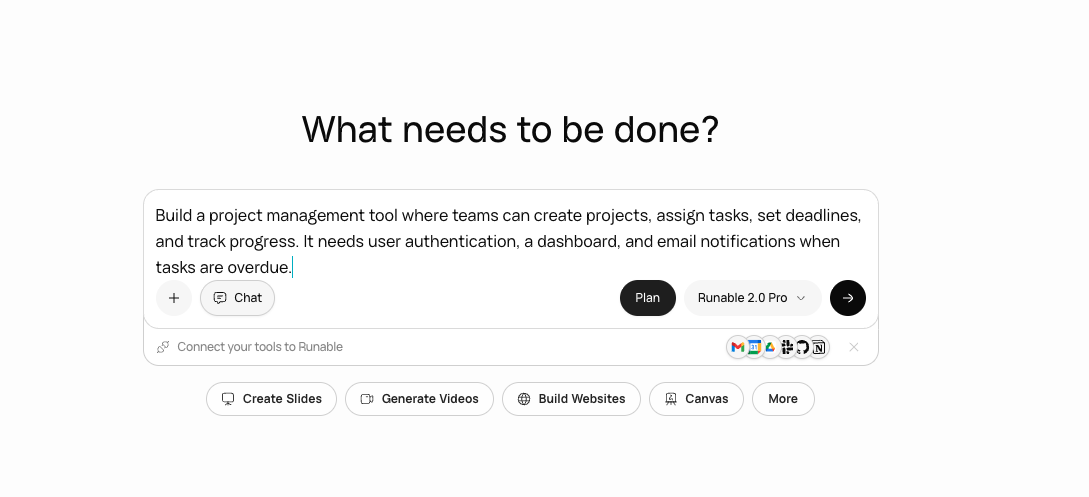
In the input bar, click the **Plan** toggle before sending your message. Plan Mode works within Agent Mode, not Chat Mode.
Type what you want to build. Be as detailed or as brief as you want. The agent fills in the gaps through research and questions.
Build a project management tool where teams can create projects, assign tasks, set deadlines, and track progress. It needs user authentication, a dashboard, and email notifications when tasks are overdue.
The agent researches your request and asks clarifying questions. Things like: who is the target audience, what integrations do you need, what is the priority order for features, do you have design preferences.
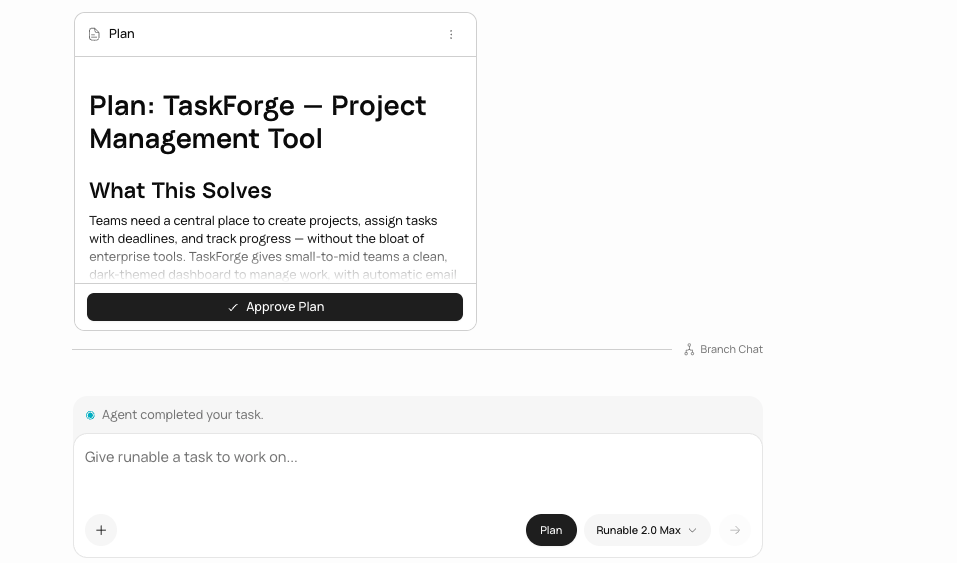
The agent produces a plan document (`plan.md`) that outlines everything it will build, in what order, and how. The plan appears.
Review the plan. If anything is wrong or missing, tell the agent. It adjusts the plan before proceeding.
Once you are happy with the plan, approve it. The agent switches from planning to execution and builds everything according to the plan.
## When to use Plan Mode
### Use Plan Mode
* Websites with multiple pages and features
* Projects that need a database, authentication, or payments
* Complex multi-step tasks with dependencies
* Anything where rework would cost significant credits
### Skip Plan Mode
* Simple one-shot tasks (generate an image, write a quick email)
* Small edits to existing projects
* Quick questions or research
* Tasks you have done before and know the output
Plan Mode is the difference between getting what you wanted and getting something close. For any project with more than two or three moving parts, turn it on.
## What you cannot do in Plan Mode
* You cannot use Plan Mode in Chat Mode. It is an Agent Mode feature.
* You cannot skip the plan and tell the agent to start building immediately while Plan Mode is enabled. Turn off Plan Mode if you want the agent to start without a plan.
* You cannot save a plan as a reusable template for future projects.
## Next steps
Share your conversation and results with others.
Learn how the agent executes code in an isolated environment.
 Review the plan. If anything is wrong or missing, tell the agent. It adjusts the plan before proceeding.