> ## Documentation Index
> Fetch the complete documentation index at: https://docs.runable.com/llms.txt
> Use this file to discover all available pages before exploring further.
# Generate Videos on Canvas
> Create videos from text or from an existing image directly on the canvas workspace.
You can generate videos directly on the canvas in two ways: from a text prompt (text-to-video) or from an existing image on the canvas (image-to-video). Both give you control over model selection, duration, aspect ratio, and audio.
Generating videos directly on the canvas lets you pick the exact model, duration, and settings. For simple generation tasks, this uses fewer credits than asking the agent in the chat.
## Text-to-video on the canvas
In the bottom toolbar, click the **Generate Video** button. A placeholder appears at the next available position.
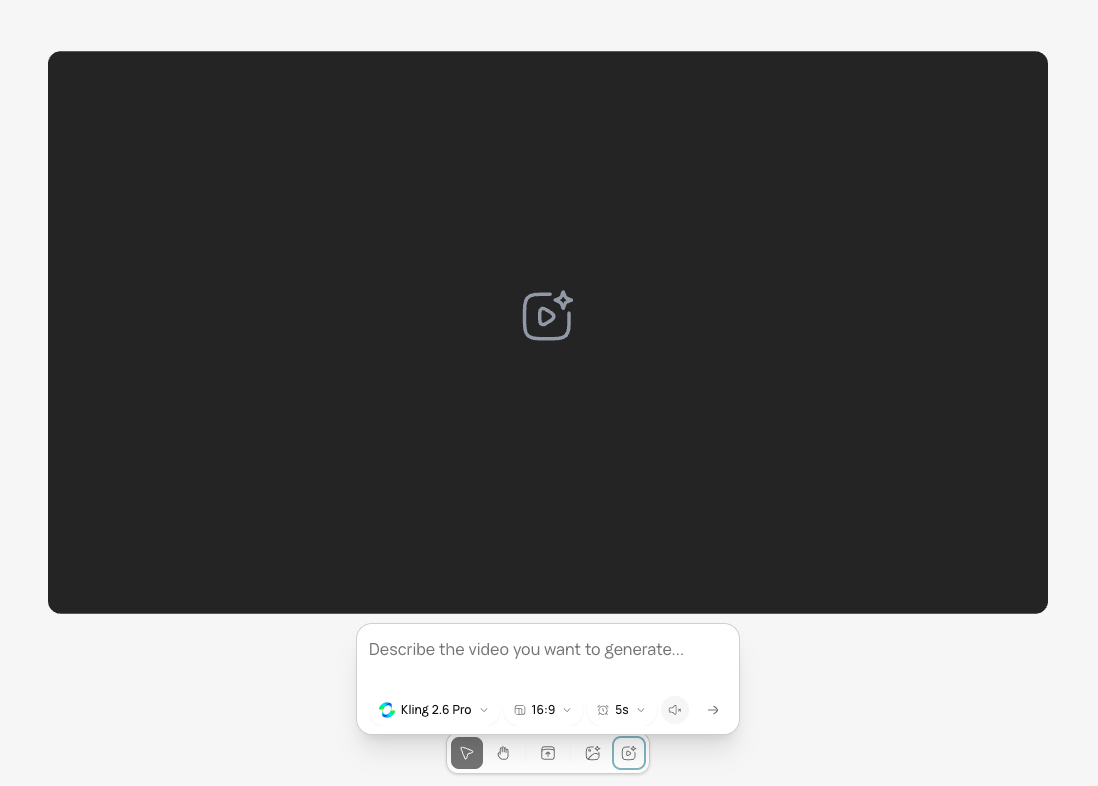 A prompt box appears below the placeholder. Describe the video you want.
A 5-second cinematic shot of a coffee cup with steam rising. Camera slowly pushes in. Warm morning light, shallow depth of field.
Below the prompt, set your options:
| Option | Choices |
| ---------------- | --------------------------------------------------------------------------------------- |
| **Model** | Select a video model (each has different strengths, duration limits, and audio support) |
| **Aspect ratio** | 16:9 (default), 9:16, 1:1 |
| **Duration** | 3–15 seconds (varies by model) |
| **Audio** | On or off. Muted videos use roughly half the credits. |
Click submit. The placeholder shows a generating status. Video generation takes 30 seconds to a few minutes depending on duration and model.
## Image-to-video on the canvas
You can animate any image already on the canvas into a video.
Click the image you want to animate. The selection toolbar appears.
In the selection toolbar (or dropdown menu), click **Create Video**. A prompt box appears.
Type a prompt describing what should move and how. The image becomes the first frame.
Clouds drift slowly across the sky. Water ripples gently. A bird flies in the distance. 5-second clip.
Set your model, duration, and audio preference. Click submit. A new video item appears on the canvas when generation is complete.
Image-to-video creates a new video item on the canvas. The original image is preserved.
## Edit generated videos
After a video appears on the canvas, select it and use the video editing tools:
| Tool | What it does |
| ------------------ | -------------------------------------------- |
| **Edit Video** | Describe changes to style, color, or content |
| **Motion Control** | Transfer motion from a reference video |
| **Remove BG** | Strip the video background frame by frame |
| **Download** | Save the video as MP4 |
## What you cannot do
* You cannot set a specific resolution in pixels. Resolution is determined by the model (720p, 1080p, or 4K depending on model).
* You cannot generate videos longer than 15 seconds in a single canvas operation. For longer content, use the timeline to stitch clips.
* You cannot generate multiple videos at once from the canvas. Generate them one at a time.
## Next steps
Download individual files or batch export as ZIP.
Learn how to navigate, select, and arrange items on the canvas.
A prompt box appears below the placeholder. Describe the video you want.
A 5-second cinematic shot of a coffee cup with steam rising. Camera slowly pushes in. Warm morning light, shallow depth of field.
Below the prompt, set your options:
| Option | Choices |
| ---------------- | --------------------------------------------------------------------------------------- |
| **Model** | Select a video model (each has different strengths, duration limits, and audio support) |
| **Aspect ratio** | 16:9 (default), 9:16, 1:1 |
| **Duration** | 3–15 seconds (varies by model) |
| **Audio** | On or off. Muted videos use roughly half the credits. |
Click submit. The placeholder shows a generating status. Video generation takes 30 seconds to a few minutes depending on duration and model.
## Image-to-video on the canvas
You can animate any image already on the canvas into a video.
Click the image you want to animate. The selection toolbar appears.
In the selection toolbar (or dropdown menu), click **Create Video**. A prompt box appears.
Type a prompt describing what should move and how. The image becomes the first frame.
Clouds drift slowly across the sky. Water ripples gently. A bird flies in the distance. 5-second clip.
Set your model, duration, and audio preference. Click submit. A new video item appears on the canvas when generation is complete.
Image-to-video creates a new video item on the canvas. The original image is preserved.
## Edit generated videos
After a video appears on the canvas, select it and use the video editing tools:
| Tool | What it does |
| ------------------ | -------------------------------------------- |
| **Edit Video** | Describe changes to style, color, or content |
| **Motion Control** | Transfer motion from a reference video |
| **Remove BG** | Strip the video background frame by frame |
| **Download** | Save the video as MP4 |
## What you cannot do
* You cannot set a specific resolution in pixels. Resolution is determined by the model (720p, 1080p, or 4K depending on model).
* You cannot generate videos longer than 15 seconds in a single canvas operation. For longer content, use the timeline to stitch clips.
* You cannot generate multiple videos at once from the canvas. Generate them one at a time.
## Next steps
Download individual files or batch export as ZIP.
Learn how to navigate, select, and arrange items on the canvas.