> ## Documentation Index
> Fetch the complete documentation index at: https://docs.runable.com/llms.txt
> Use this file to discover all available pages before exploring further.
# Generate Images on Canvas
> Create images from a text prompt directly on the canvas workspace with your choice of AI model.
You can generate images directly on the canvas without going through the chat. Click a button, type a prompt, pick a model, and the image appears on your workspace. This is faster than asking the agent and gives you more control over model selection and placement.
Generating directly on the canvas gives you more control over which model to use and where the image is placed. It also uses fewer credits than sending a prompt to the agent for simple generation tasks.
## How to generate an image on the canvas
In the bottom toolbar, click the **Generate Image** button. A placeholder appears on the canvas at the next available grid position.
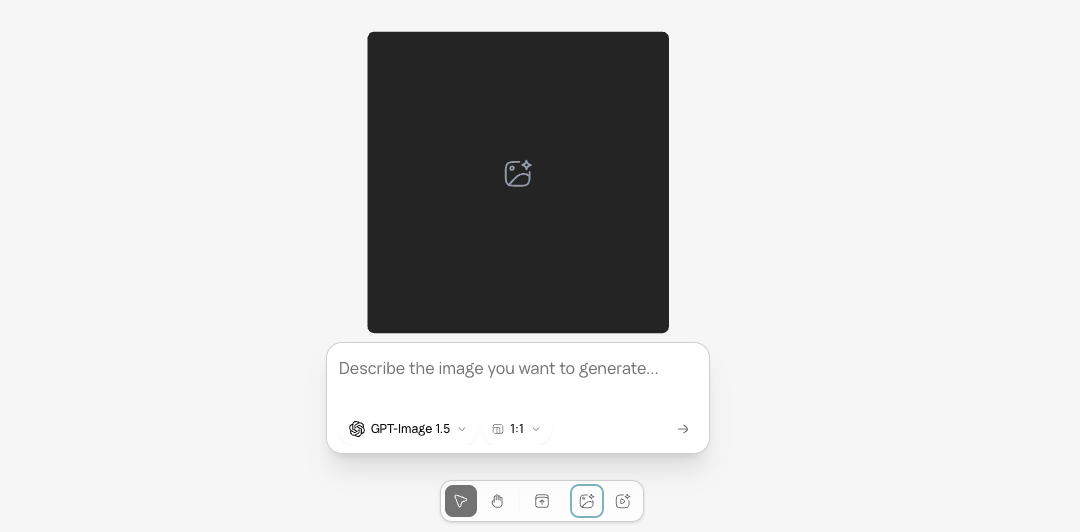 A prompt box appears below the placeholder. Type a description of the image you want.
A luxury perfume bottle on a marble surface, soft studio lighting, clean white background, photorealistic.
A flat illustration of a person working at a standing desk, warm colors, minimal style, no text.
Below the prompt field, select your preferred image model and aspect ratio.
| Option | What to choose |
| ---------------- | ---------------------------------------------------------------------------------------------------------- |
| **Model** | Pick the model that fits your needs. Each has different strengths (color accuracy, speed, 4K output, etc.) |
| **Aspect ratio** | 21:9, 16:9, 4:3, 1:1, 3:4, 9:16, or 9:21 |
A prompt box appears below the placeholder. Type a description of the image you want.
A luxury perfume bottle on a marble surface, soft studio lighting, clean white background, photorealistic.
A flat illustration of a person working at a standing desk, warm colors, minimal style, no text.
Below the prompt field, select your preferred image model and aspect ratio.
| Option | What to choose |
| ---------------- | ---------------------------------------------------------------------------------------------------------- |
| **Model** | Pick the model that fits your needs. Each has different strengths (color accuracy, speed, 4K output, etc.) |
| **Aspect ratio** | 21:9, 16:9, 4:3, 1:1, 3:4, 9:16, or 9:21 |
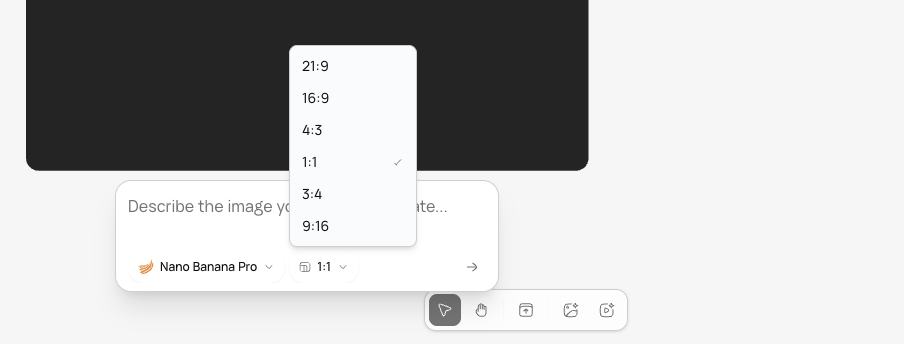 Click the submit button. The placeholder shows a generating status while the AI creates the image. Once complete, the image replaces the placeholder on the canvas.
## Edit the generated image
After the image appears, select it and use any of the canvas editing tools:
| Tool | What it does |
| ---------------- | ------------------------------------------------- |
| **Remove BG** | Strip the background |
| **Text Edit** | Detect and change text in the image |
| **Mark Edit** | Draw on regions and describe targeted changes |
| **Upscale** | Increase resolution 1x, 2x, 3x, or 4x |
| **Edit Image** | Open a new prompt box to modify the image with AI |
| **Create Video** | Animate this image into a video clip |
All edits create a new item. Your original is preserved.
## What you cannot do
* You cannot generate multiple images at once from the canvas. Generate them one at a time. For batch generation, use the agent in the chat.
* You cannot set a specific pixel resolution. The model determines the output size based on your aspect ratio.
## Next steps
Create videos from text or images directly on the canvas.
Download individual files or batch export as ZIP.
Click the submit button. The placeholder shows a generating status while the AI creates the image. Once complete, the image replaces the placeholder on the canvas.
## Edit the generated image
After the image appears, select it and use any of the canvas editing tools:
| Tool | What it does |
| ---------------- | ------------------------------------------------- |
| **Remove BG** | Strip the background |
| **Text Edit** | Detect and change text in the image |
| **Mark Edit** | Draw on regions and describe targeted changes |
| **Upscale** | Increase resolution 1x, 2x, 3x, or 4x |
| **Edit Image** | Open a new prompt box to modify the image with AI |
| **Create Video** | Animate this image into a video clip |
All edits create a new item. Your original is preserved.
## What you cannot do
* You cannot generate multiple images at once from the canvas. Generate them one at a time. For batch generation, use the agent in the chat.
* You cannot set a specific pixel resolution. The model determines the output size based on your aspect ratio.
## Next steps
Create videos from text or images directly on the canvas.
Download individual files or batch export as ZIP.