> ## Documentation Index
> Fetch the complete documentation index at: https://docs.runable.com/llms.txt
> Use this file to discover all available pages before exploring further.
# Generate from Text
> Create a video clip from a text prompt describing the scene, motion, and style.
This guide walks you through generating a video from a text description. You describe the scene, choose your settings, and the agent creates a video clip on the canvas.
On the home dashboard, click the artifact picker and select **Generate Videos**.
 Set the options that appear below the artifact picker:
| Option | Choices |
| ---------------- | ----------------------------------------------- |
| **Aspect ratio** | 21:9, 16:9 (default), 4:3, 1:1, 3:4, 9:16, 9:21 |
| **Audio** | On (default) or muted |
Muted videos use half the credits. Turn audio off if you plan to add music or voiceover in post-production.
Type a detailed description in the input bar. Write like director's notes: describe the scene, the motion, and the mood.
**What makes a good video prompt:**
* **Scene** — What the camera sees. "A coffee cup on a wooden table, steam rising."
* **Motion** — What moves and how. "The camera slowly zooms in", "A person walks left to right."
* **Style** — The visual treatment. "Cinematic", "animated", "35mm film grain."
* **Duration cue** — How long the action takes. "A 5-second clip of..."
Create a 10-second video for my bakery, Flour & Fold. Close-up of a golden flaky croissant on a rustic wooden board with powdered sugar. Warm morning light from the left. The croissant slowly breaks apart to reveal chocolate filling. Blurred cafe interior in the background with warm tones. Aspect ratio 9:16 for Instagram Reels. Generate with audio, soft cafe ambiance with gentle background chatter.
Create an 8-second hero video for CoreFit Studio's website homepage. Start with a wide shot of a modern, well-lit gym interior with charcoal walls and lime green accent lighting. A trainer leads a small group class doing kettlebell swings. Camera slowly dollies forward. Energetic, motivating mood. 16:9 aspect ratio. Generate muted, we will add our own music track.
Create a 6-second video for The Green Table restaurant. Top-down shot of a grain bowl being assembled: quinoa base, then roasted sweet potato, avocado slices, pickled onions, and a drizzle of tahini. Each ingredient lands one after another. Warm natural light, clean white table surface. 9:16 for Instagram Stories. Generate with audio, a satisfying plating sound effect.
The agent generates the video. You see a placeholder on the canvas while it processes. Generation takes longer than image creation, typically 30 seconds to a few minutes depending on duration and resolution.
Set the options that appear below the artifact picker:
| Option | Choices |
| ---------------- | ----------------------------------------------- |
| **Aspect ratio** | 21:9, 16:9 (default), 4:3, 1:1, 3:4, 9:16, 9:21 |
| **Audio** | On (default) or muted |
Muted videos use half the credits. Turn audio off if you plan to add music or voiceover in post-production.
Type a detailed description in the input bar. Write like director's notes: describe the scene, the motion, and the mood.
**What makes a good video prompt:**
* **Scene** — What the camera sees. "A coffee cup on a wooden table, steam rising."
* **Motion** — What moves and how. "The camera slowly zooms in", "A person walks left to right."
* **Style** — The visual treatment. "Cinematic", "animated", "35mm film grain."
* **Duration cue** — How long the action takes. "A 5-second clip of..."
Create a 10-second video for my bakery, Flour & Fold. Close-up of a golden flaky croissant on a rustic wooden board with powdered sugar. Warm morning light from the left. The croissant slowly breaks apart to reveal chocolate filling. Blurred cafe interior in the background with warm tones. Aspect ratio 9:16 for Instagram Reels. Generate with audio, soft cafe ambiance with gentle background chatter.
Create an 8-second hero video for CoreFit Studio's website homepage. Start with a wide shot of a modern, well-lit gym interior with charcoal walls and lime green accent lighting. A trainer leads a small group class doing kettlebell swings. Camera slowly dollies forward. Energetic, motivating mood. 16:9 aspect ratio. Generate muted, we will add our own music track.
Create a 6-second video for The Green Table restaurant. Top-down shot of a grain bowl being assembled: quinoa base, then roasted sweet potato, avocado slices, pickled onions, and a drizzle of tahini. Each ingredient lands one after another. Warm natural light, clean white table surface. 9:16 for Instagram Stories. Generate with audio, a satisfying plating sound effect.
The agent generates the video. You see a placeholder on the canvas while it processes. Generation takes longer than image creation, typically 30 seconds to a few minutes depending on duration and resolution.
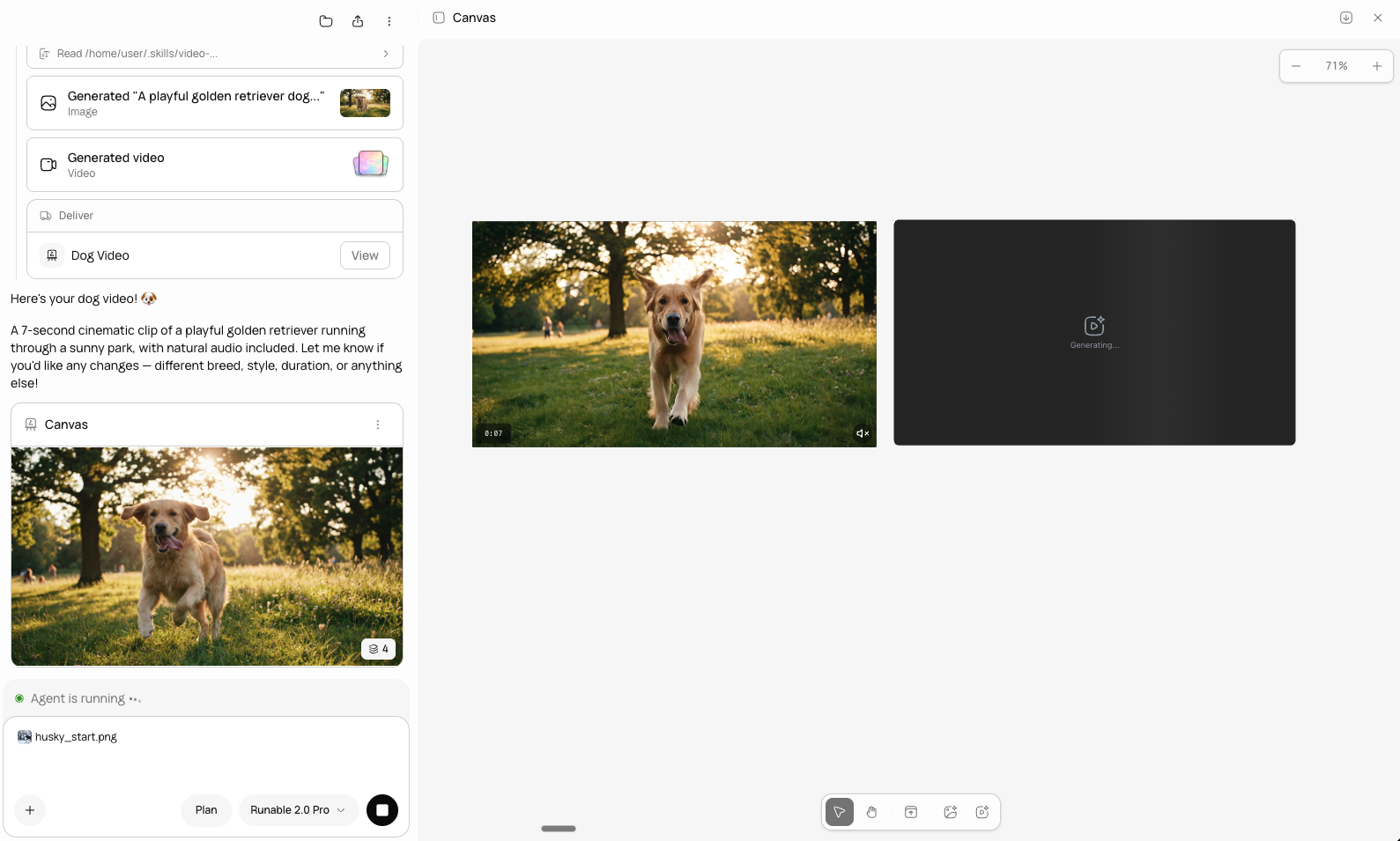 The video appears on the canvas when generation is complete. Click it to play.
If the result needs changes:
* **Ask the agent** — Describe what to change. The agent can regenerate or refine.
* **Edit the video** — Use the video editing tools on the canvas. See [Edit a Video](/generate-media/ai-videos/edit-a-video).
* **Generate again** — Ask for a new version with an updated prompt.
## Download your video
Click any video on the canvas, then click the **Download** button. Videos download as MP4 files.
## Next steps
Use a still image as the starting frame for your video.
Change the style or content of an existing video.
The video appears on the canvas when generation is complete. Click it to play.
If the result needs changes:
* **Ask the agent** — Describe what to change. The agent can regenerate or refine.
* **Edit the video** — Use the video editing tools on the canvas. See [Edit a Video](/generate-media/ai-videos/edit-a-video).
* **Generate again** — Ask for a new version with an updated prompt.
## Download your video
Click any video on the canvas, then click the **Download** button. Videos download as MP4 files.
## Next steps
Use a still image as the starting frame for your video.
Change the style or content of an existing video.