> ## Documentation Index
> Fetch the complete documentation index at: https://docs.runable.com/llms.txt
> Use this file to discover all available pages before exploring further.
# Generate from an Image
> Turn a still image into an animated video clip by describing the motion you want.
Image-to-video generation takes a still image as the starting frame and animates it based on your prompt. The AI preserves the visual content of your image and adds the motion you describe.
## How to generate a video from an image
On the home dashboard, click the artifact picker and select **Generate Videos**.
Set the aspect ratio and audio toggle. The same options apply as text-to-video generation.
Muted videos use half the credits. Turn audio off if you do not need spoken dialogue or ambient sound.
Click the **+** button in the input bar and upload the image you want to animate. This image becomes the first frame of the video.
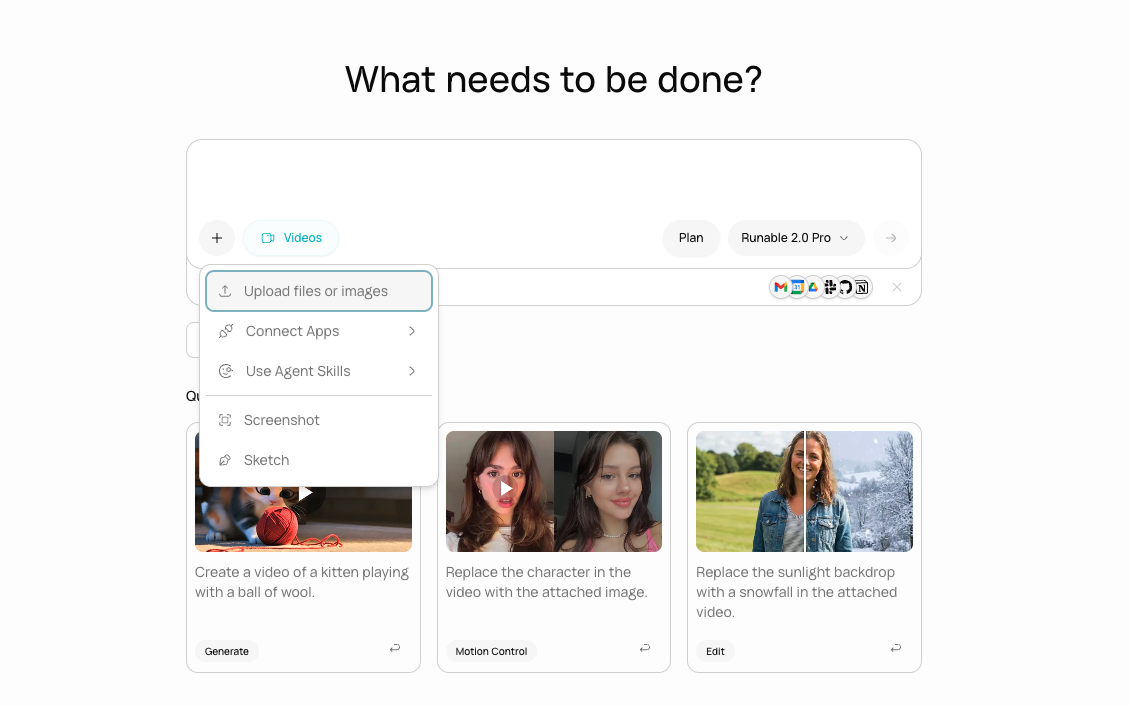 Type a prompt describing what should happen in the video. Focus on motion, not on what the image looks like (the AI already has the image).
I uploaded a photo of our coffee bag on a marble countertop. Slowly zoom in on the bag over 5 seconds. Add a subtle steam effect rising from behind it as if there is a fresh cup just out of frame. Warm lighting shifts slightly from left to right. 9:16 for Instagram Reels. Generate muted.
I uploaded a photo of our gym's exterior at dusk. Animate the scene: turn on the interior lights gradually, add a few people walking past on the sidewalk, and add a subtle flicker to the neon sign. 8 seconds, 16:9. Generate with audio, city street ambiance.
I uploaded a top-down photo of our grain bowl. Animate the tahini drizzle slowly pouring across the bowl from top to bottom over 6 seconds. The rest of the food stays still. Warm natural lighting. 1:1 square. Generate muted.
The agent generates the video using your image as the starting frame. A placeholder appears on the canvas while it processes.
The video appears on the canvas. Click to play. If the motion is not right, describe what to change or generate again with an updated prompt.
## A→B transitions
You can provide both a starting image and an ending image. The AI generates a smooth transition between the two states.
Upload two images: one for the start and one for the end. Mention in your prompt which is the start and which is the end.
Explain what changes between the two frames.
Start frame is the closed gift box. End frame is the open box with the product visible inside. Generate a smooth 5-second transition where the lid lifts off and the camera tilts down to reveal the contents. Soft studio lighting.
Start frame is the empty room. End frame is the same room fully furnished. Generate an 8-second morph transition where the furniture fades in piece by piece. Same camera angle throughout.
A→B transitions work best when the two images share a similar composition and the change between them is clear: a position shift, a state change, or a visual transformation.
## What you cannot do
* You cannot use a video as the source (image only). Use [Edit a Video](/edit-a-video) for video-to-video changes.
* You cannot control exact frame-by-frame motion. The AI interprets your prompt.
* You cannot set a specific frame rate. The model determines this.
## Next steps
Transfer motion from a reference video onto your image for precise control.
Change the style or content of an existing video clip.
Type a prompt describing what should happen in the video. Focus on motion, not on what the image looks like (the AI already has the image).
I uploaded a photo of our coffee bag on a marble countertop. Slowly zoom in on the bag over 5 seconds. Add a subtle steam effect rising from behind it as if there is a fresh cup just out of frame. Warm lighting shifts slightly from left to right. 9:16 for Instagram Reels. Generate muted.
I uploaded a photo of our gym's exterior at dusk. Animate the scene: turn on the interior lights gradually, add a few people walking past on the sidewalk, and add a subtle flicker to the neon sign. 8 seconds, 16:9. Generate with audio, city street ambiance.
I uploaded a top-down photo of our grain bowl. Animate the tahini drizzle slowly pouring across the bowl from top to bottom over 6 seconds. The rest of the food stays still. Warm natural lighting. 1:1 square. Generate muted.
The agent generates the video using your image as the starting frame. A placeholder appears on the canvas while it processes.
The video appears on the canvas. Click to play. If the motion is not right, describe what to change or generate again with an updated prompt.
## A→B transitions
You can provide both a starting image and an ending image. The AI generates a smooth transition between the two states.
Upload two images: one for the start and one for the end. Mention in your prompt which is the start and which is the end.
Explain what changes between the two frames.
Start frame is the closed gift box. End frame is the open box with the product visible inside. Generate a smooth 5-second transition where the lid lifts off and the camera tilts down to reveal the contents. Soft studio lighting.
Start frame is the empty room. End frame is the same room fully furnished. Generate an 8-second morph transition where the furniture fades in piece by piece. Same camera angle throughout.
A→B transitions work best when the two images share a similar composition and the change between them is clear: a position shift, a state change, or a visual transformation.
## What you cannot do
* You cannot use a video as the source (image only). Use [Edit a Video](/edit-a-video) for video-to-video changes.
* You cannot control exact frame-by-frame motion. The AI interprets your prompt.
* You cannot set a specific frame rate. The model determines this.
## Next steps
Transfer motion from a reference video onto your image for precise control.
Change the style or content of an existing video clip.