> ## Documentation Index
> Fetch the complete documentation index at: https://docs.runable.com/llms.txt
> Use this file to discover all available pages before exploring further.
# Environment Variables
> Add API keys, secrets, and configuration values to your website.
Environment variables let you store API keys, secrets, and configuration values that your website's code needs at runtime. They are stored securely and injected into your website during build and deployment.
## How to manage environment variables
Go to the chat where your website was built. Click the **Dashboard** tab, then select **Secrets** from the sidebar.
Click **Add** and enter a key-value pair. The key is the variable name (for example, `GOOGLE_MAPS_API_KEY`) and the value is the secret.
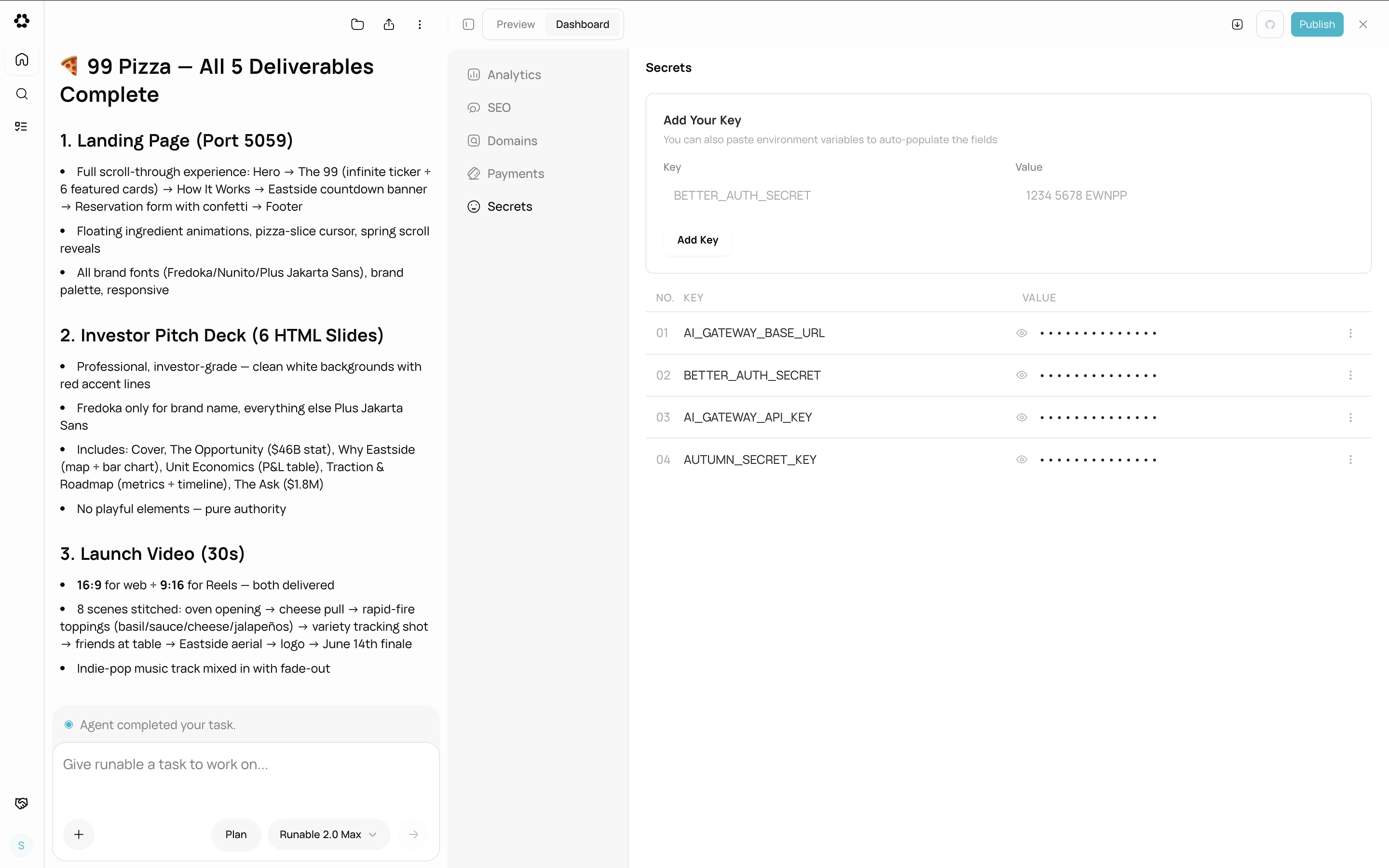 Click **Save**. The variable is written to your website's `.env.local` file. If your website is already published, the variable is also applied to the live deployment automatically.
## Protected variables
Some environment variables are managed by Runable and cannot be edited or deleted. These are set up automatically when your website is created:
| Variable | Purpose |
| --------------------- | -------------------------------------------------------------- |
| `AI_GATEWAY_BASE_URL` | URL for the AI gateway that powers AI features in your website |
| `AI_GATEWAY_API_KEY` | API key for the AI gateway |
| `BETTER_AUTH_SECRET` | Secret for the authentication system |
| `VITE_BASE_URL` | Your website's base URL |
| `AUTUMN_SECRET_KEY` | Secret for the payment billing system |
These are marked with a protected indicator in the dashboard and cannot be modified.
## When to add environment variables
* Third-party API keys (Google Maps, SendGrid, Twilio, etc.)
* Feature flags or configuration toggles
* External service credentials
* Any secret your website backend needs at runtime
Never hardcode API keys or secrets in your website's source code. Always use environment variables. The agent follows this practice automatically, but if you are adding integrations manually, put secrets here.
## Visibility
Variable values are masked by default in the dashboard. Click the eye icon to reveal a value. Click the copy button to copy it to your clipboard.
## What you cannot do
* You cannot edit protected variables. They are managed by Runable.
* You cannot access environment variables from client-side (frontend) code unless the key starts with `VITE_`. This is a Vite security feature.
* You cannot import variables from a file. Add them one at a time through the dashboard.
## Next steps
Track visitors and events on your deployed site.
Configure meta tags, Open Graph, and social previews.
Click **Save**. The variable is written to your website's `.env.local` file. If your website is already published, the variable is also applied to the live deployment automatically.
## Protected variables
Some environment variables are managed by Runable and cannot be edited or deleted. These are set up automatically when your website is created:
| Variable | Purpose |
| --------------------- | -------------------------------------------------------------- |
| `AI_GATEWAY_BASE_URL` | URL for the AI gateway that powers AI features in your website |
| `AI_GATEWAY_API_KEY` | API key for the AI gateway |
| `BETTER_AUTH_SECRET` | Secret for the authentication system |
| `VITE_BASE_URL` | Your website's base URL |
| `AUTUMN_SECRET_KEY` | Secret for the payment billing system |
These are marked with a protected indicator in the dashboard and cannot be modified.
## When to add environment variables
* Third-party API keys (Google Maps, SendGrid, Twilio, etc.)
* Feature flags or configuration toggles
* External service credentials
* Any secret your website backend needs at runtime
Never hardcode API keys or secrets in your website's source code. Always use environment variables. The agent follows this practice automatically, but if you are adding integrations manually, put secrets here.
## Visibility
Variable values are masked by default in the dashboard. Click the eye icon to reveal a value. Click the copy button to copy it to your clipboard.
## What you cannot do
* You cannot edit protected variables. They are managed by Runable.
* You cannot access environment variables from client-side (frontend) code unless the key starts with `VITE_`. This is a Vite security feature.
* You cannot import variables from a file. Add them one at a time through the dashboard.
## Next steps
Track visitors and events on your deployed site.
Configure meta tags, Open Graph, and social previews.