> ## Documentation Index
> Fetch the complete documentation index at: https://docs.runable.com/llms.txt
> Use this file to discover all available pages before exploring further.
# Edit a Video
> Change the style, color grade, or content of an existing video using natural language.
Video editing lets you modify an existing video clip by describing what you want changed. The AI preserves the original motion and structure while applying your edits. This works both through the agent in the chat and directly on the canvas.
Using canvas tools directly gives you more control and uses significantly fewer credits than sending a prompt to the agent. For quick style changes, always use the canvas edit tool instead of asking the agent.
## How to edit a video on the canvas
Open the canvas and click the video you want to edit.
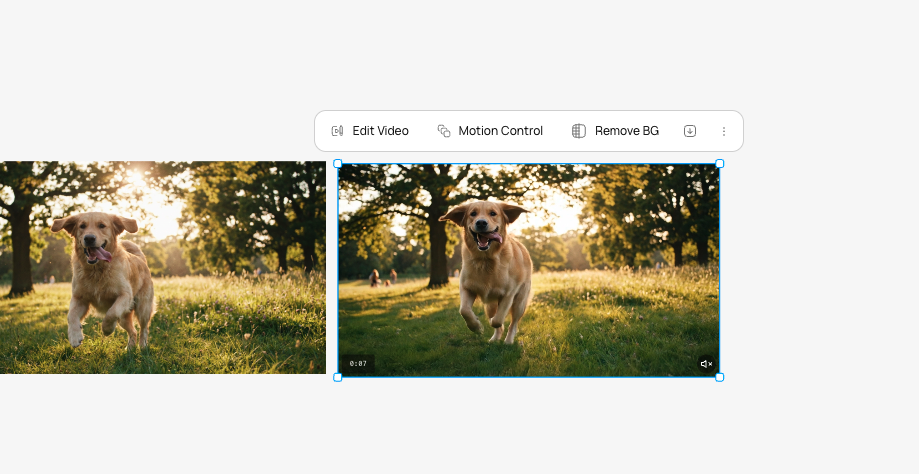
In the toolbar, click the edit option. A prompt field appears.
Type what you want changed. The AI modifies the video while keeping the original motion intact.
Apply a warm, golden hour color grade to this product video. Increase contrast slightly, add warm highlights, and soften the shadows. Keep the product colors accurate.
Restyle this gym class video with a teal and orange color grade, cinematic contrast, and subtle film grain. Make it look like a high-end fitness brand commercial.
Add our bakery logo in the bottom right corner of this video. Use @Element1 as the logo reference. Make it semi-transparent and small, like a watermark. Keep the rest of the video exactly the same.
I am attaching a reference image. Match the color palette, lighting, and mood of this reference in my video. Keep the original motion and content, change only the visual treatment.
You can also attach a style reference image. The AI matches the color palette and visual treatment of the reference.
A new edited video appears on the canvas. Your original video is preserved as a separate item.
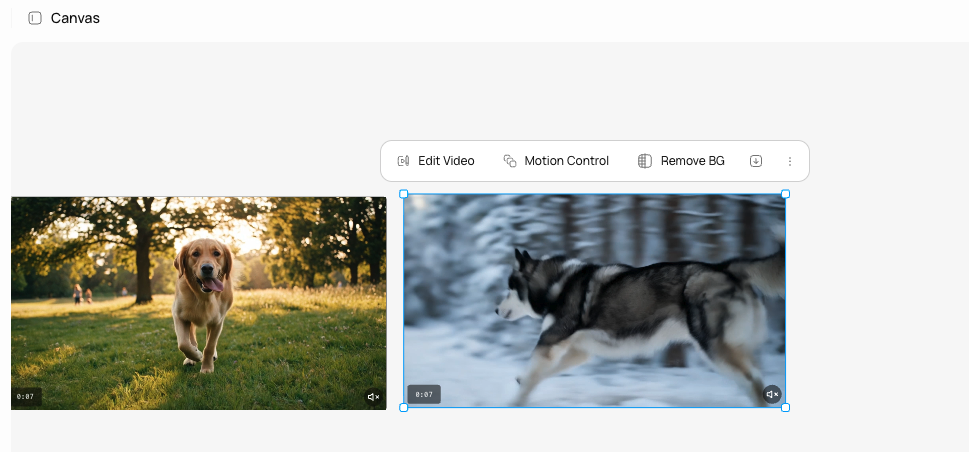
Video editing creates a new canvas item. It does not overwrite the original. You always keep both versions. The edit preserves the original audio by default.
## Types of edits
| Edit type | What to include in your prompt |
| -------------------------------- | -------------------------------------------------------------------------------------- |
| **Restyle or color grade** | Describe the visual treatment. "Teal and orange grade", "vintage film look." |
| **Match a style reference** | Attach a reference image and say "Match this visual style." |
| **Inject a character or object** | Upload an element image and reference it with @Element1 in your prompt. |
| **Change the mood** | Describe the feeling. "Make it darker and more dramatic", "brighter and more playful." |
## Source video constraints
The video you are editing must meet these requirements:
* Format: MP4 or MOV
* Duration: 3–10 seconds
* Resolution: 720p to 2160p
* File size: Under 200 MB
## What you cannot do
* You cannot edit specific frames. The AI processes the entire clip.
* You cannot change the motion or movement in the video. The original motion is preserved.
* You cannot extend the duration of a video through editing. Generate a new clip for additional length.
* You cannot edit audio separately. The original audio is kept or removed, not modified.
## Next steps
Strip the background from a video clip instantly.
Arrange multiple clips into a single video output.