> ## Documentation Index
> Fetch the complete documentation index at: https://docs.runable.com/llms.txt
> Use this file to discover all available pages before exploring further.
# Download & Export
> Download individual files or batch export multiple items from the canvas as a ZIP archive.
You can download any image or video from the canvas to your device. Download a single file or select multiple items and export them all at once as a ZIP.
## Download a single file
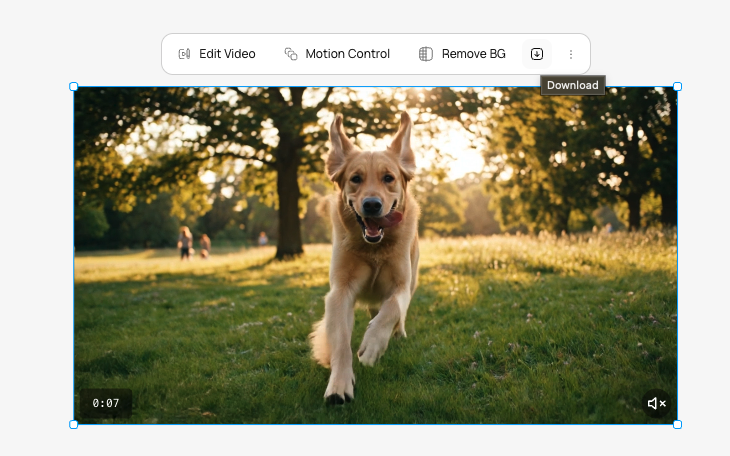
Click the image or video you want to download. The selection toolbar appears.
In the selection toolbar, click the **Download** button. The file saves to your device.
| Item type | Download format |
| --------- | --------------- |
| Image | PNG |
| Video | MP4 |
 ## Batch export as ZIP
Hold **Ctrl** (or **Cmd** on Mac) and click each item you want to export. Or use rubber-band selection by dragging a rectangle over multiple items.
With multiple items selected, click the **Download** button. All selected files are packaged into a single ZIP archive and downloaded to your device.
When multiple items are selected, Download is the only available action. Editing tools (remove BG, upscale, text edit, etc.) require a single item to be selected.
## Preview before downloading
You can preview any item at full size before downloading:
Click the image or video on the canvas.
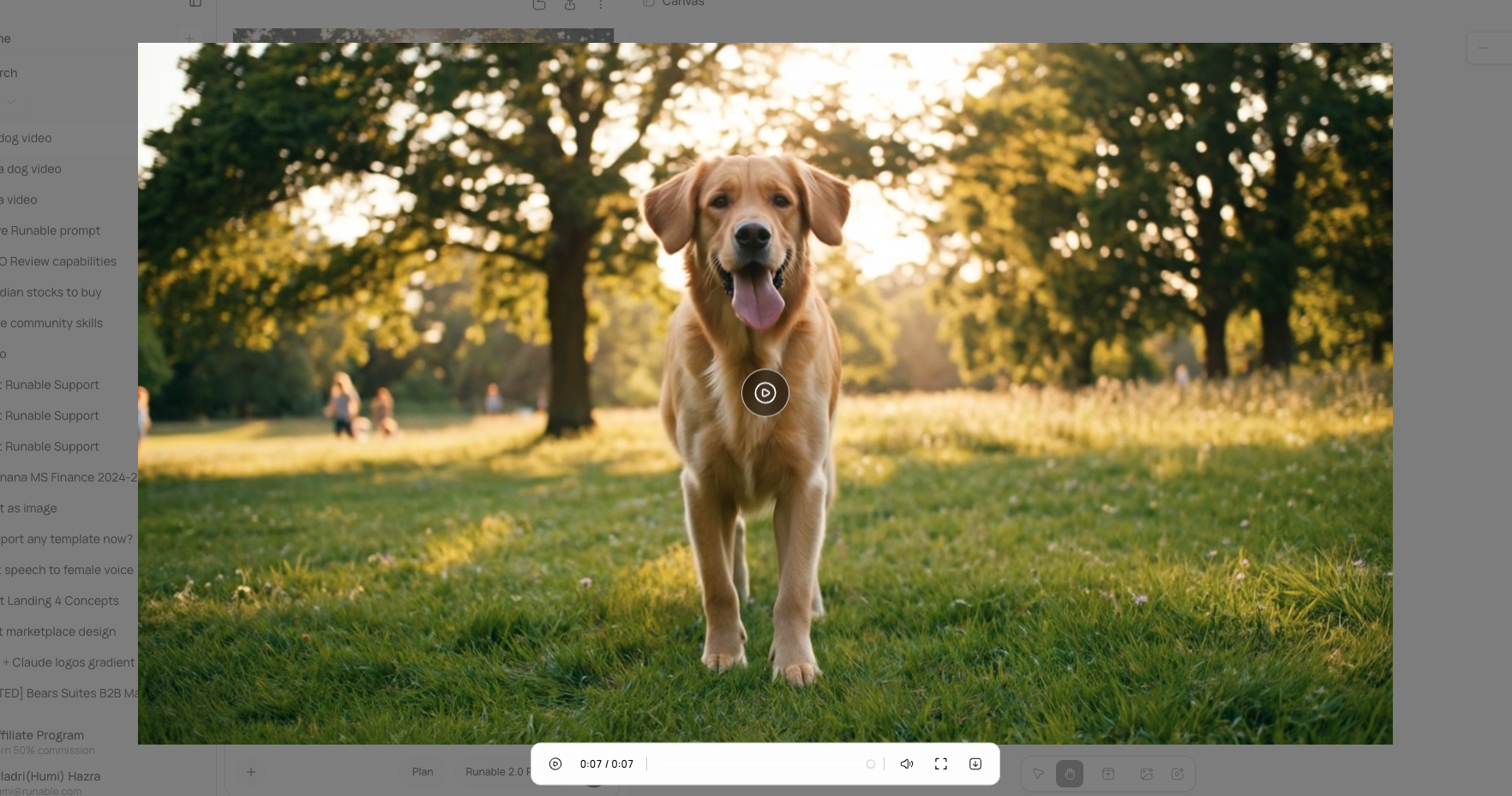
In the selection toolbar dropdown, click **Preview**. A full-screen modal opens with the image at full resolution or the video with playback controls.
## Batch export as ZIP
Hold **Ctrl** (or **Cmd** on Mac) and click each item you want to export. Or use rubber-band selection by dragging a rectangle over multiple items.
With multiple items selected, click the **Download** button. All selected files are packaged into a single ZIP archive and downloaded to your device.
When multiple items are selected, Download is the only available action. Editing tools (remove BG, upscale, text edit, etc.) require a single item to be selected.
## Preview before downloading
You can preview any item at full size before downloading:
Click the image or video on the canvas.
In the selection toolbar dropdown, click **Preview**. A full-screen modal opens with the image at full resolution or the video with playback controls.
 ## Video playback controls
When previewing a video in the full-screen modal, you have full playback controls:
| Control | Action |
| ------------------- | ------------------------------- |
| **Space / K** | Play or pause |
| **Arrow Left** | Seek back 5 seconds |
| **Arrow Right** | Seek forward 5 seconds |
| **M** | Mute or unmute |
| **Progress slider** | Scrub to any point in the video |
## What you cannot do
* You cannot choose a different file format for download. Images export as PNG, videos as MP4.
* You cannot export the entire canvas as a single flattened image.
* You cannot download items that are still generating. Wait for generation to complete.
* You cannot set a custom resolution for downloads. Files download at their current resolution. Use [Upscale](/generate-media/ai-images/upscale-an-image) to increase resolution before downloading.
## Next steps
See all image generation and editing capabilities.
See all video generation and editing capabilities.
## Video playback controls
When previewing a video in the full-screen modal, you have full playback controls:
| Control | Action |
| ------------------- | ------------------------------- |
| **Space / K** | Play or pause |
| **Arrow Left** | Seek back 5 seconds |
| **Arrow Right** | Seek forward 5 seconds |
| **M** | Mute or unmute |
| **Progress slider** | Scrub to any point in the video |
## What you cannot do
* You cannot choose a different file format for download. Images export as PNG, videos as MP4.
* You cannot export the entire canvas as a single flattened image.
* You cannot download items that are still generating. Wait for generation to complete.
* You cannot set a custom resolution for downloads. Files download at their current resolution. Use [Upscale](/generate-media/ai-images/upscale-an-image) to increase resolution before downloading.
## Next steps
See all image generation and editing capabilities.
See all video generation and editing capabilities.