> ## Documentation Index
> Fetch the complete documentation index at: https://docs.runable.com/llms.txt
> Use this file to discover all available pages before exploring further.
# Custom Domains
> Connect your own domain to your Runable website with automatic SSL.
Every deployed website gets a subdomain at **yoursite.runable.site**. You can also connect your own domain (like **yourdomain.com**) with automatic SSL certificate provisioning.
## How to connect a custom domain
Go to the chat where your website was built. Click the **Dashboard** tab in the website header, then select **Domains** from the sidebar.
Type your custom domain in the domain field. This can be a root domain (yourdomain.com) or a subdomain (app.yourdomain.com).
Runable generates a TXT record you need to add at your DNS provider. This proves you own the domain.
| Record type | Name | Value |
| ----------- | ------------------------------- | ------------------------------------------- |
| **TXT** | \_runable-verify.yourdomain.com | Your deployment ID (shown in the dashboard) |
Add this record at your DNS provider (Cloudflare, Namecheap, GoDaddy, Google Domains, etc.) and click **Verify**.
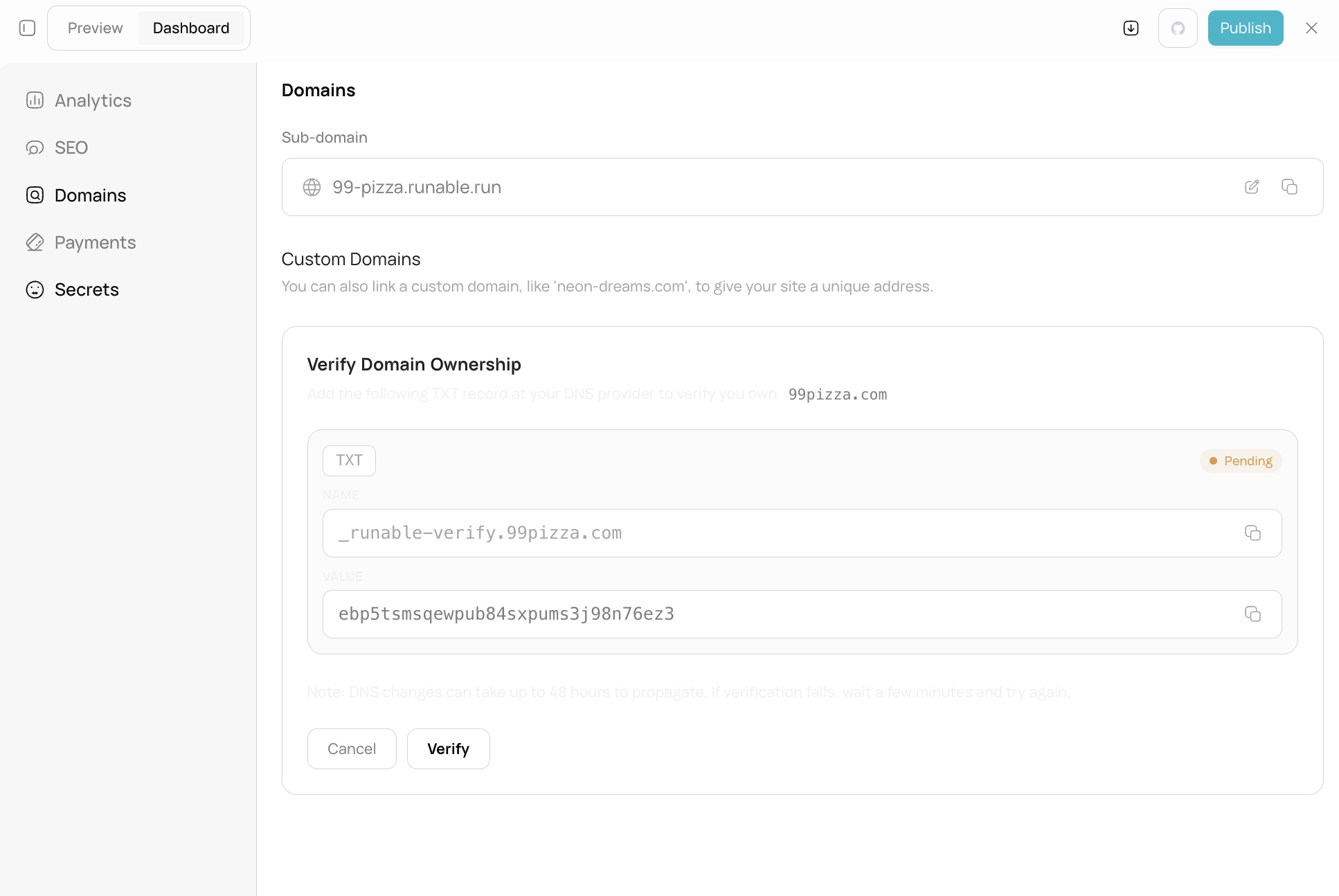
After verification, add the DNS records to route traffic to your Runable website:
**For a subdomain** (app.yourdomain.com):
| Record type | Name | Value |
| ----------- | ---- | --------------------- |
| **CNAME** | app | fallback.runable.site |
**For a root domain** (yourdomain.com):
| Record type | Name | Value |
| ----------- | ---- | ------------------------------------------------ |
| **A** | @ | Cloudflare IP addresses (shown in the dashboard) |
SSL certificates are provisioned automatically once DNS records propagate. This usually takes a few minutes but can take up to 24 hours depending on your DNS provider.
The dashboard shows the SSL status. Once active, your site is accessible at [**https://yourdomain.com**](https://yourdomain.com).
DNS propagation can take anywhere from a few minutes to 24 hours. If verification fails, wait and try again.
## Remove a custom domain
Go to **Dashboard → Domains** and click **Remove**. This disconnects the domain from your website. Your site remains accessible at its runable.site subdomain.
## What you cannot do
* You cannot connect multiple custom domains to the same website. One custom domain per deployment.
* You cannot manage SSL certificates manually. SSL is automatic.
* You cannot use a domain that is already connected to another Runable website.
## Next steps
Learn how the built-in SQLite database works.
Track visitors and events on your deployed website.