> ## Documentation Index
> Fetch the complete documentation index at: https://docs.runable.com/llms.txt
> Use this file to discover all available pages before exploring further.

# Chat Mode

> Conversational AI with web search. Research, analyze, and get answers without building anything.

Chat Mode is a conversation-only experience. The agent answers questions, researches topics, analyzes uploaded files, and searches the web. It does not write code, execute commands, generate media, or build anything.

Use Chat Mode when you need information, not artifacts.

## How to use Chat Mode

<Steps>
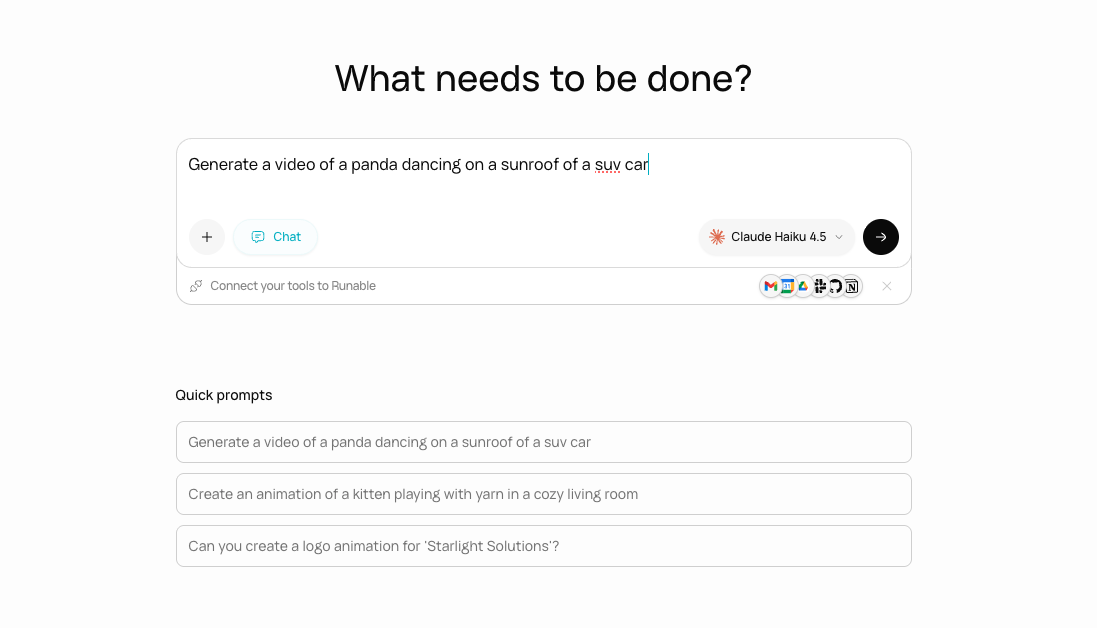
  <Step title="Click the Chat toggle">
    In the input bar, click the **Chat** button to switch to Chat Mode. The toggle is visible to the left of the model selector.

    <Frame caption="The Chat mode toggle in the input bar.">
      <img src="https://pub-51091dcf1e9d4b04bb2e74f489c4f346.r2.dev/4fd506766187da0b7a33482e2533190e6950465644d54bc04d630e73fa741999.png" alt="Input bar with the Chat toggle button highlighted, showing it switches from Agent to Chat mode" />
    </Frame>
  </Step>

  <Step title="Choose a model">
    In Chat Mode, you select a specific model from the dropdown instead of a tier. Choose from all available models across Anthropic, Google, OpenAI, and xAI.

    Your model selection is saved in your browser and persists across sessions.
  </Step>

  <Step title="Type your message">
    Ask your question or describe what you want to research. Attach files if you want the agent to analyze something.

    <Prompt description="Research a topic.">
      What are the latest developments in AI regulation in the EU? Summarize the key proposals and their implications for startups.
    </Prompt>

    <Prompt description="Analyze an uploaded document.">
      Read this PDF and give me a summary of the main findings, key recommendations, and any data worth highlighting.
    </Prompt>
  </Step>
</Steps>

## What Chat Mode can do

| Capability           | How it works                                          |
| -------------------- | ----------------------------------------------------- |
| **Answer questions** | Draws on the model's knowledge to answer any question |
| **Search the web**   | Finds current information and cites sources           |
| **Analyze files**    | Reads uploaded PDFs, images, and documents            |
| **Research topics**  | Multi-step research with web search and synthesis     |

<Note>
  Chat Mode has access to web search and documentation lookup only. It cannot execute code, generate images, create files, or use any of the 14 tools available in Agent Mode.
</Note>

## How Chat Mode differs from Agent Mode

<Columns>
  <div>
    ### Chat Mode

    * Conversation only
    * You pick a specific model
    * Web search and file analysis
    * No sandbox, no code execution
    * No media generation
    * No file creation or editing
  </div>

  <div>
    ### Agent Mode

    * Full task execution
    * You pick a tier (Lite/Pro/Max)
    * tools and built-in skills
    * Private sandbox with code execution
    * Images, videos, audio, websites
    * Files, presentations, reports, spreadsheets
  </div>
</Columns>

## When to use Chat Mode

* Quick questions that do not require building anything.
* Research and analysis where you need web search and cited sources.
* Reviewing and summarizing uploaded documents.
* Brainstorming and ideation before starting a project in Agent Mode.
* Using a specific model for a conversation (instead of the tier-based selection in Agent Mode).

## What you cannot do in Chat Mode

* You cannot generate images, videos, audio, or any media.
* You cannot write, execute, or edit code.
* You cannot create websites, slides, reports, or any artifacts.
* You cannot use rollback or branching. These are Agent Mode features.
* You cannot switch to Agent Mode mid-conversation. Start a new chat.

## Next steps
<CardGroup cols={2}>
  <Card title="Plan Mode" icon="list-check" href="/chat/plan-mode">
    Make the agent research and plan before building.
  </Card>

  <Card title="Agent Mode" icon="bolt" href="/chat/agent-mode">
    Switch to Agent Mode for full task execution.
  </Card>
</CardGroup>
