> ## Documentation Index
> Fetch the complete documentation index at: https://docs.runable.com/llms.txt
> Use this file to discover all available pages before exploring further.
# Canvas Basics
> Upload files, arrange items, zoom, pan, and navigate the AI Canvas workspace.
This page covers the fundamentals of working on the canvas: uploading files, moving items around, zooming, selecting, and using keyboard shortcuts.
## Upload files to the canvas
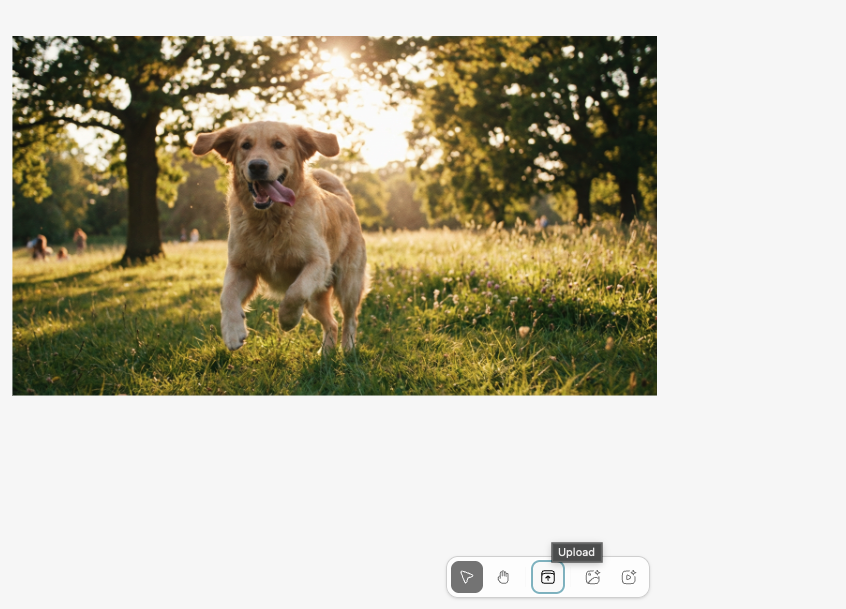
You can add images and videos to the canvas in three ways:
* **Drag and drop** - Drag files from your device directly onto the canvas.
* **File picker** - Click the **Upload** button in the bottom toolbar and select files from your device.
* **Paste from clipboard** - Copy an image and press **Ctrl+V** (or **Cmd+V** on Mac) to paste it onto the canvas.
| Limit | Value |
| ------------------------ | --------------------------------------------------------------------------- |
| Maximum files per upload | 20 |
| Maximum file size | 25 MB per file |
| Supported types | All image formats (PNG, JPG, WEBP, etc.) and video formats (MP4, MOV, etc.) |
Uploaded files are placed automatically on the canvas in a grid layout. The canvas uses a 6-column grid to position new items without overlapping existing ones.
## Navigate the canvas
### Pan
* **Hand tool** - Click the Hand tool in the bottom toolbar, then click and drag to pan around the canvas.
* **Mouse** - With the Select tool active, click and drag on empty space to pan.
* **Touch** - On mobile or tablet, drag with one finger on empty space.
### Zoom
* **Scroll wheel** - Scroll up to zoom in, scroll down to zoom out.
* **Pinch** - On touch devices, pinch to zoom in and out.
* **Zoom controls** - Use the zoom buttons in the top right corner of the canvas. The current zoom level is displayed between the buttons.
* **Fit to content** - Click the fit button in the zoom controls to zoom out and see all items on the canvas at once.
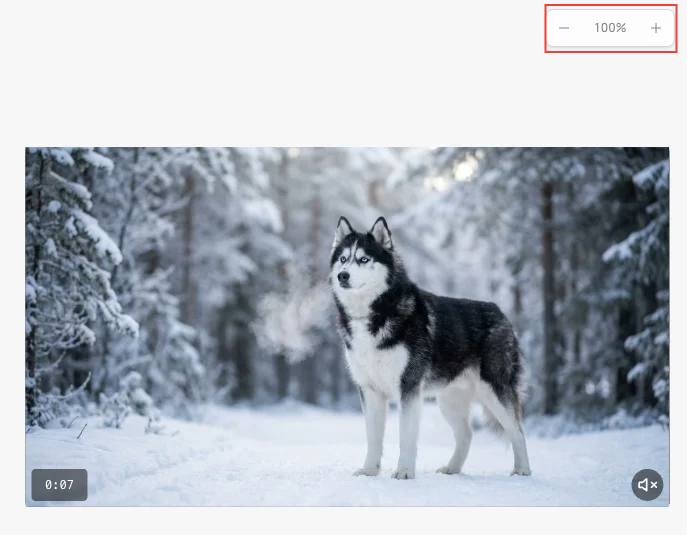
The canvas supports zoom levels from 10% to 500%.
## Select items
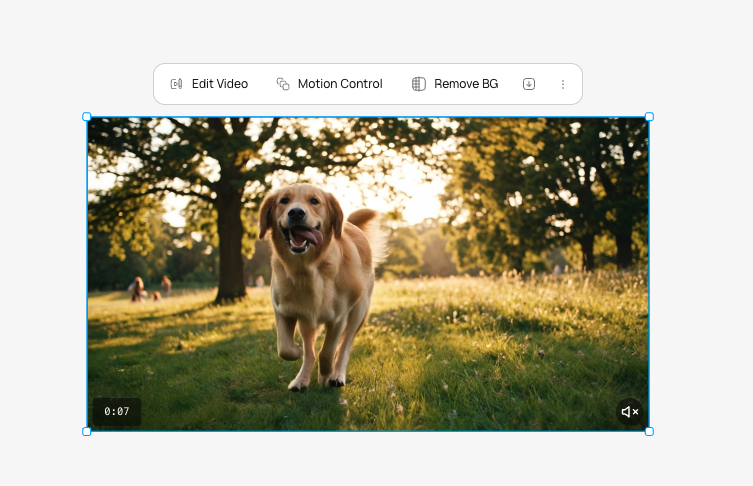
* **Click** - Click any item to select it. A selection border and resize handles appear.
* **Multi-select** - Hold **Ctrl** (or **Cmd** on Mac) and click multiple items to select them together.
* **Rubber-band select** - Click and drag on empty space with the Select tool to draw a selection rectangle. All items inside it are selected.
## Move and resize items
* **Move** - Click and drag any selected item to reposition it on the canvas.
* **Resize** - Drag the handles around a selected item to resize it. The aspect ratio is maintained.
## Duplicate items
Select one or more items and duplicate them. The copies are placed at the next available grid position on the canvas.
## Delete items
Select one or more items and press **Delete** or **Backspace** to remove them from the canvas.
## Keyboard shortcuts
| Shortcut | Action |
| ---------------------- | ------------------------------------------------ |
| **Delete / Backspace** | Remove selected items |
| **Ctrl+C / Cmd+C** | Copy selected items |
| **Ctrl+V / Cmd+V** | Paste copied items or paste image from clipboard |
## Canvas tools
The bottom toolbar has two modes:
### Select tool
The default mode. Click items to select them. Drag to move. Drag handles to resize. Draw a rectangle to multi-select.
### Hand tool
Pan mode. Click and drag anywhere to move around the canvas. Items cannot be selected or moved in this mode. Useful for navigating large canvases.
## Next steps
Create images from text directly on the canvas workspace.
Create videos from text or images directly on the canvas.